Introduction
For example, suppose you create a content type called “Organization” in Drupal and create content items for “The University of Tokyo” and “Kyoto University.”
At this point, assume that IDs from the Research Organization Registry (ROR) are also registered as follows.
| Title | ID |
|---|---|
| The University of Tokyo | 057zh3y96 |
| Kyoto University | 02kpeqv85 |
Now, let’s try referencing this content from another content type (for example, a “Researcher” content type) using an affiliation field. When you type something like “University,” the two registered content items are displayed as shown below.

On the other hand, entering part of an ID such as 057 does not display the registered content.

In this article, we aim to make content searchable not only by title but also by other fields.
Method
Creating a View
After logging into Drupal, access the following URL to add a view.
/admin/structure/views/add
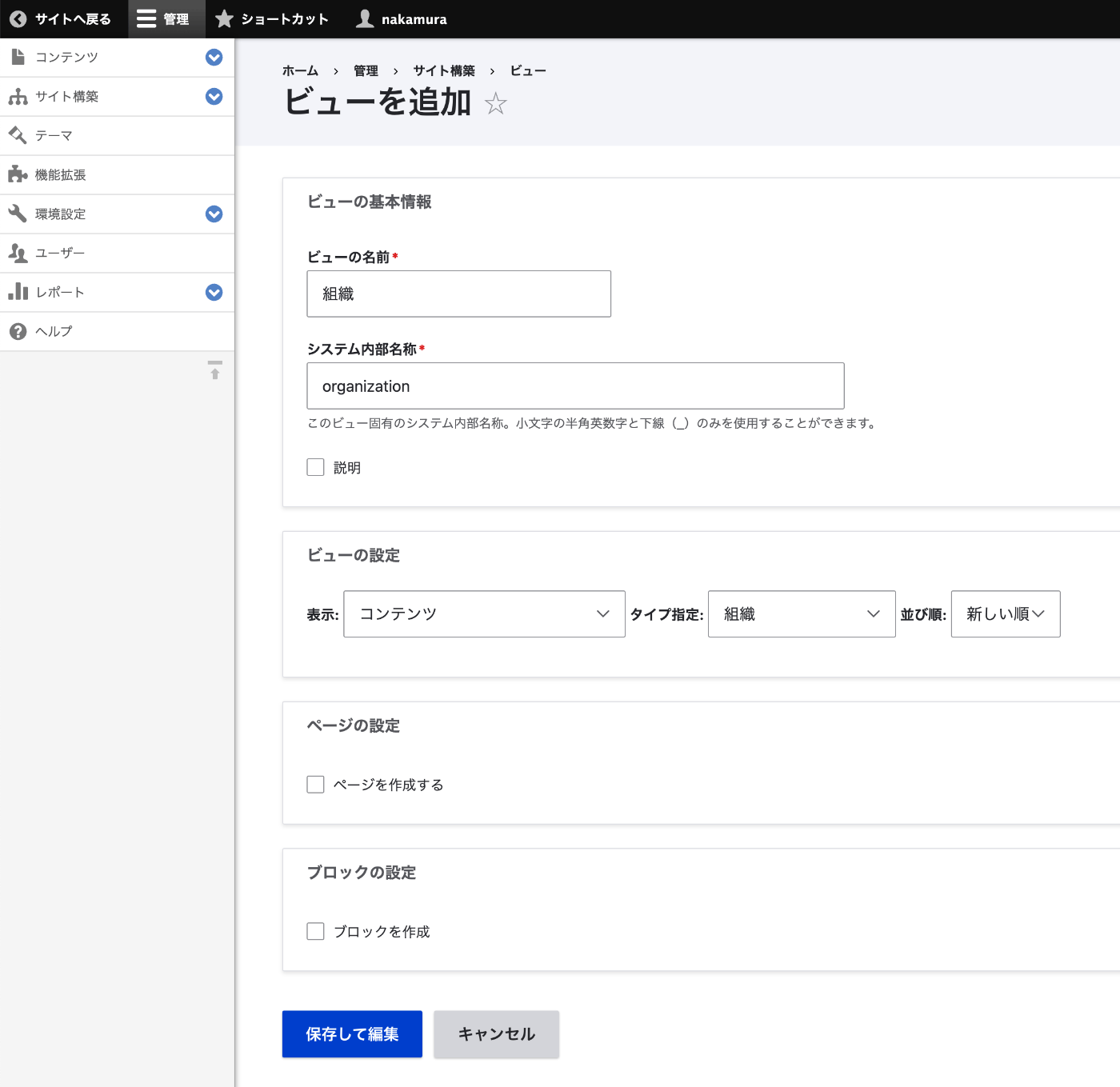
Here, we set the basic information for the view as “Organization” / “organization” and limit the content type to “Organization” in the view settings.
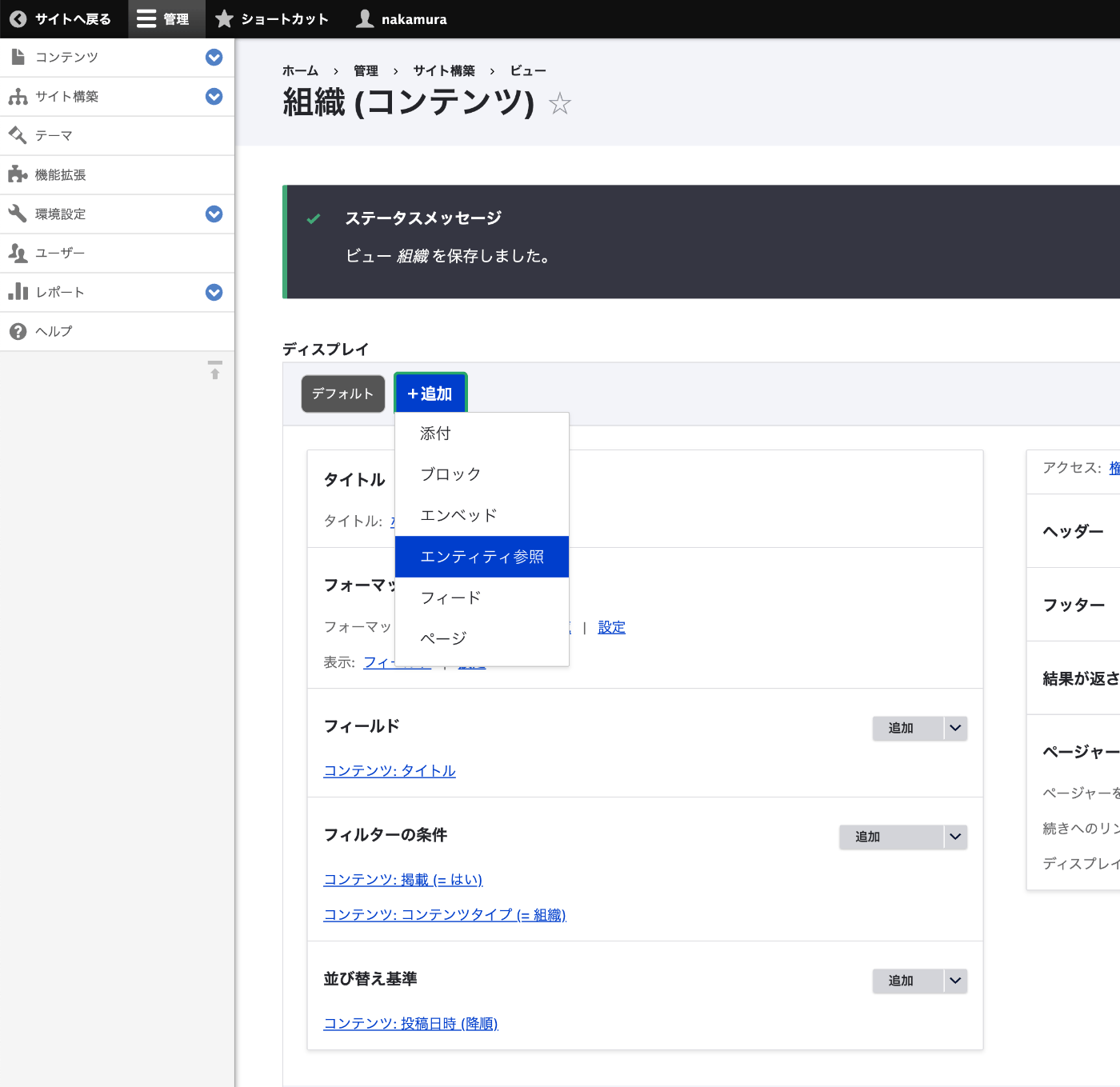
On the next screen, click the “+ Add” button and select “Entity Reference” as shown below.
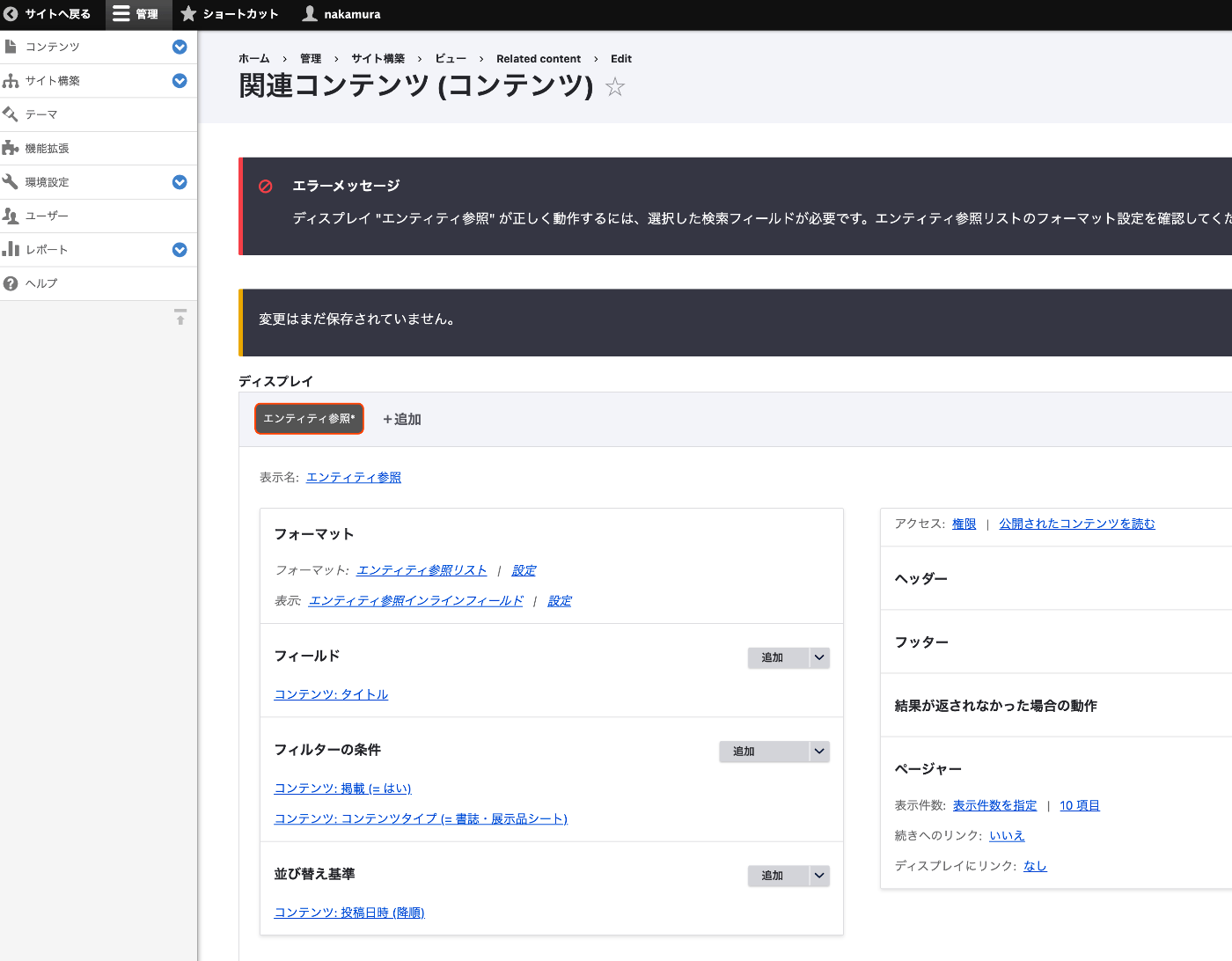
The following message is displayed.
The display “Entity Reference” requires the selected search fields to work correctly. Please check the entity reference list format settings.
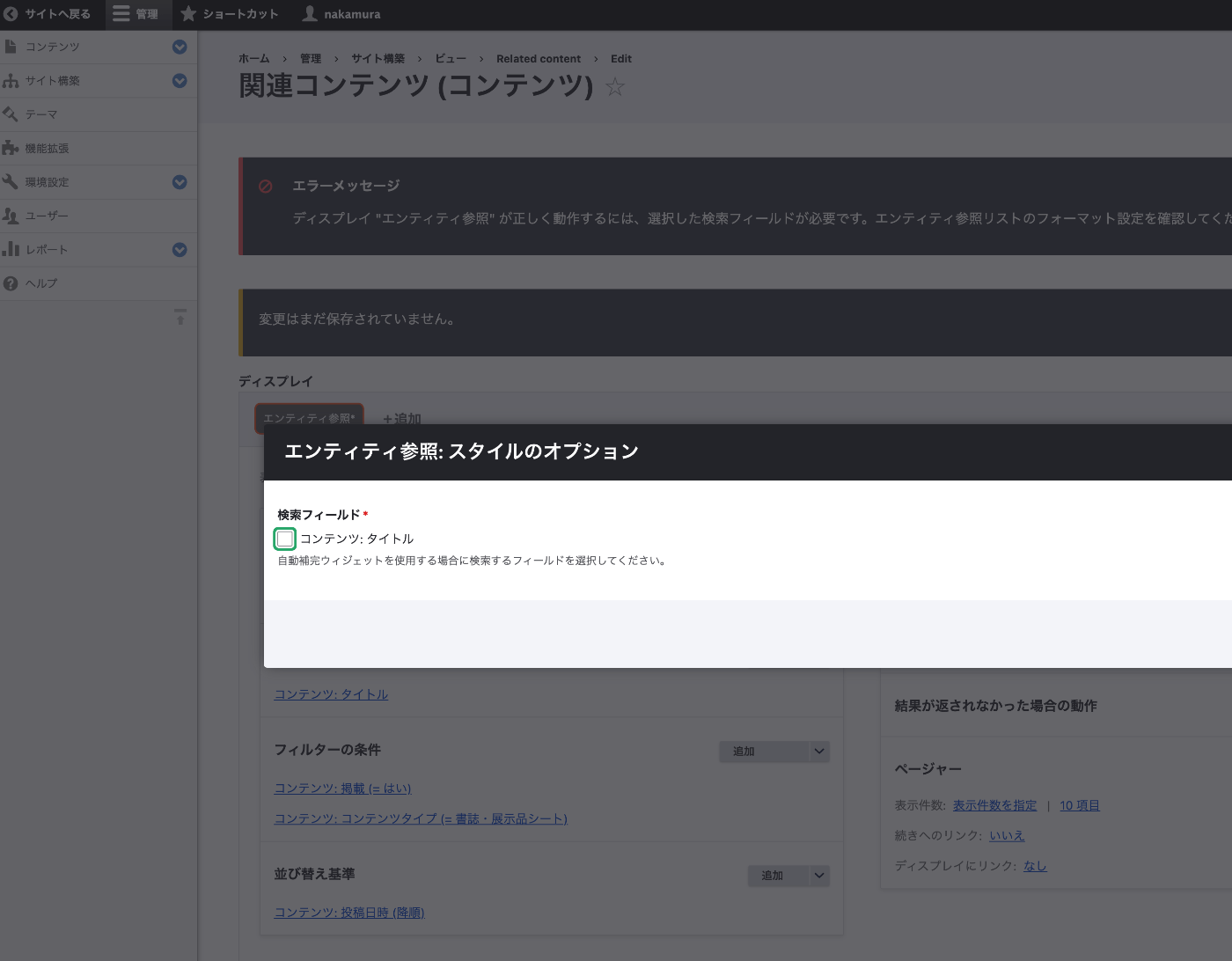
To address this message, you need to click Format > Format > Settings and check the Search fields checkboxes as shown below.
As a result, the title is displayed as shown below.

Adding the ID Field
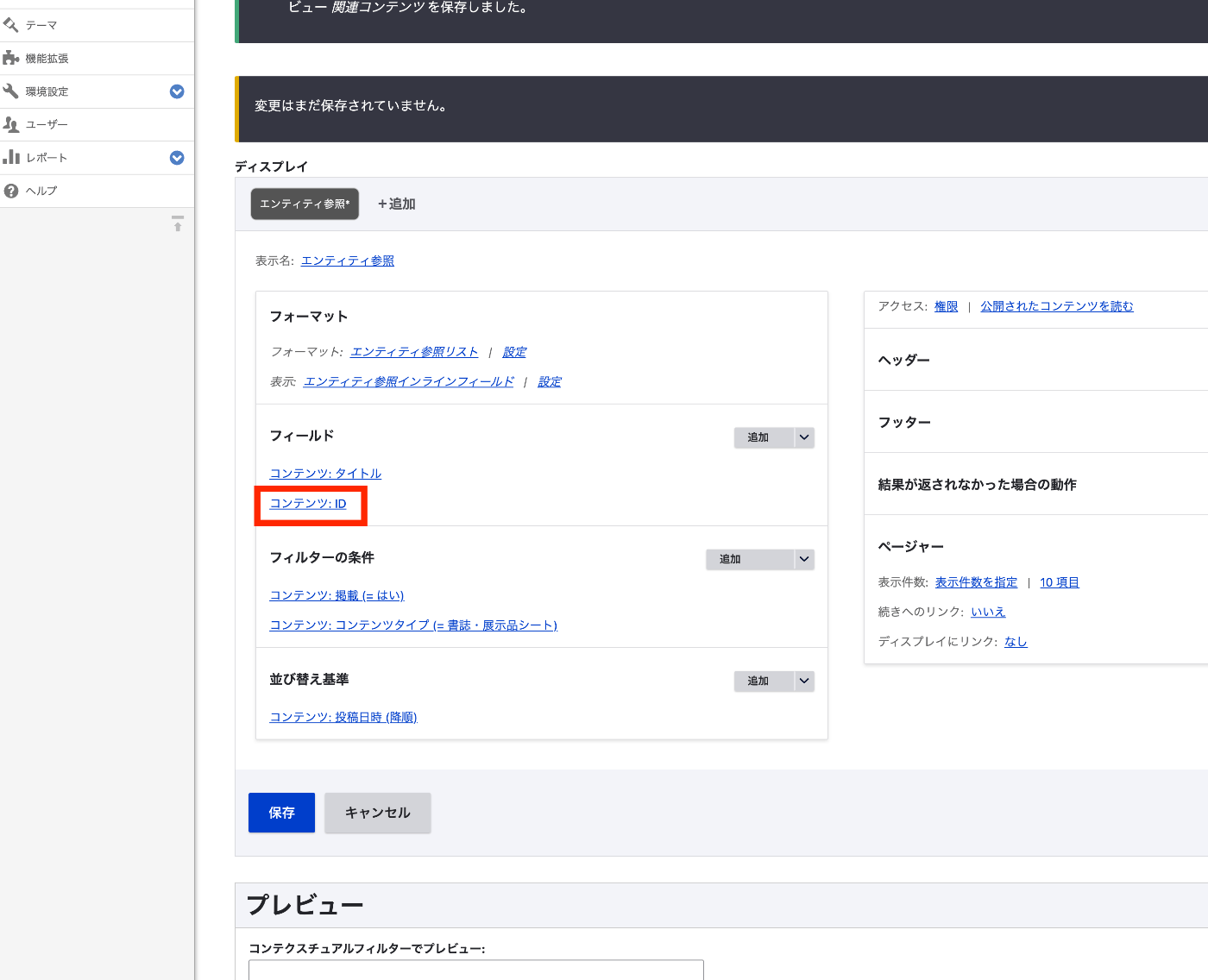
Next, add the ID field.
From Fields > Add, add the desired field (in this case, ID).
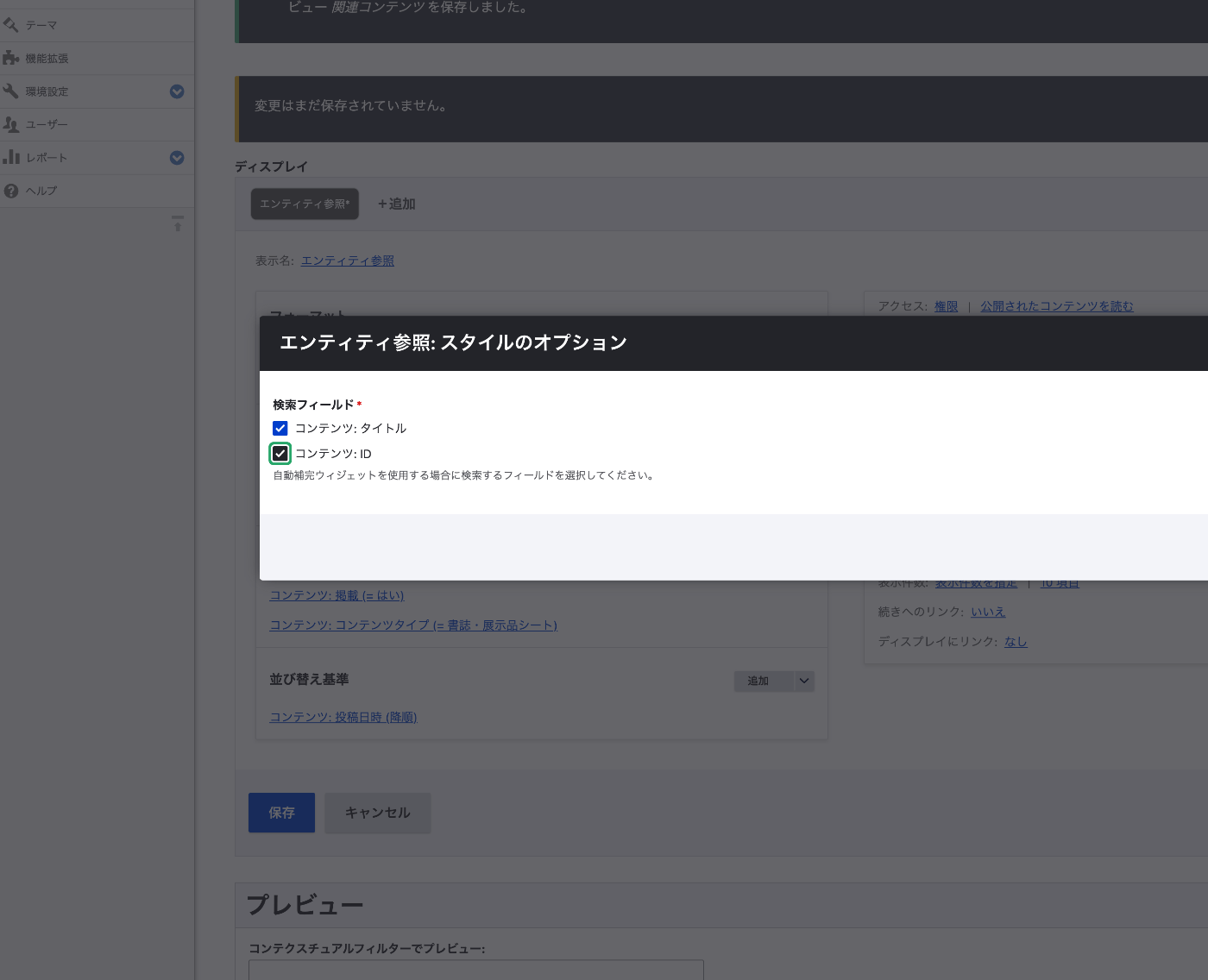
Then, from Format > Format > Settings, also check ID.
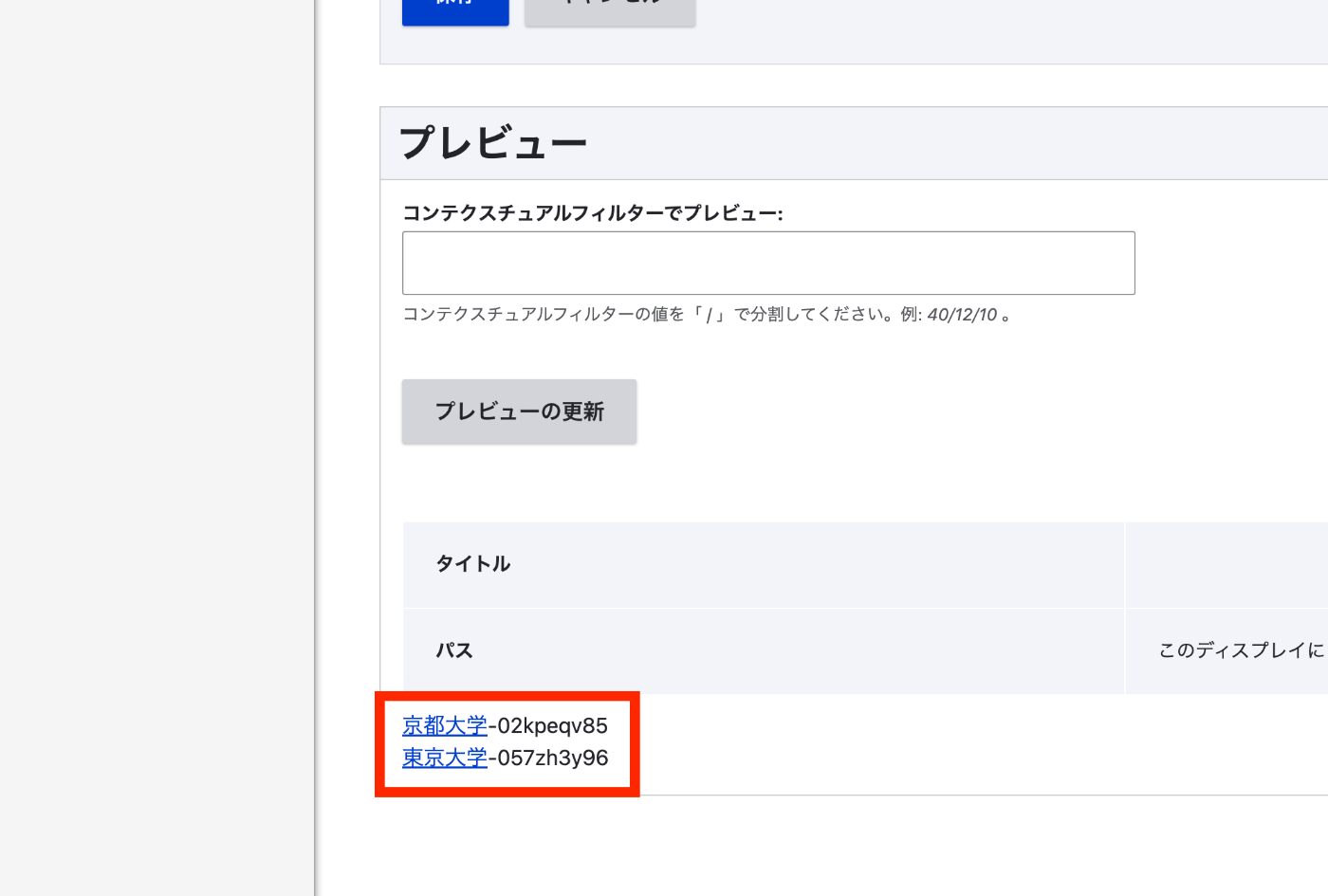
As a result, title and ID pairs are now displayed as shown below.
Let’s rearrange the order from Fields > Sort.
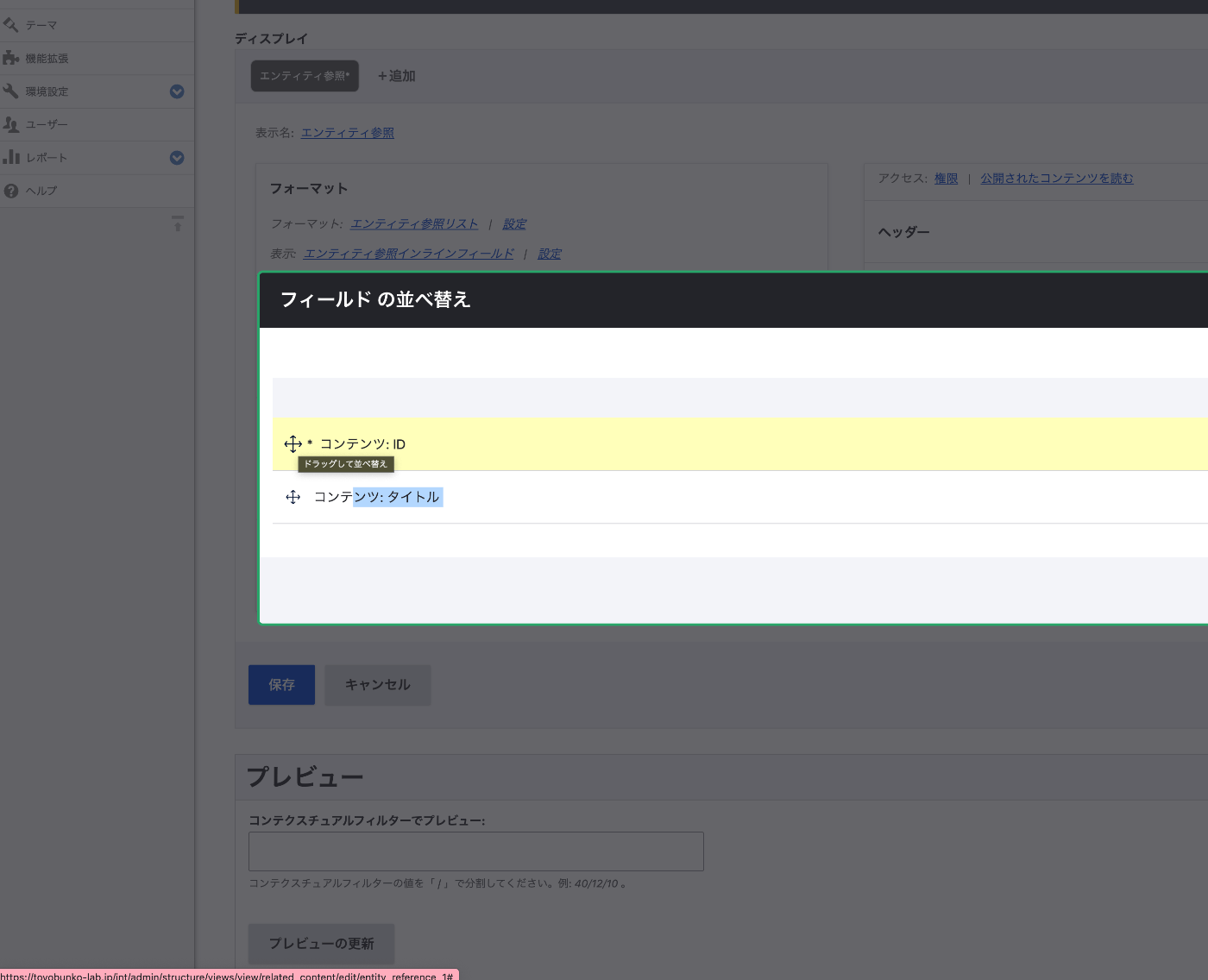
As a result, the ID now appears first as shown below.

For IDs, ascending order is often desirable, so let’s also change the sort order. Specifically, add the ID field under Sort criteria and set it to Ascending.
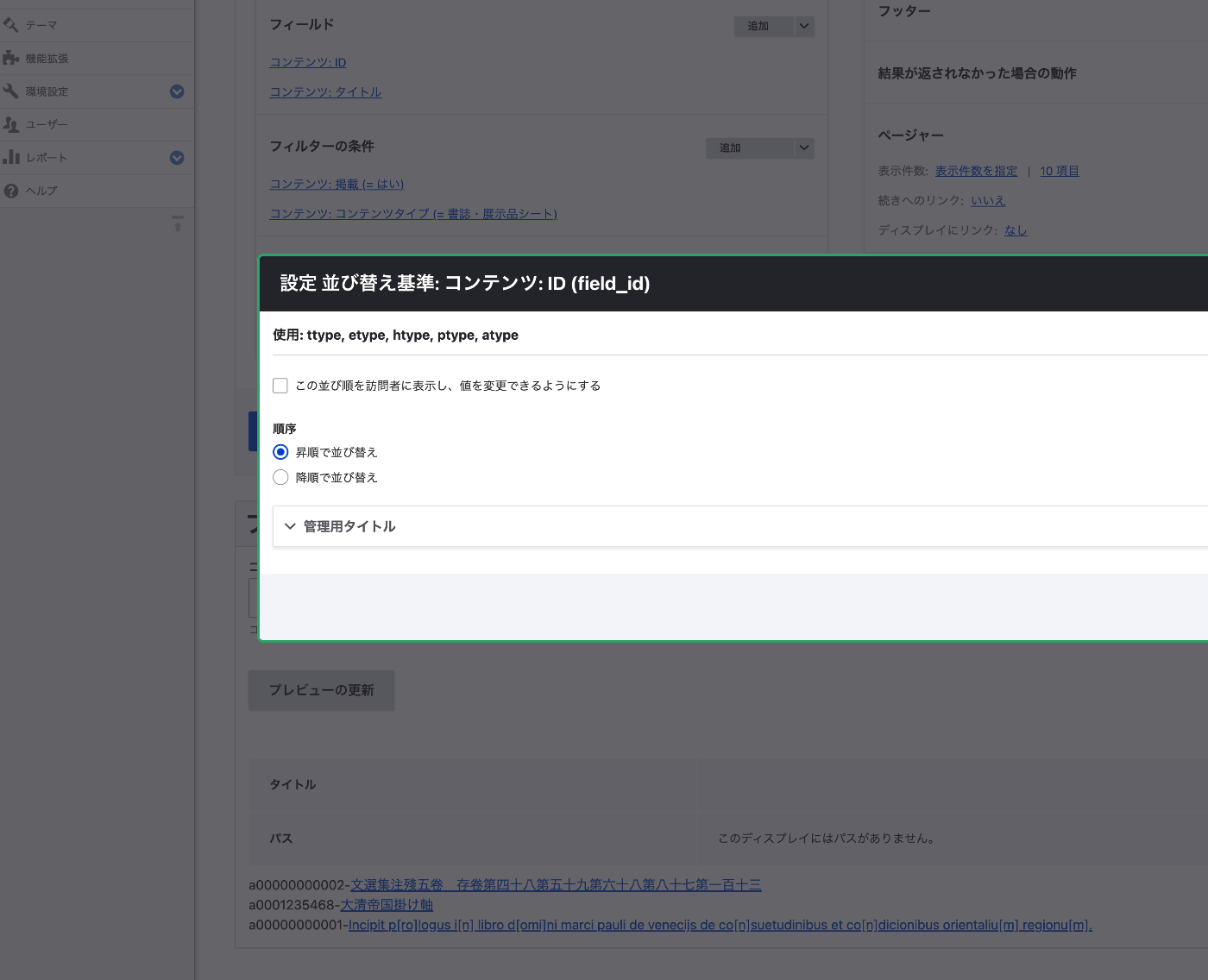
Also, remove the Content: Post date that was registered by default.
As a result, entity references are now sorted in ascending order by ID. (In this case, there is no visible change on the screen.)
Then click the “Save” button to save the settings.
Applying to Field Management
Let’s apply the created view to field management. First, access the content type list page.
/admin/structure/types
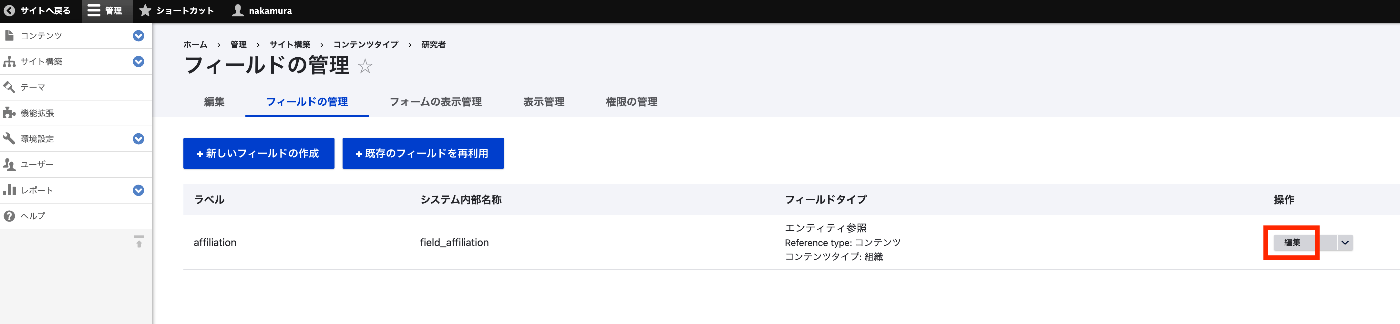
Here, select “Researcher.” The fields defined for the “Researcher” content type are displayed as shown below. Click the edit button for the “affiliation” field.
Then, in the reference type settings, set “Reference method” to “Views: Filter by an entity reference view” and set “View used to select the entities” to the “organization - Entity Reference” view we just created.
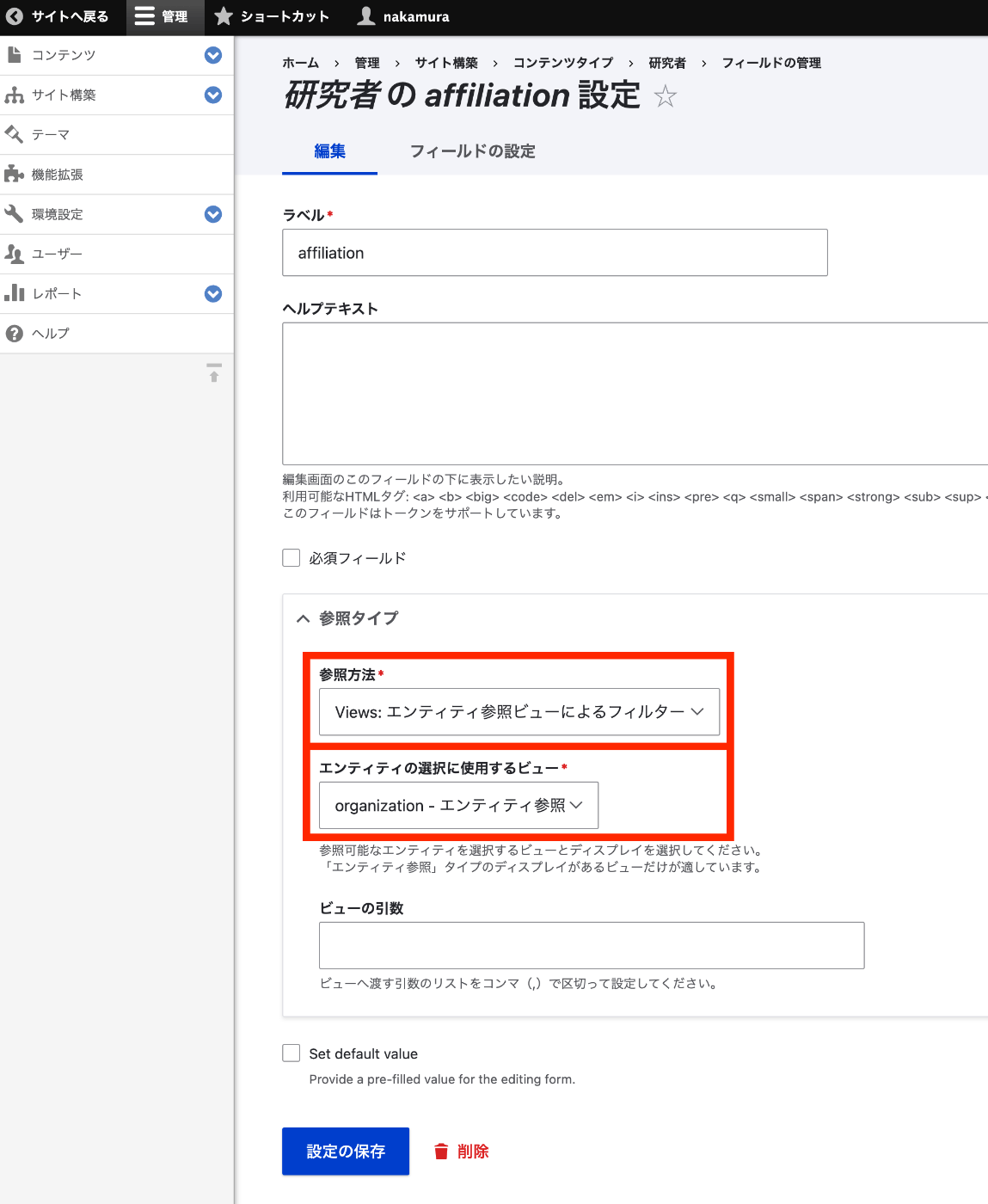
Then click “Save settings.”
Testing Content Editing
When entering part of an ID in the affiliation field on the content editing screen again, the registered content can now be referenced.
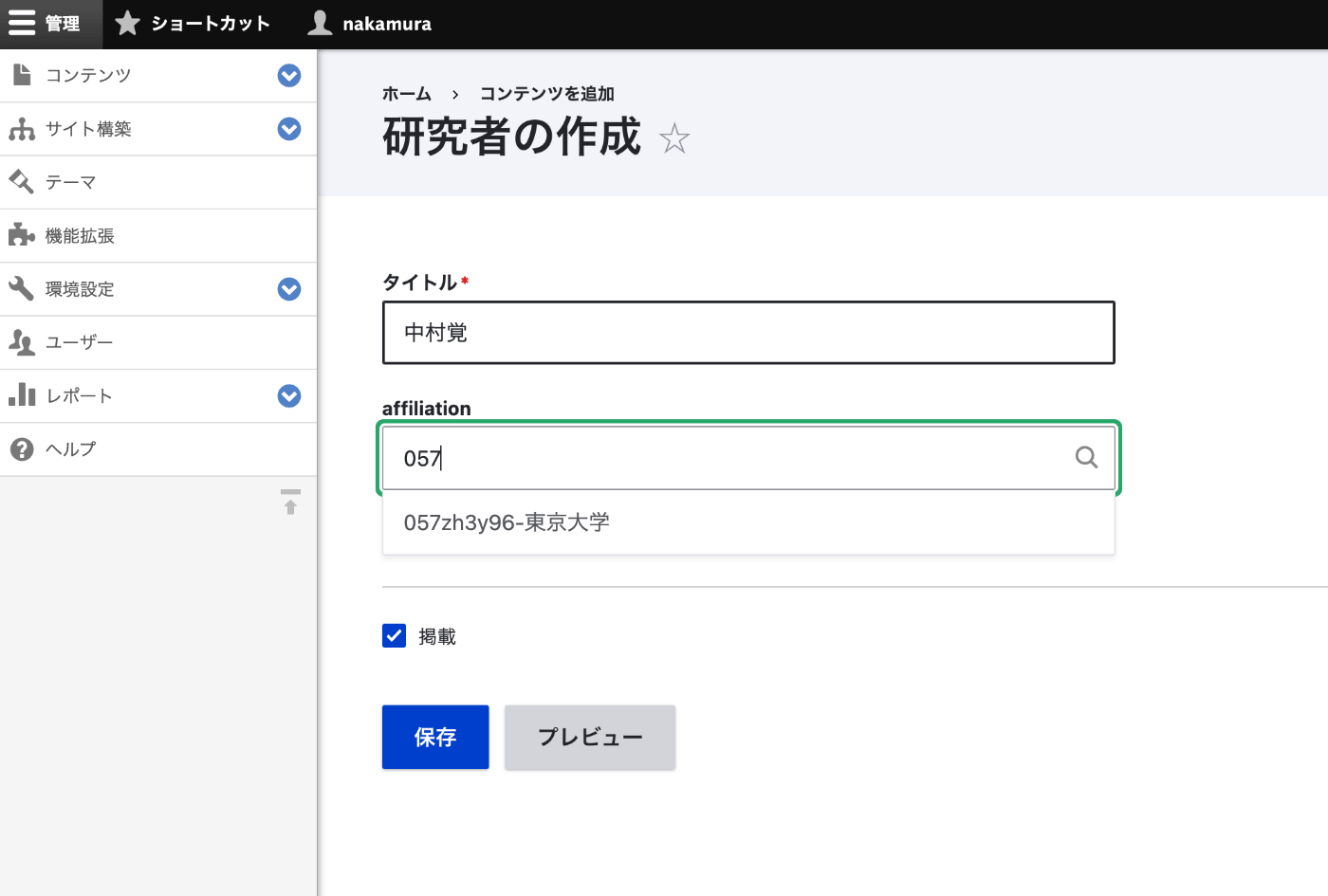
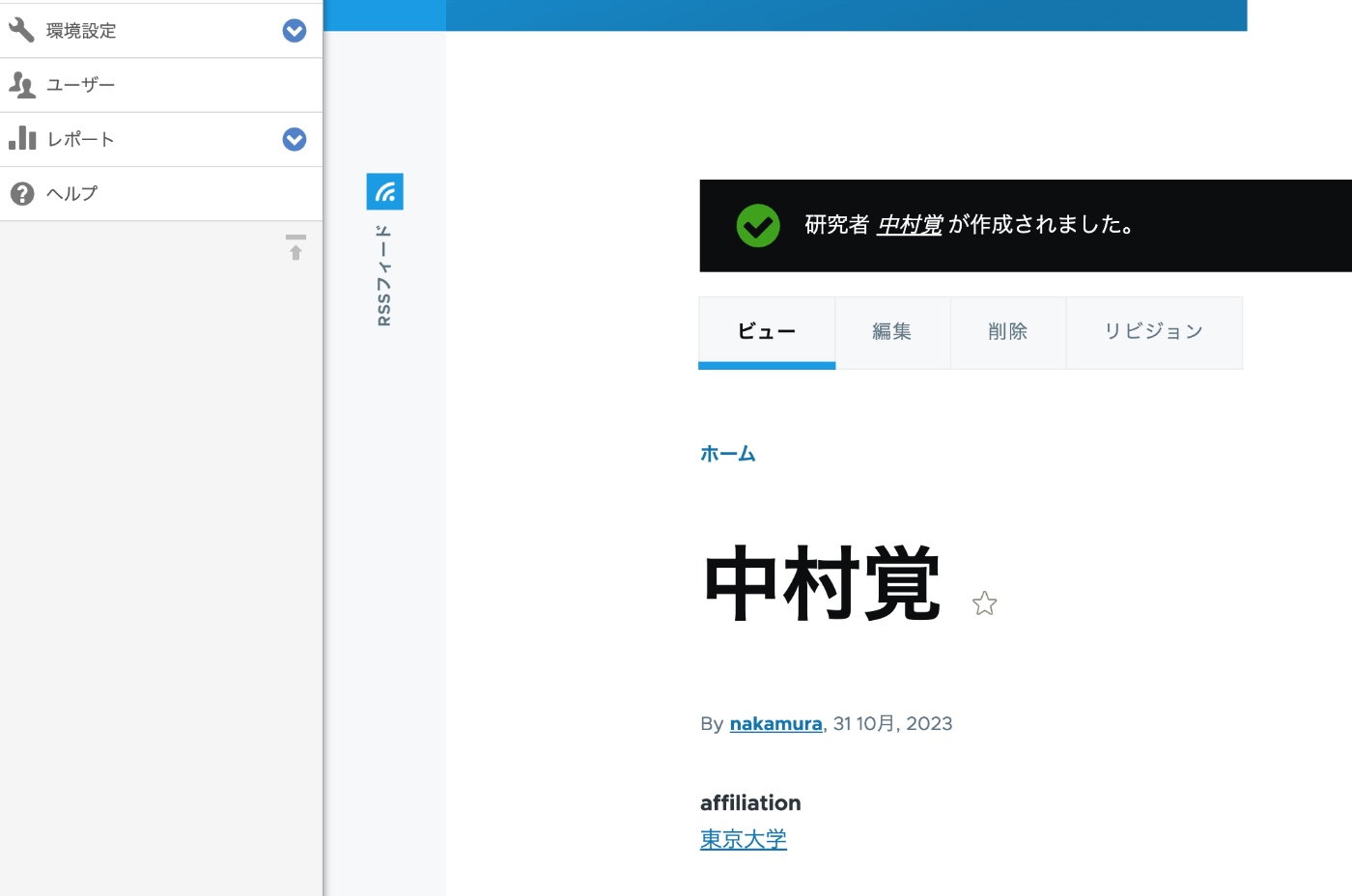
After registration, it is displayed as follows.
Summary
There may be better methods available, but I hope this serves as a useful reference.