Overview
I had the opportunity to upload relatively large files (over 200MB) to Omeka S, so this is a memo of the process.
Specifically, I uploaded .glb files, a 3D file format used for storing 3D models.
Issue
Typically, when attempting to upload a relatively large file through the GUI,
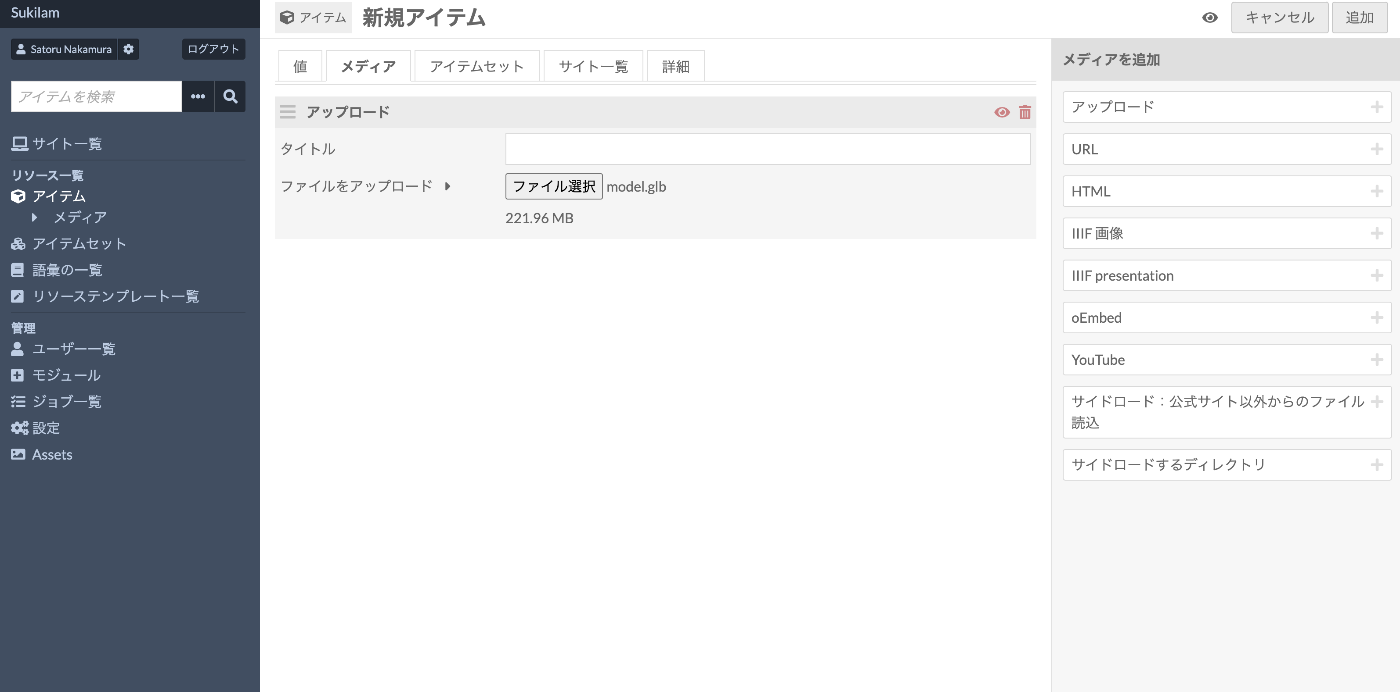
you may encounter a “POST request exceeded maximum size” error as shown below.
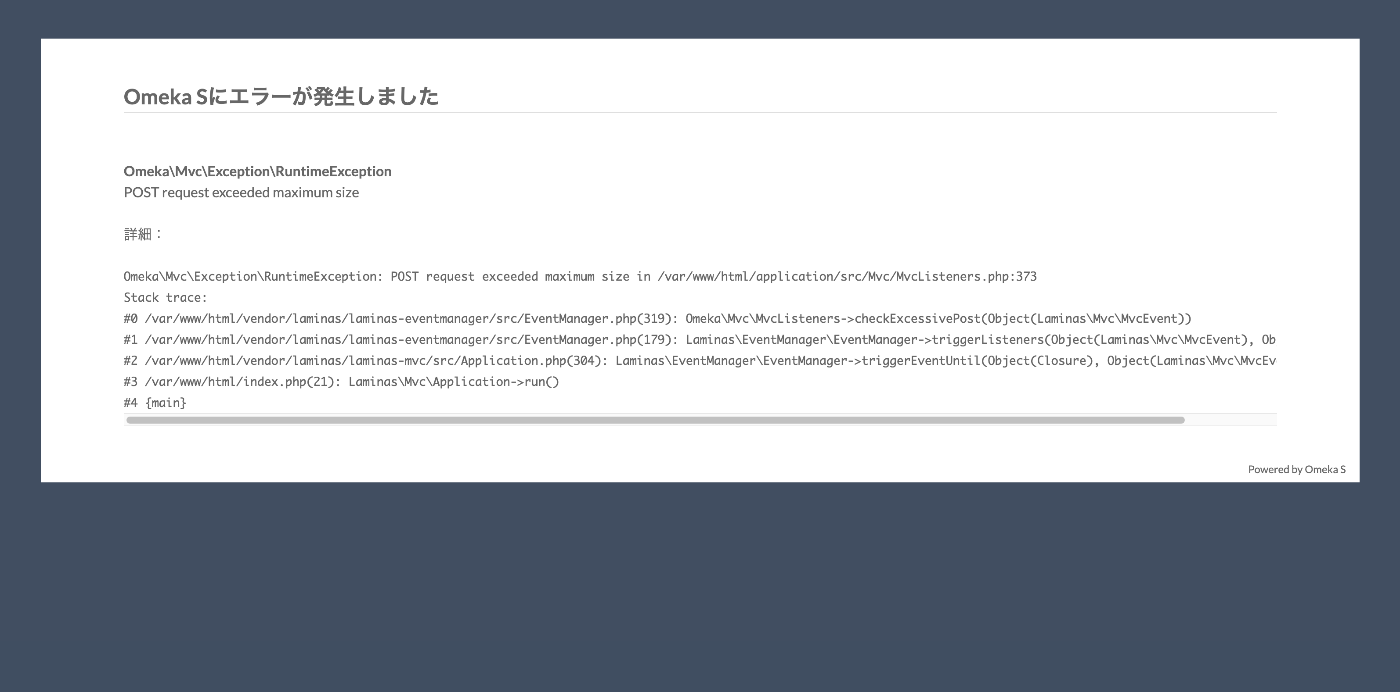
Here are some examples of how to address this.
Changing php.ini Settings
Since Omeka S is subject to upload size limits based on PHP settings, first check and modify the php.ini configuration.
After making changes, restart the web server (Apache or Nginx). Note that a downside is that this may not be possible on shared hosting.
Direct Server Upload
There is also a method of uploading files directly to the server without going through the Omeka S GUI, and then having Omeka S recognize them.
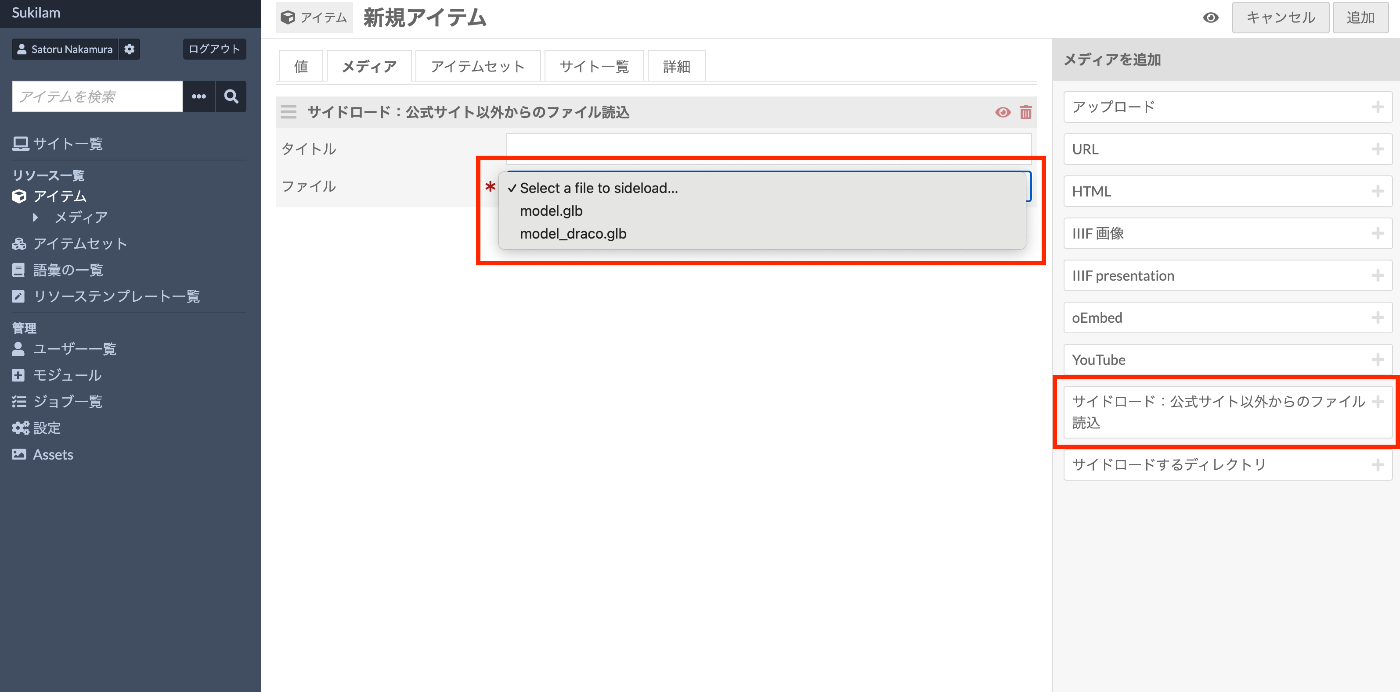
File Sideload Module
The File Sideload module introduced in the following article can be used.
The above is an example of bulk registration, but you can use the “Sideload: Load files from outside the official site” option to select and register files that have already been uploaded to the server, as shown below.
URL Specification
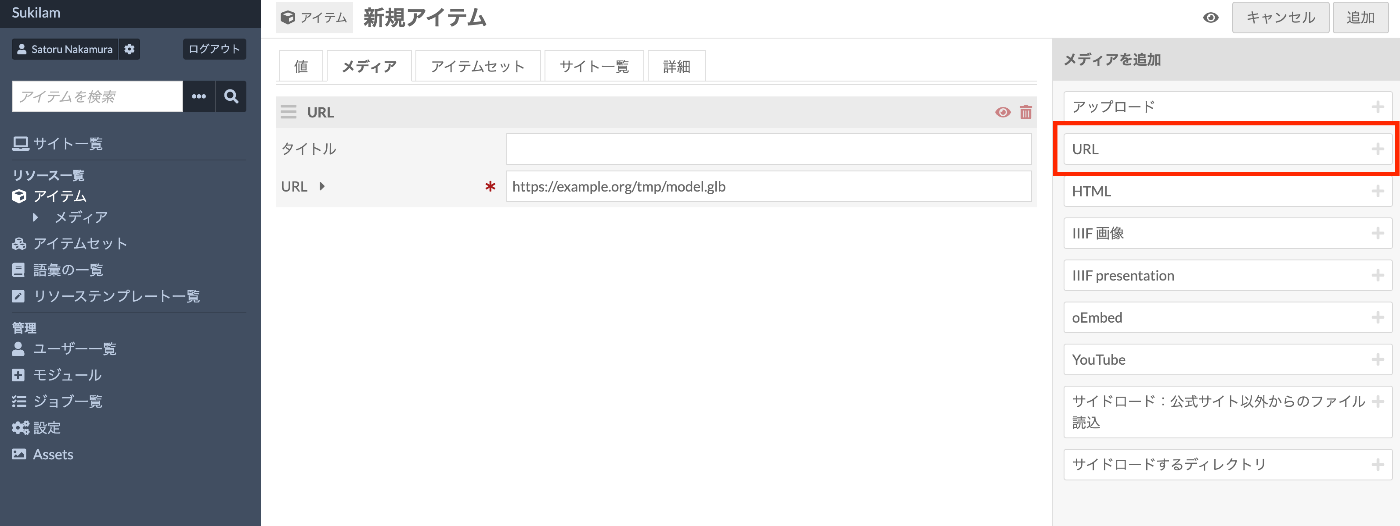
If the files uploaded to the server are accessible via URL, you can register them using Omeka S’s built-in functionality.
Which Method Should You Choose?
| Method | Advantages | Disadvantages |
|---|---|---|
php.ini settings change | Quick to implement | May not be possible on shared hosting |
| File Sideload module | Bypasses GUI limitations | Requires module installation |
| URL specification | Enables bulk registration | Requires URL preparation |
Summary
There may be other good methods available, but I hope this serves as a helpful reference.