Introduction
AtoM (Access to Memory) is an open-source web application for archive institutions. It is used by libraries, archives, and museums worldwide to manage archival descriptions.
AtoM operations are typically performed through the Web UI, but using the REST API enables integration with external systems and batch processing. In this article, we walk through the API following a realistic business scenario, confirming the results in the Web UI.
For details on the API plugin development history and implementation, see the separate article Developing a Plugin to Extend AtoM’s REST API.
APIs Used
- arRestApiPlugin (AtoM standard): CRUD for Information Objects
- arExtendedApiPlugin (custom developed): Operations for repositories, authority records, accessions, taxonomies, function descriptions, and digital objects
See the development article for a complete list of 28 endpoints.
Prerequisites
The API key can be set and confirmed in AtoM’s admin screen (Settings > Global).
Business Scenario: “Building the Hashimoto City Library Digital Archive”
Story
Hashimoto City Library builds a digital archive of a historical photograph collection of Hashimoto City (Meiji to Showa periods) donated by local history researcher Hanako Yamada.
The following steps execute the series of tasks needed for archive construction using the API.
| Step | Task | API |
|---|---|---|
| 0 | Check initial state | GET /api/summary |
| 1 | Register repository | POST /api/repositories |
| 2 | Verify repository information | GET /api/repositories/:slug |
| 3 | Add contact information | PUT /api/repositories/:slug |
| 4 | Register donor | POST /api/actors |
| 5 | Verify donor information | GET /api/actors/:slug |
| 6 | Create accession record | POST /api/accessions |
| 7 | Update processing status | PUT /api/accessions/:slug |
| 8 | Check taxonomies | GET /api/taxonomies |
| 9 | Add subject classification | POST /api/taxonomies/:id/terms |
| 10 | Correct classification name | PUT /api/taxonomies/terms/:id |
| 11 | Create archival description | POST /api/informationobjects |
| 12 | Attach digital image | POST /api/informationobjects/:slug/digitalobject |
| 13 | Check final state | GET /api/summary |
After scenario completion, the “Additional Features” section also covers:
- Function description (ISDF) management: POST /api/functions
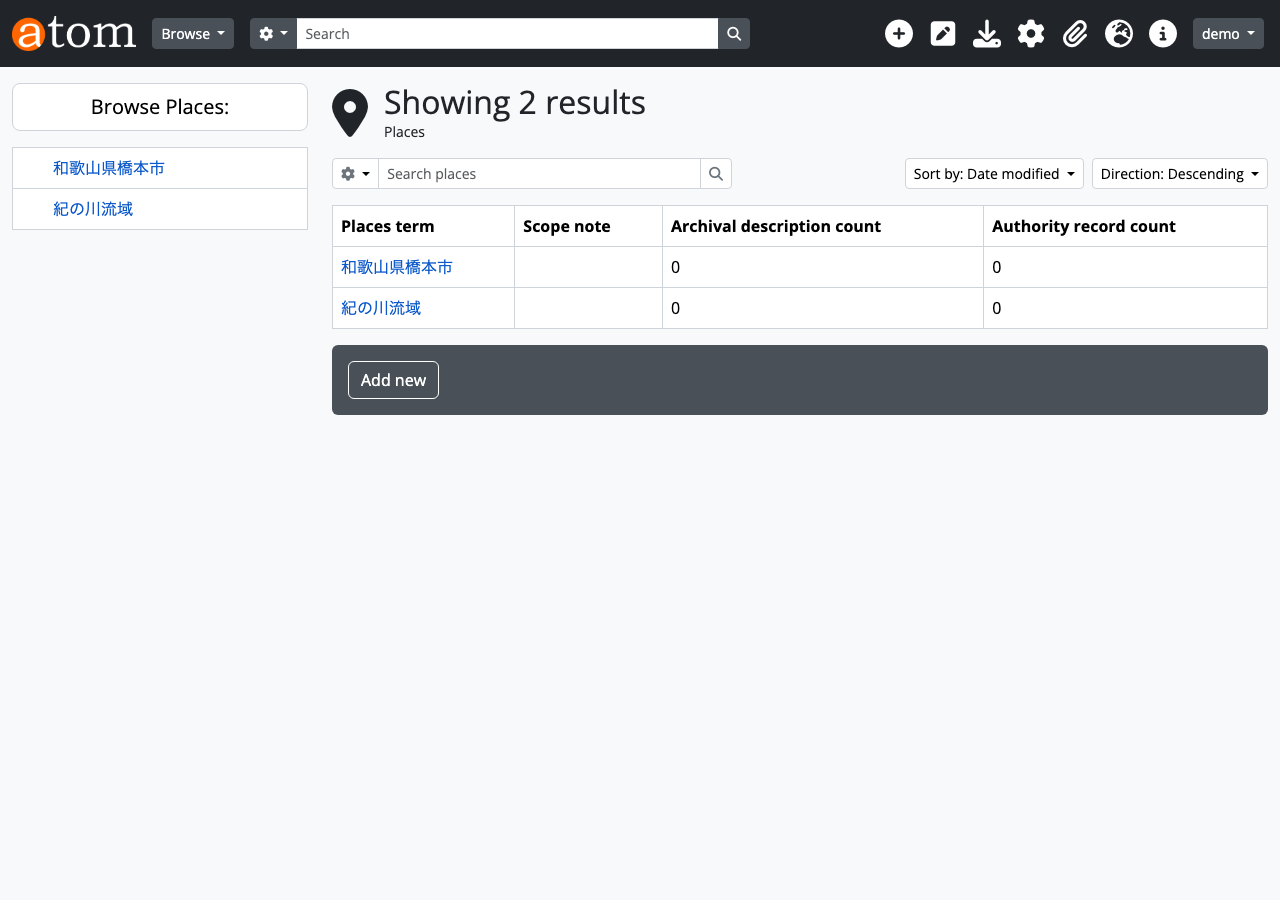
- Place taxonomy management: POST /api/taxonomies/42/terms
- Hierarchical archival descriptions: POST /api/informationobjects (with parent_id)
- Repository logo images: POST /api/repositories/:slug/logo
All curl commands below have been executed, and the responses are actual data.
Step 0: Check Initial State
First, check the number of records currently registered in AtoM.
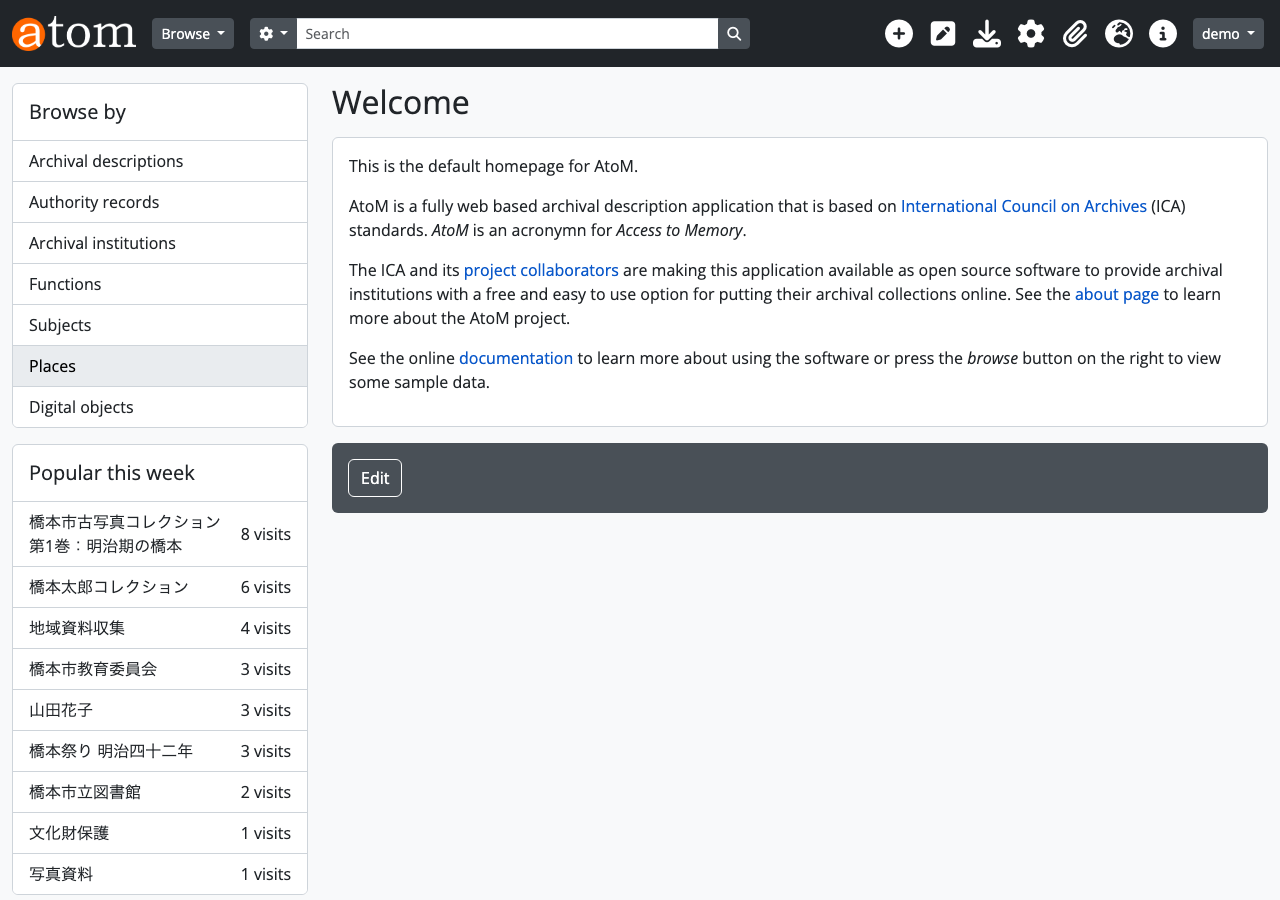
Web UI confirmation: Top page
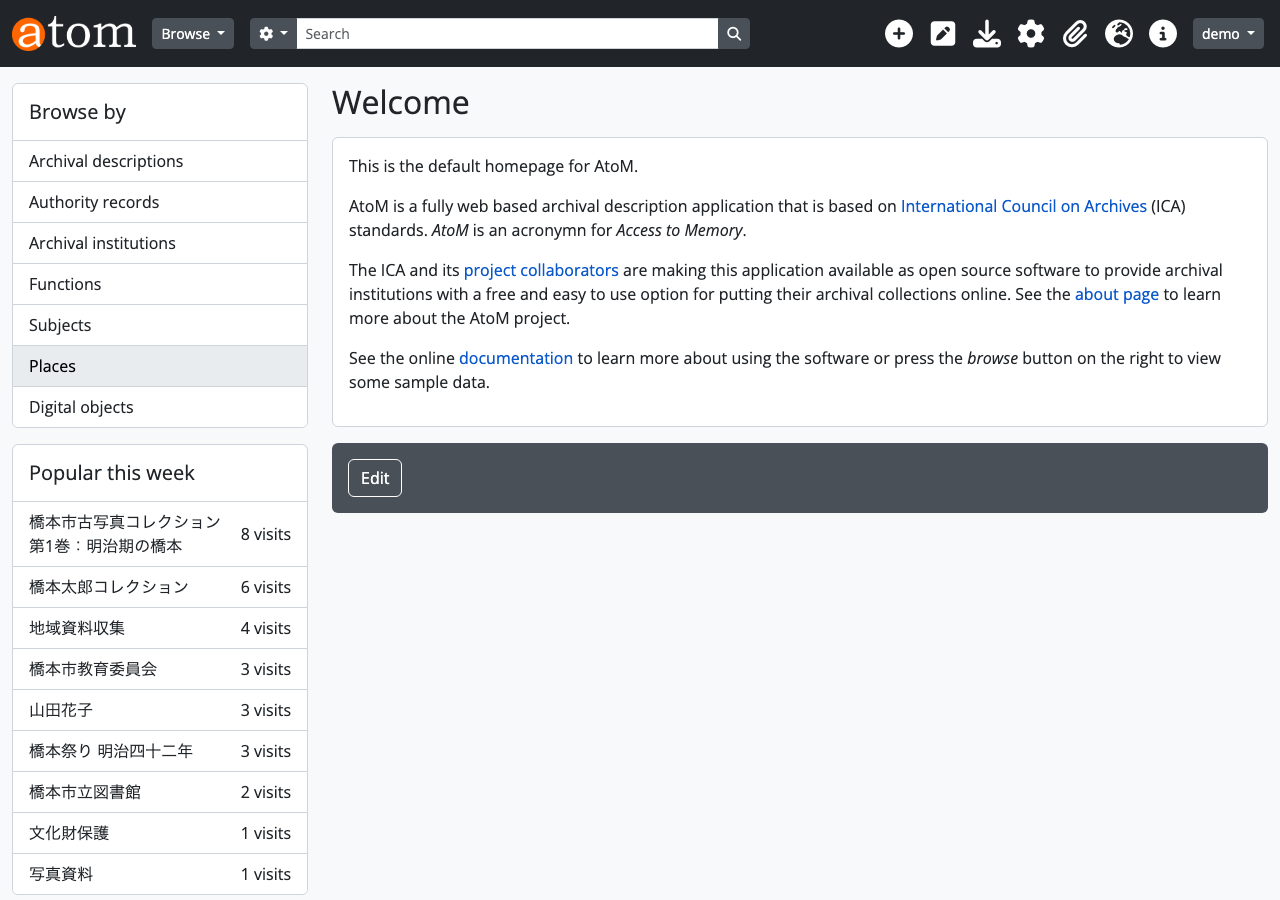
Step 1: Register Repository
Register Hashimoto City Library as an archive repository.
desc_detail_id and desc_status_id are taxonomy term IDs (explanation in Step 8).
Web UI confirmation: Repository list
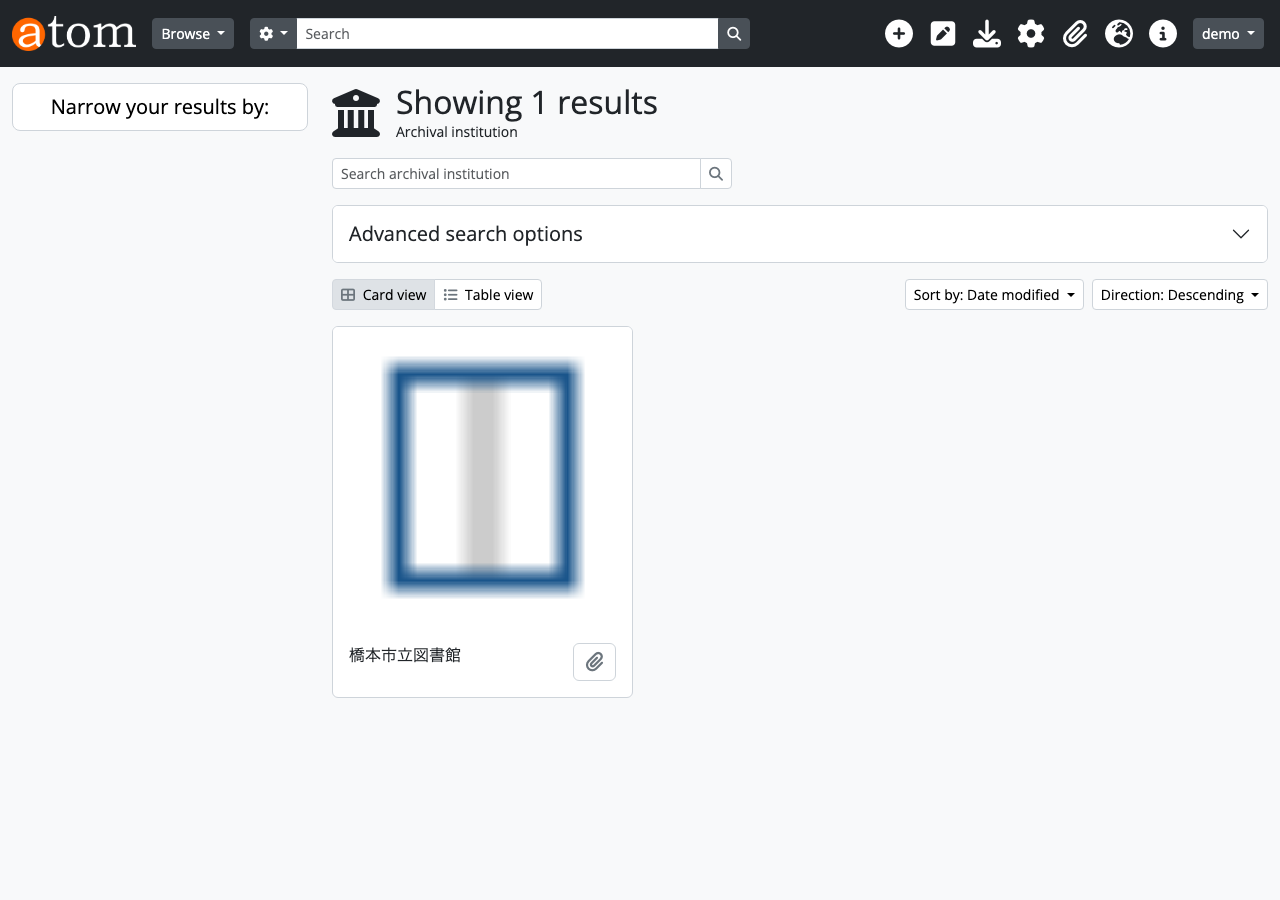
Step 2: Verify Repository Information
Retrieve details of the created repository.
All fields specified in Step 1 are correctly registered.
Web UI confirmation: Repository detail page
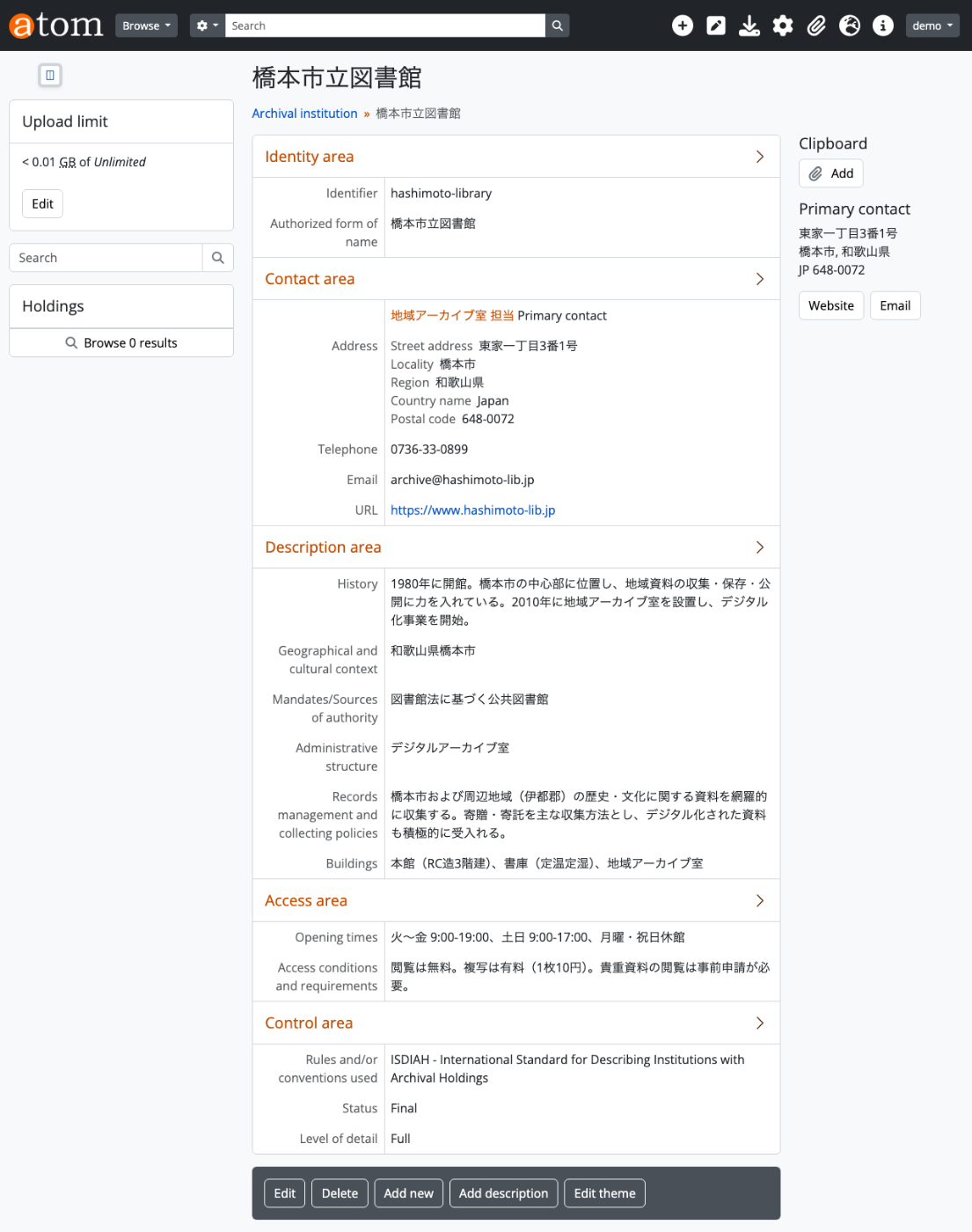
Step 3: Add Contact Information
Add address, phone number, and other contact information to the repository.
Web UI confirmation: Repository detail page (with contact information)
The Contact area reflects the address and phone number.
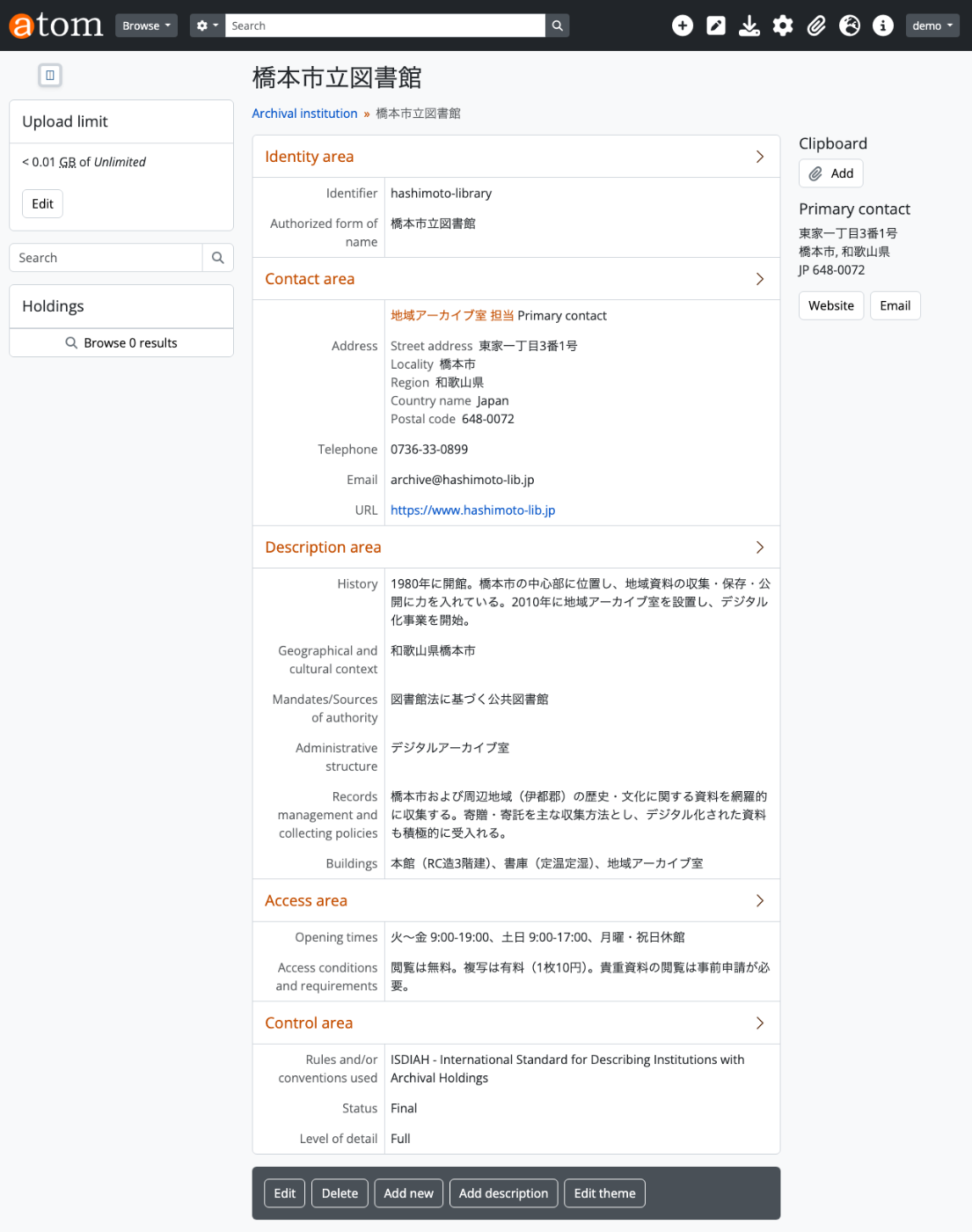
Step 4: Register Donor (Authority Record)
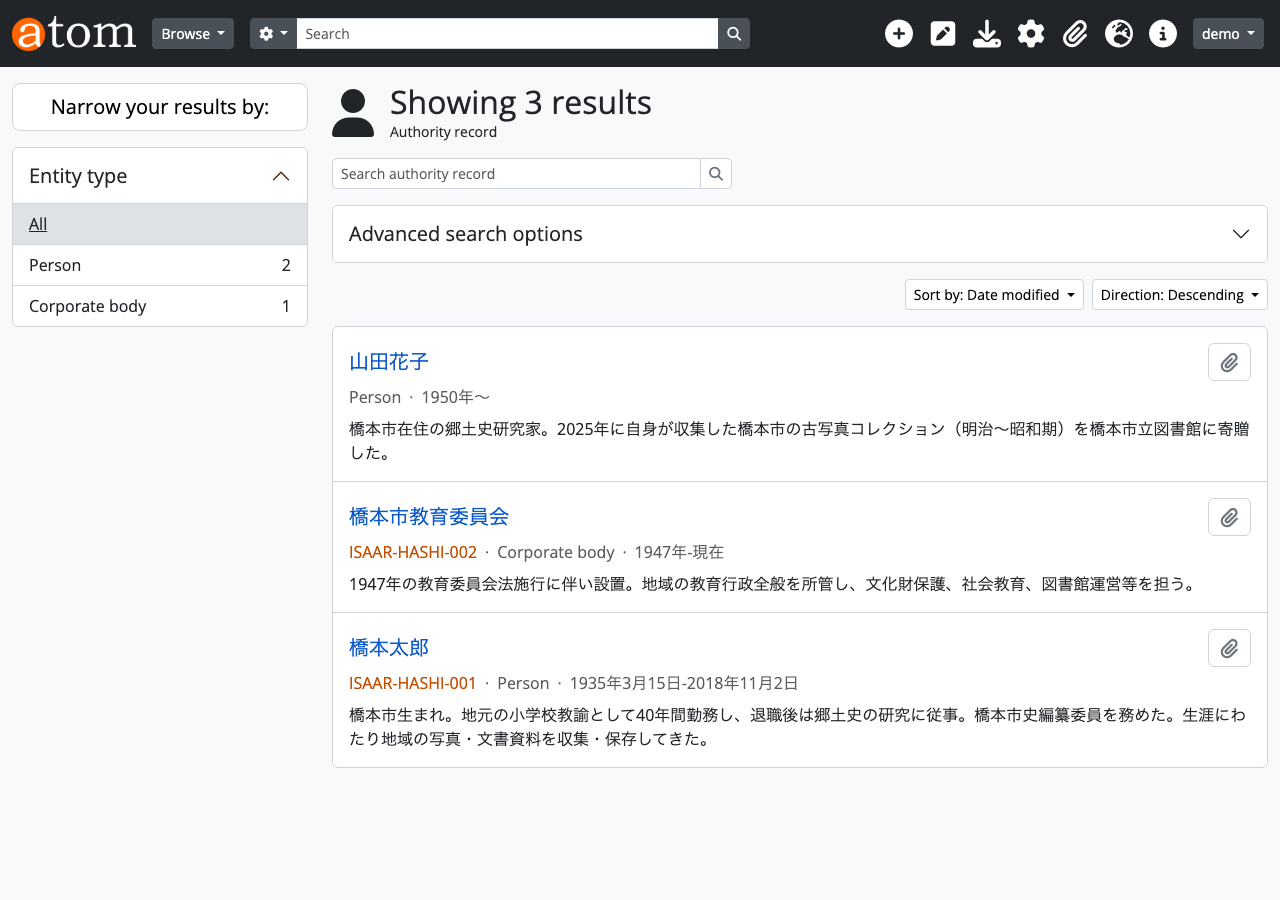
Register Hanako Yamada, the donor of the historical photograph collection, as an authority record.
entity_type_id: 132 means “Person.” Other options include 131=Corporate body and 133=Family.
Web UI confirmation: Authority record list
Step 5: Verify Donor Information
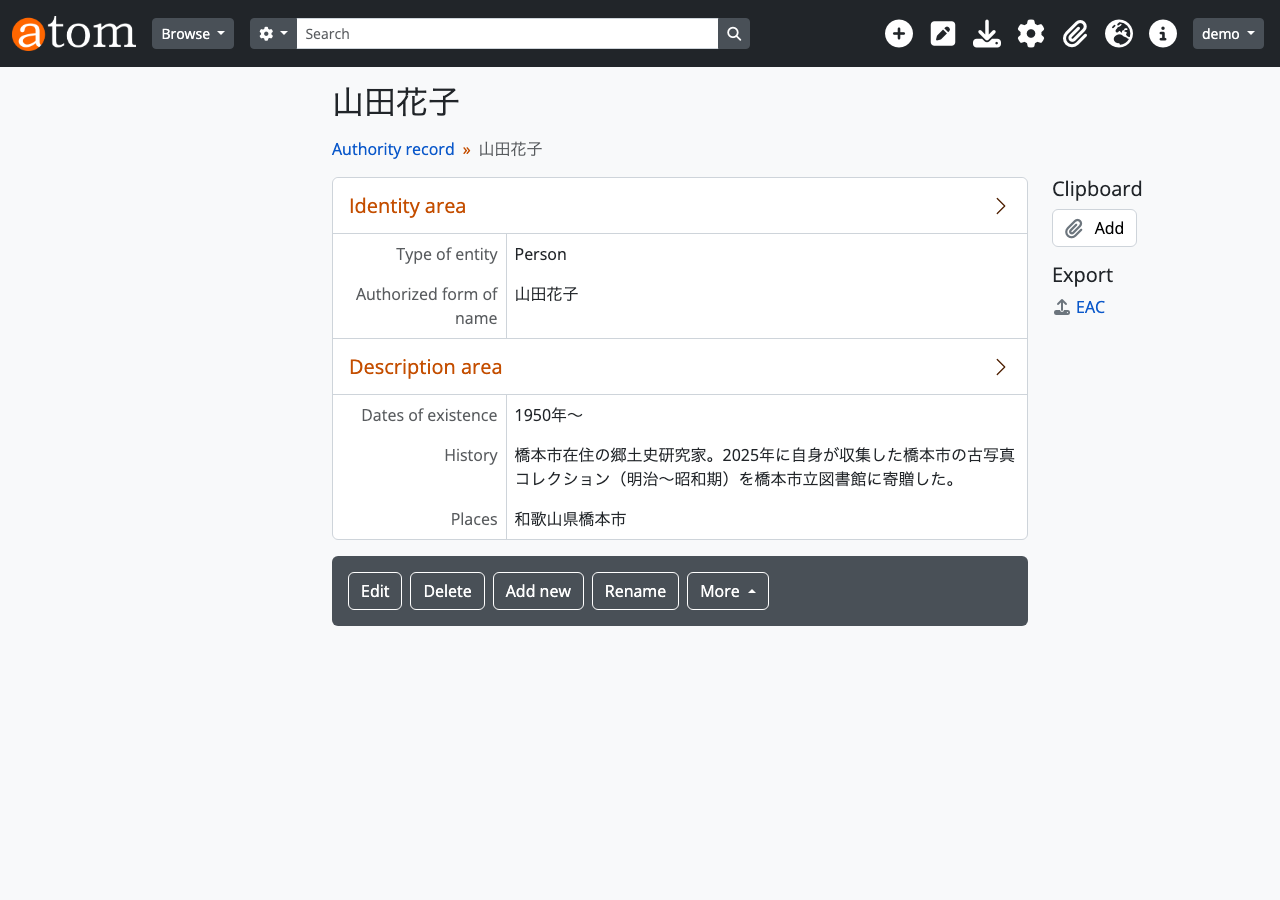
Web UI confirmation: Authority record detail page
The Identity area shows “Hanako Yamada” and “Person,” the Description area shows “1950-,” “Local history researcher residing in Hashimoto City…,” and “Wakayama Prefecture, Hashimoto City.”
Step 6: Create Accession Record
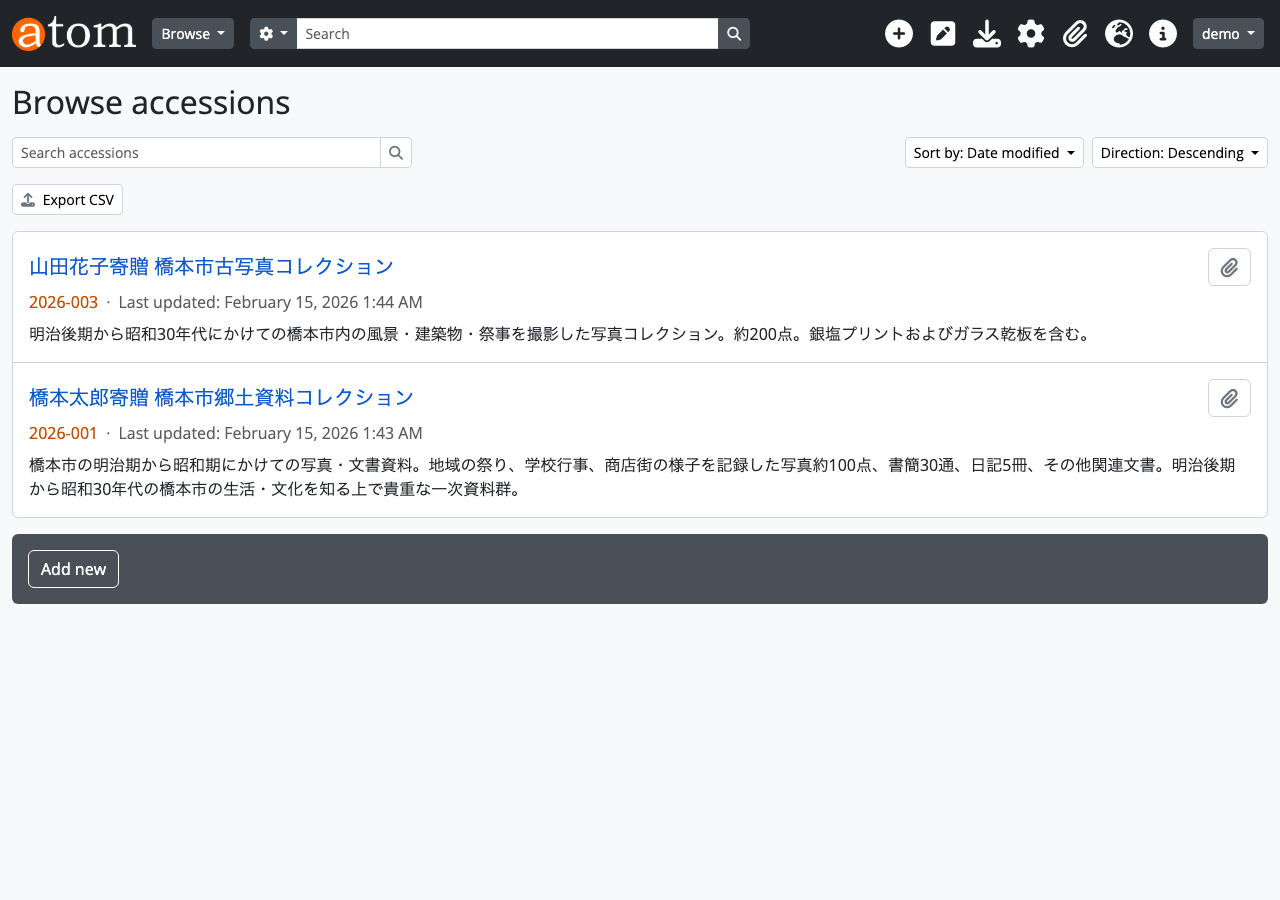
Create an accession record for the donated materials. Recording and managing the accession of materials is an essential procedure in archival work.
Key field meanings:
date: Accession date (required)source_of_acquisition: Source of acquisition (required)location_information: Storage location (required)acquisition_type_id: 332-> Giftprocessing_status_id: 339-> Incompleteresource_type_id: 330-> Private transfercreators: [487]-> ID of Hanako Yamada created in Step 4
Web UI confirmation: Accession record list
Step 7: Update Processing Status
Since digitization work has begun, change the status to “In-Progress.”
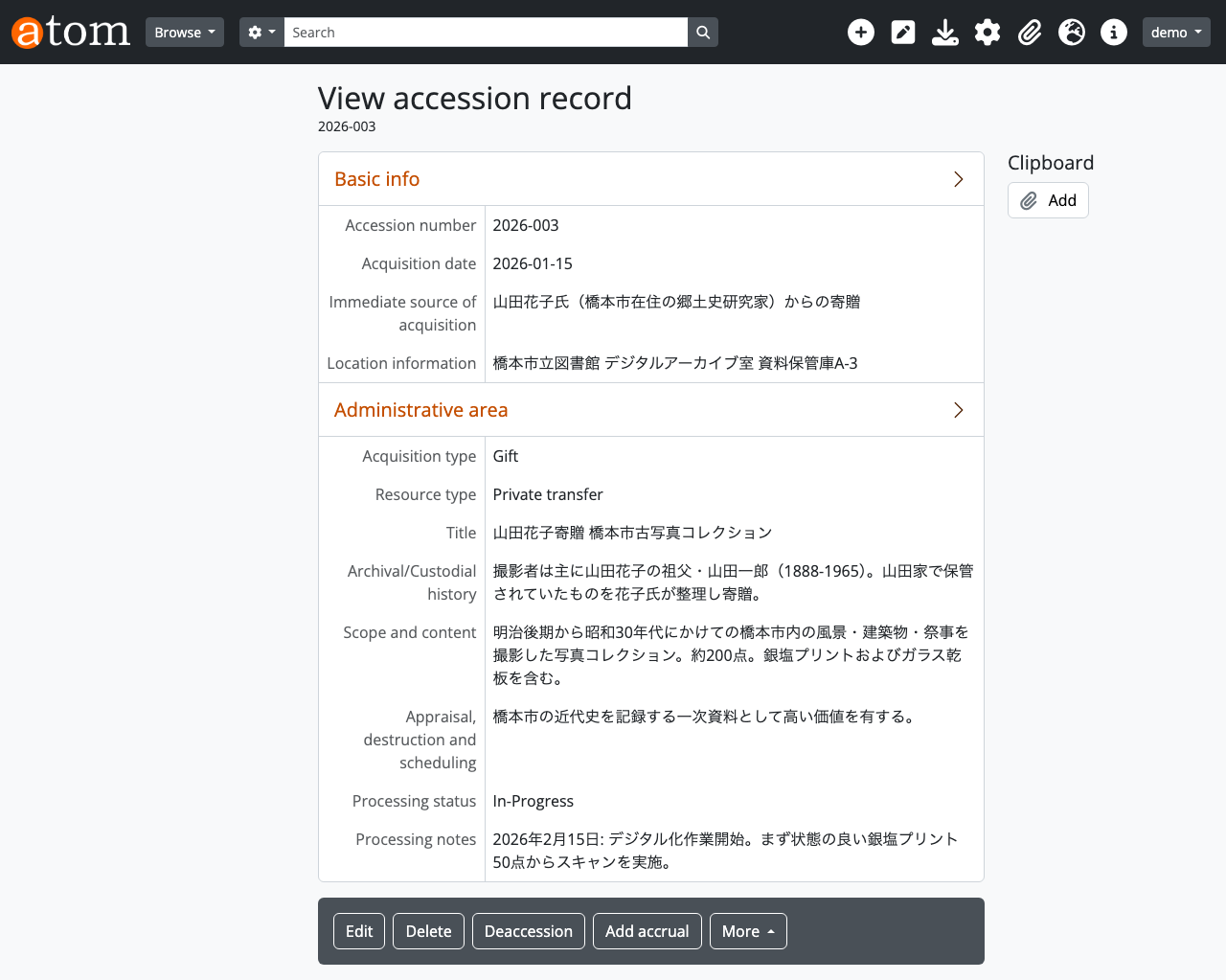
Processing status changed to “In-Progress” and processing notes record the start of digitization work.
Web UI confirmation: Accession record detail page
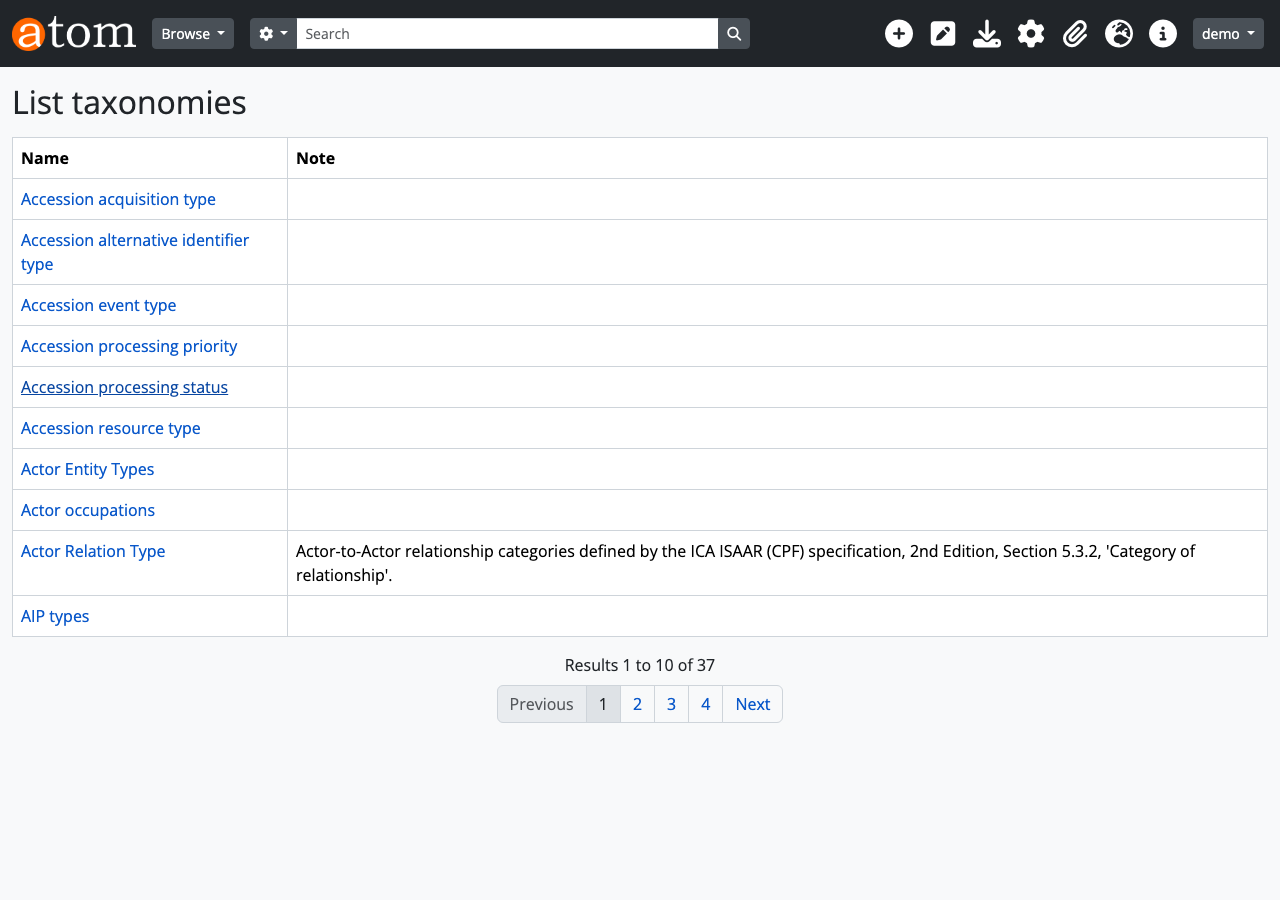
Step 8: Check Taxonomies
In AtoM, values such as entity type, level of description, and acquisition type are managed as taxonomies. The entity_type_id and acquisition_type_id values used in previous steps are all taxonomy term IDs.
Commonly used taxonomy term ID reference table:
| Taxonomy | ID | Term |
|---|---|---|
| Actor Entity Types (32) | 131 | Corporate body |
| 132 | Person | |
| 133 | Family | |
| Levels of description (34) | 236 | Fonds |
| 239 | Series | |
| 242 | Item | |
| Description Detail (31) | 233 | Full |
| 234 | Partial | |
| Description Status (33) | 230 | Final |
| 232 | Draft | |
| Accession acquisition type (63) | 332 | Gift |
| 333 | Purchase | |
| Accession processing status (65) | 338 | Complete |
| 339 | Incomplete | |
| 340 | In-Progress |
Web UI confirmation: Taxonomy management screen
Step 9: Add Subject Classification
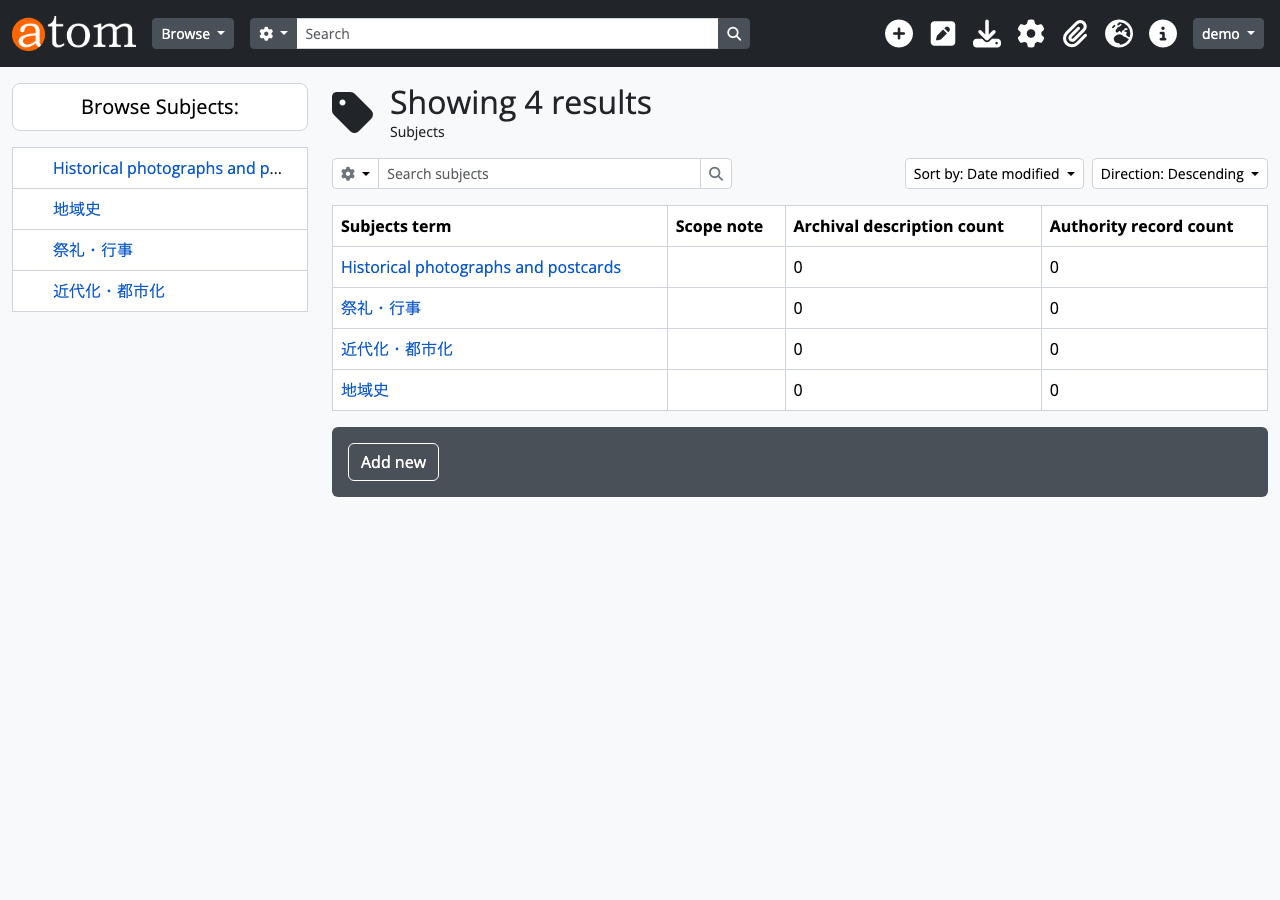
Add “Historical photographs” to the Subjects taxonomy (id=35) as a subject classification for the collection.
The i18n field enables multilingual support. The Japanese name is automatically saved with the culture setting at creation time.
Web UI confirmation: Subjects taxonomy
Step 10: Correct Classification Name
Change the term name to something more specific.
Step 11: Create Archival Description
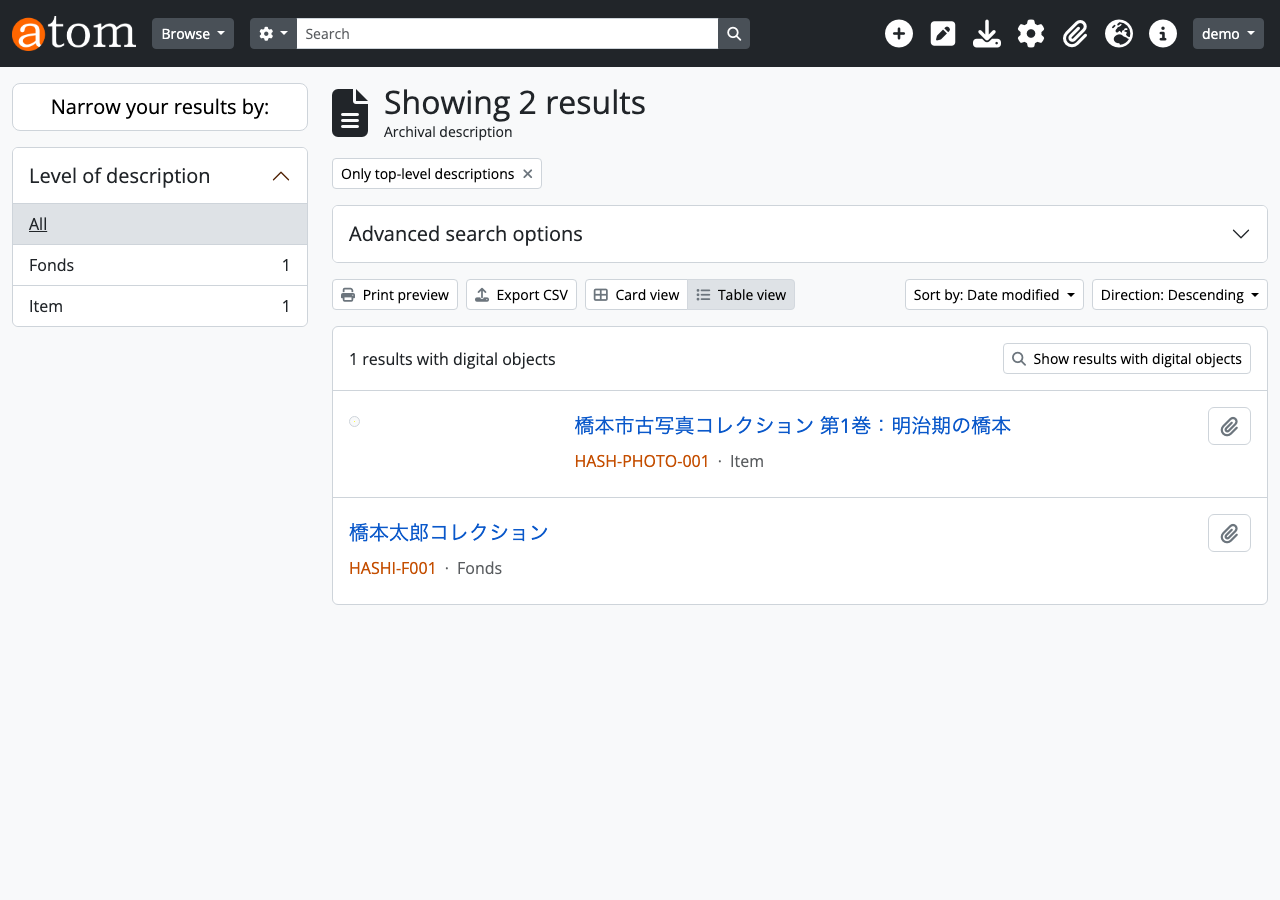
Finally, create the archival description (Information Object) for the collection. This uses the existing arRestApiPlugin API.
level_of_description_id: 242-> Itempublication_status_id: 160-> Publishedrepository_id: 466-> ID of Hashimoto City Library created in Step 1
Web UI confirmation: Archival description list
Step 12: Attach Digital Image
Upload the scanned photograph image with base64 encoding.
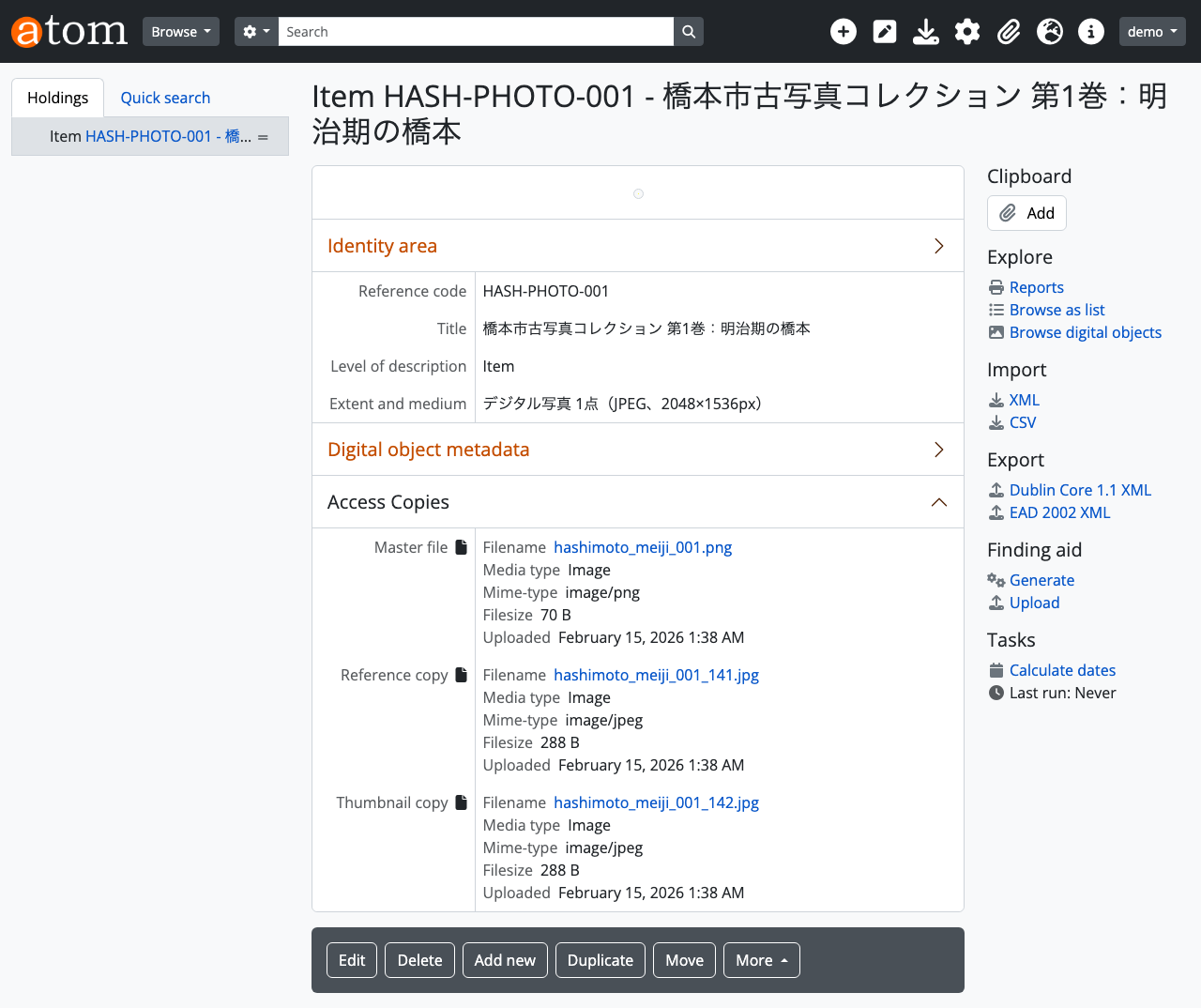
After uploading, AtoM automatically generates a reference copy and thumbnail.
Images can also be imported directly from URLs.
Web UI confirmation: Resource detail page
The Identity area displays the title “Hashimoto City Historical Photograph Collection Volume 1: Meiji Period Hashimoto” and identifier “HASH-PHOTO-001.” Digital object metadata shows the uploaded file’s metadata. Master file, Reference copy, and Thumbnail copy have been automatically generated.
Step 13: Check Final State
Check the data counts after completing all steps.
Compared to the initial state in Step 0, repositories, authority records, accession records, archival descriptions, and digital objects have increased.
Web UI confirmation: Top page
Additional Features
In addition to the basic scenario, here are other features available through arExtendedApiPlugin.
Function Description (ISDF) Management
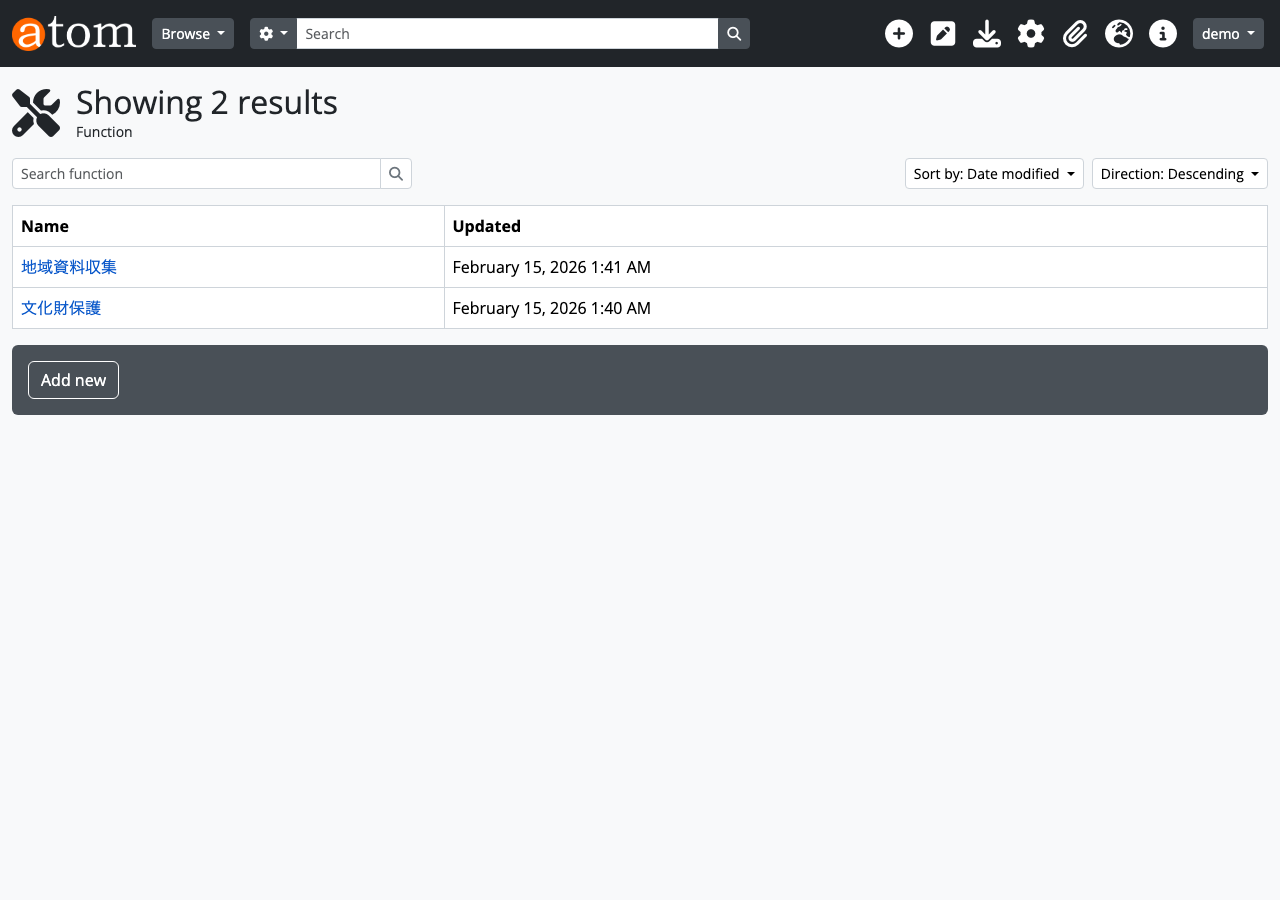
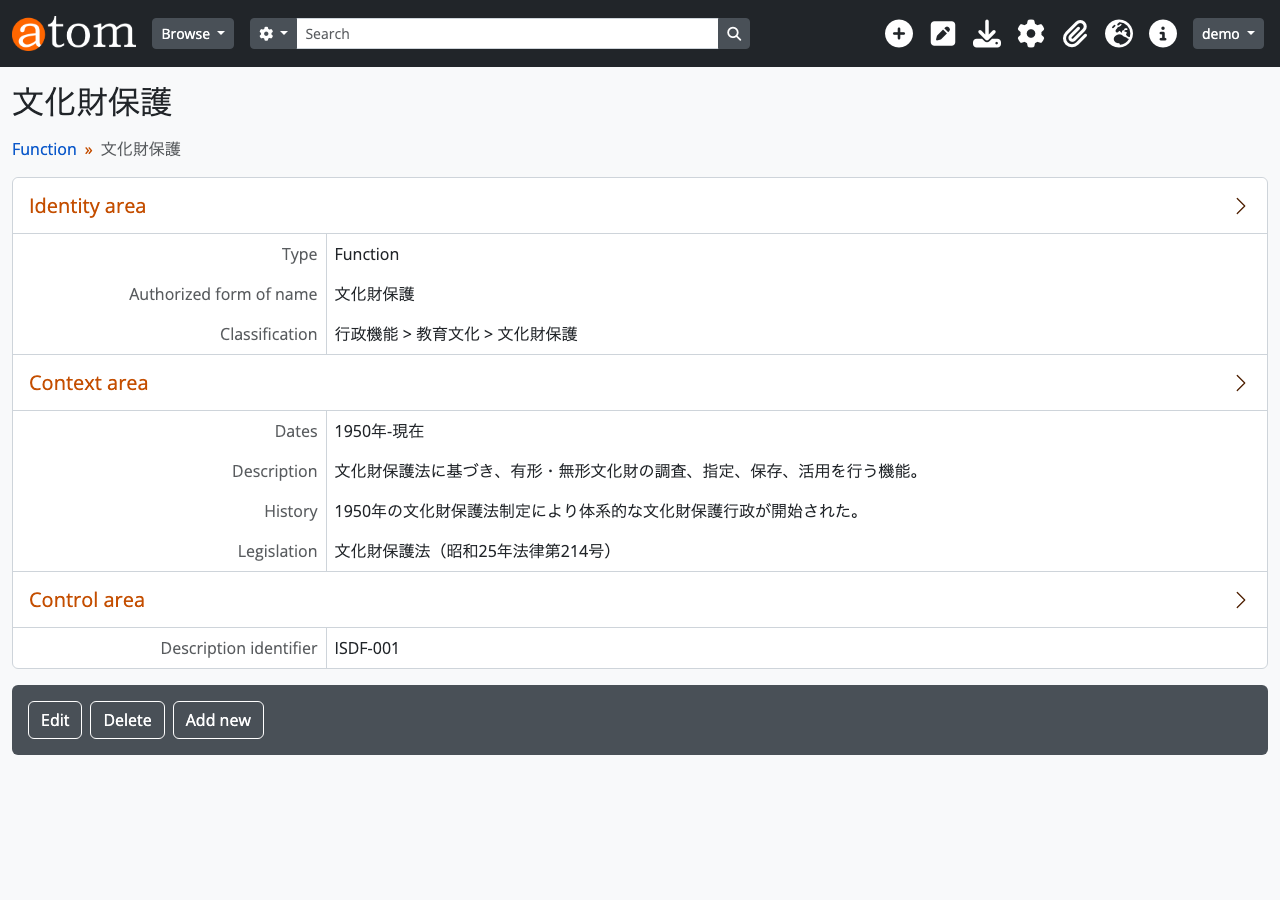
Manage function descriptions compliant with ISDF (International Standard for Describing Functions). This is a mechanism for systematically recording the business functions of archive institutions.
type_id: 323-> Function. 324=Subfunction is also selectable- Corresponds to ISDF fields (classification, dates, description, history, legislation)
Web UI confirmation: Function description list
Web UI confirmation: Function description detail
Place Taxonomy Management
Similar to Subjects, terms can be added to the Places taxonomy.
Web UI confirmation: Places taxonomy
Hierarchical Archival Descriptions
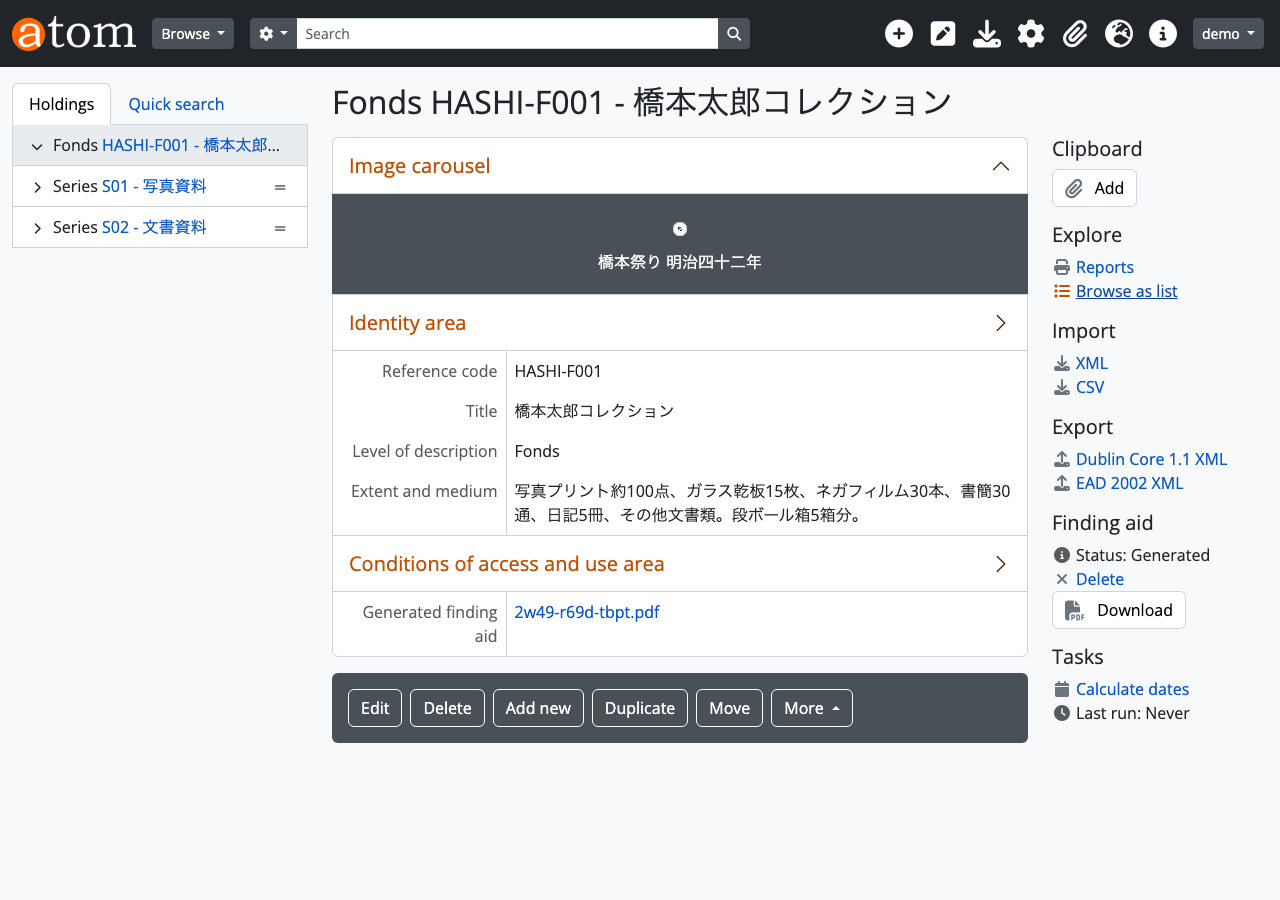
In AtoM, materials can be described in a hierarchical structure of Fonds > Series > Item. Use parent_id to establish parent-child relationships.
Web UI confirmation: Archival description detail (with hierarchy tree)
The tree on the left shows the Fonds > Series > Item hierarchy.
Repository Logo Image
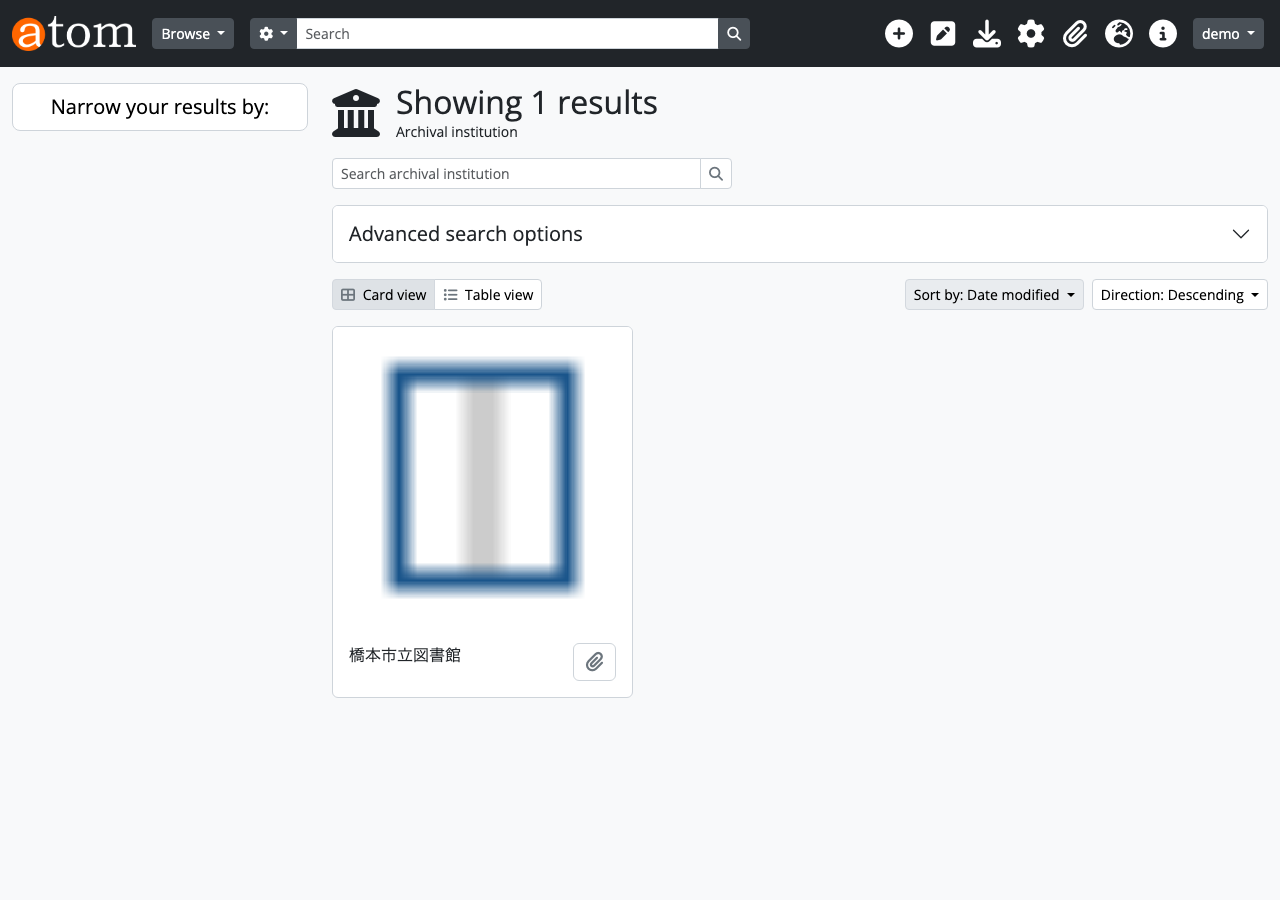
Uploading a logo image to a repository displays it as a card on the list page.
Web UI confirmation: Repository list (card display with logo)
Web UI Confirmation URL List
A summary of Web UI screens to check at each step.
| Step | Screen | URL |
|---|---|---|
| 0 | Top page | http://localhost:63001 |
| 1 | Repository list | http://localhost:63001/index.php/repository/browse |
| 2-3 | Repository detail | http://localhost:63001/index.php/ayya-htm3-5wkd |
| 4 | Authority record list | http://localhost:63001/index.php/actor/browse |
| 5 | Authority record detail | http://localhost:63001/index.php/wmdg-q5q2-4zy2 |
| 6 | Accession record list | http://localhost:63001/index.php/accession/browse |
| 7 | Accession record detail | http://localhost:63001/index.php/2026-003 |
| 8 | Taxonomy list | http://localhost:63001/index.php/taxonomy/browse |
| 9-10 | Subjects taxonomy | http://localhost:63001/index.php/subjects |
| 11 | Archival description list | http://localhost:63001/index.php/informationobject/browse |
| 12 | Resource detail (with DO) | http://localhost:63001/index.php/1 |
| 13 | Top page | http://localhost:63001 |
| Add | Function description list | http://localhost:63001/index.php/function/browse |
| Add | Places taxonomy | http://localhost:63001/index.php/places |
| Add | Repository list (with logo) | http://localhost:63001/index.php/repository/browse |
Summary
In this article, we walked through AtoM’s REST API following a realistic business scenario of building a library digital archive.
By using the API:
- Batch processing: Large volumes of material data can be registered at once via scripts
- External integration: Data integration with other library systems and digitization vendor systems becomes easier
- Automation: The workflow from accession to description to digitization to publication can be automated
- Quality control: Data integrity checks can be incorporated by validating API responses
AtoM is proven software used by archive institutions worldwide. Leveraging REST API operations enables more efficient digital archive management.
Verification environment: AtoM 2.8.x (Docker), PHP 7.4, Percona 8.0, Elasticsearch 5.6