Update History
2024-05-22
- Added “Adding the user who executes Docker commands to the docker group.”
Overview
mdx is a data platform for industry-academia-government collaboration co-created by universities and research institutions.
This time, we will use an mdx virtual machine to run NDL Classical Japanese OCR.
https://github.com/ndl-lab/ndlkotenocr_cli
Project Application
This time, I selected “Trial” as the project type.
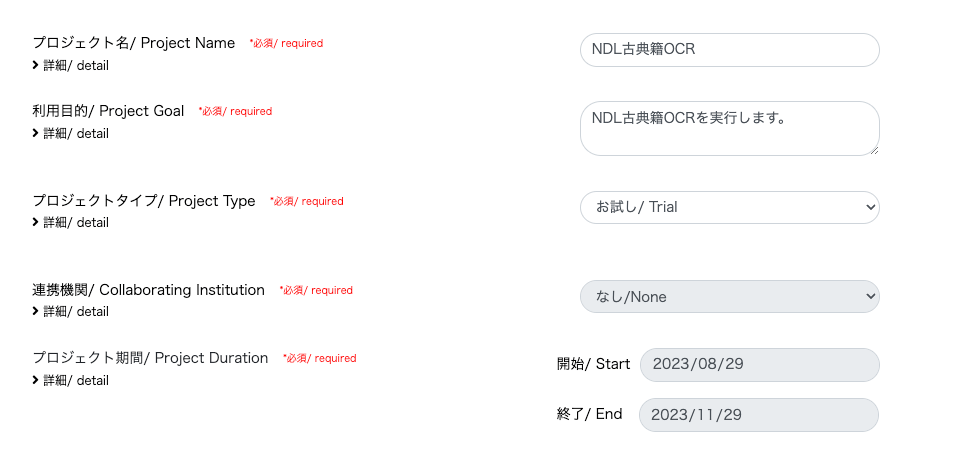
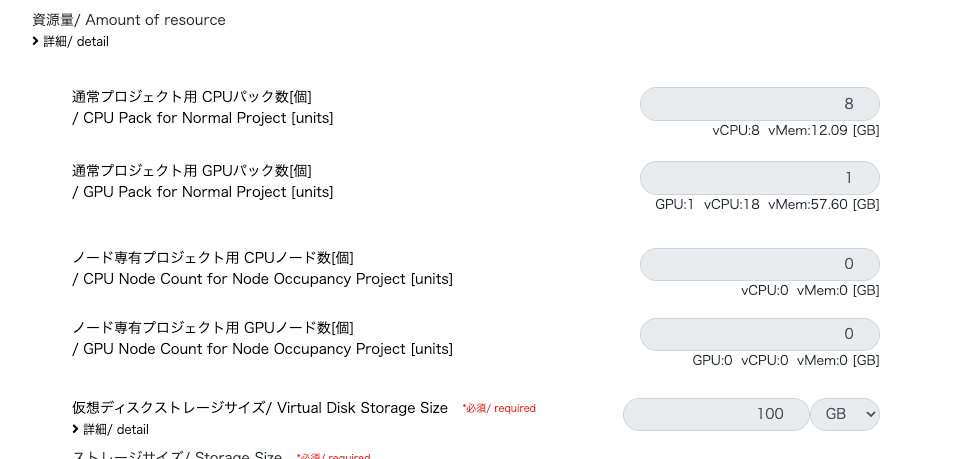
With “Trial,” one GPU pack was allocated.
Creating a Virtual Machine
Deploy
This time, I selected “01_Ubuntu-2204-server-gpu (Recommended).”

On the pre-deployment screen, the settings were configured as follows. The pack type was set to “GPU Pack” with a pack count of 1.

For the public key, I created it on my local PC as follows.
Then I pasted the contents of the generated id_rsa.pub.
After that, wait for the virtual machine deployment to complete.
Network Settings for SSH Connection
I was able to proceed by referencing the following video.
https://youtu.be/p7OqcnXBQt8?si=E5JtC-xnrc5ZQYo_
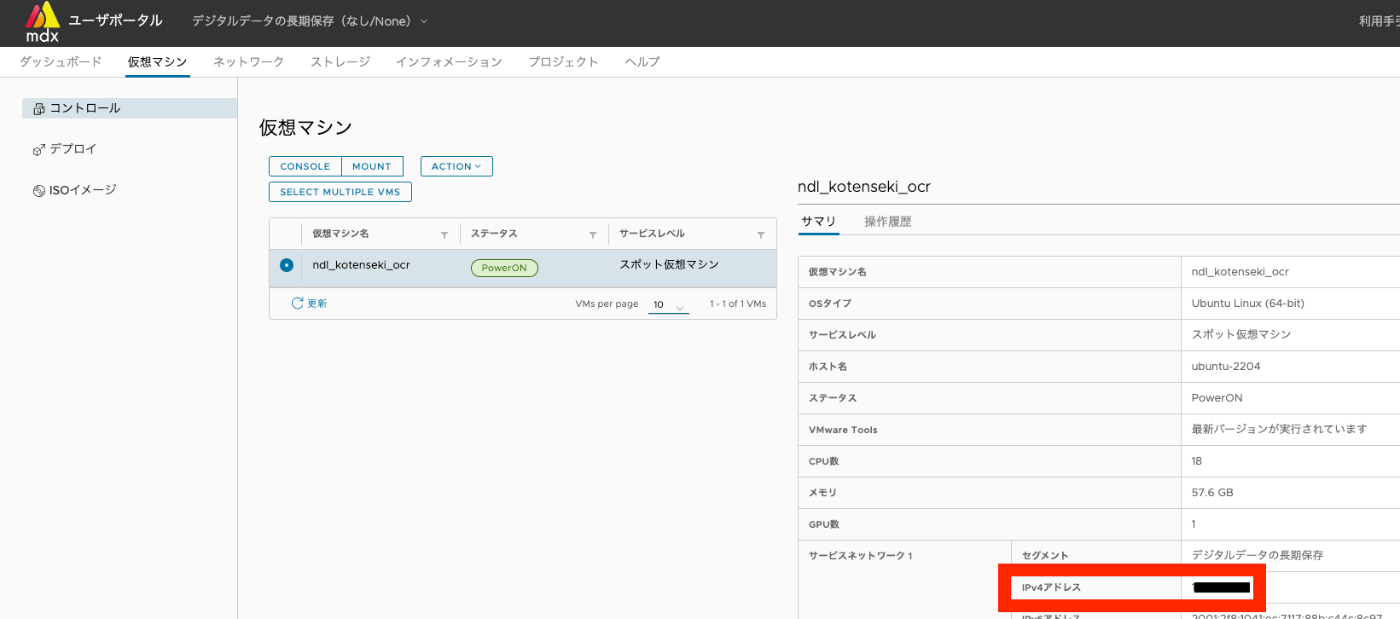
First, note the IPv4 address of Service Network 1 for the started virtual machine.
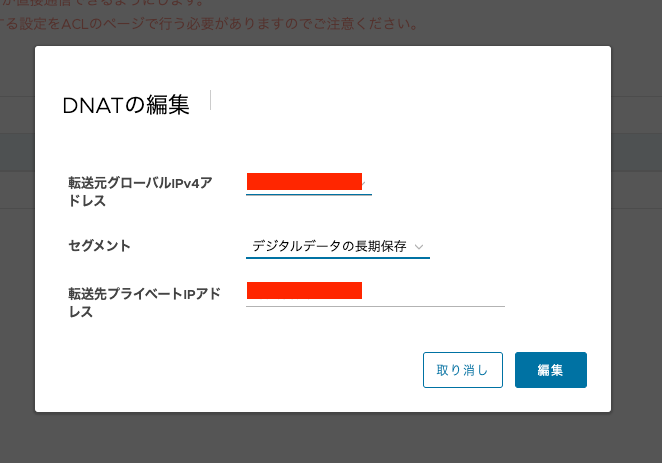
Next, I added “DNAT” from the network tag. The “Source Global IPv4 Address” was auto-filled, and I entered the Service Network IPv4 address noted earlier as the “Destination Private IP Address.”
Next, I added an “ACL.” Following the video, I configured it as follows.
To allow access only from a specific IP address, I configured it as follows.

On the other hand, while there is a security risk in allowing unrestricted access from any address, configuring it as follows appears to allow SSH connections from any address.

Testing the Connection
Use the Source Global IPv4 Address added in DNAT. After the initial login, you will be prompted to change the password, so change it.
Connecting with VS Code
Subsequent operations are optional, but I used the “Remote Explorer” extension for VS Code.
Work Inside the Virtual Machine
Checking GPU
Installing Docker
I installed Docker following the steps on the following page.
https://docs.docker.com/engine/install/ubuntu/
If Hello from Docker! is displayed, the installation was successful.
NVIDIA Docker Runtime
(There may be better methods, but) I installed the NVIDIA Docker Runtime. I executed the following.
Adding the User Who Executes Docker Commands to the docker Group
Add the user to the Docker group
System restart
Installing NDL Classical Japanese OCR
From here, we proceed with the NDL Classical Japanese OCR setup.
The following takes some time.
Next, when starting the container, modify it to mount the host machine’s directory.
Then, execute the following.
Enter the container.
0
Running Inference
Downloading Images
Create a directory and download “The Tale of Genji” (held by the National Diet Library).
1
Running OCR
Execute OCR on the downloaded images.
First, create an output folder.
2
Execute.
3
As a result, the recognition results are stored in the /home/mdxuser/tmpdir/output folder on the host machine.
Other
Stopping the Container
4
Shutting Down the Virtual Machine
5
Summary
Thanks to mdx and the NDL Lab, I felt that an environment conducive to research using machine learning is well established. I would like to express my gratitude to those involved.