Overview
I had an opportunity to link to other items using the Custom Vocab module in Omeka S, so here are my notes.
Background
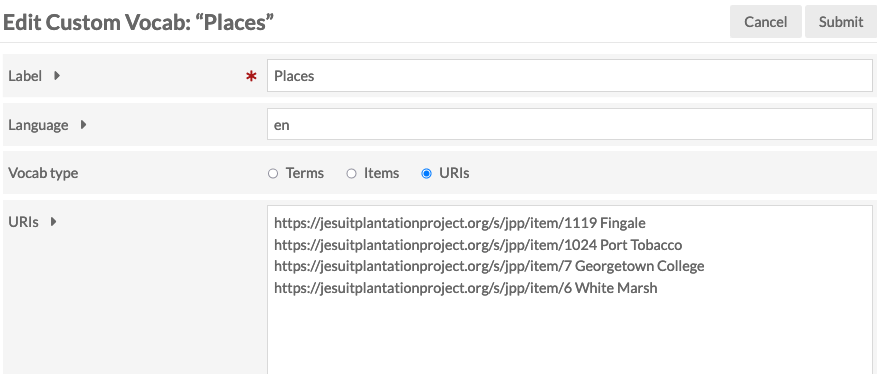
The following article explained how to use custom vocabularies.
This time, instead of strings or URIs, I will try linking items.
Creating an Item Set
First, create an item set to store the items to be linked.
In this case, I created an item set called “Reuse Condition Display.”

Creating Items for “Reuse Condition Display”
Items were created as follows.

Each item is given a title, description, identifier, etc.

Creating a Custom Vocabulary
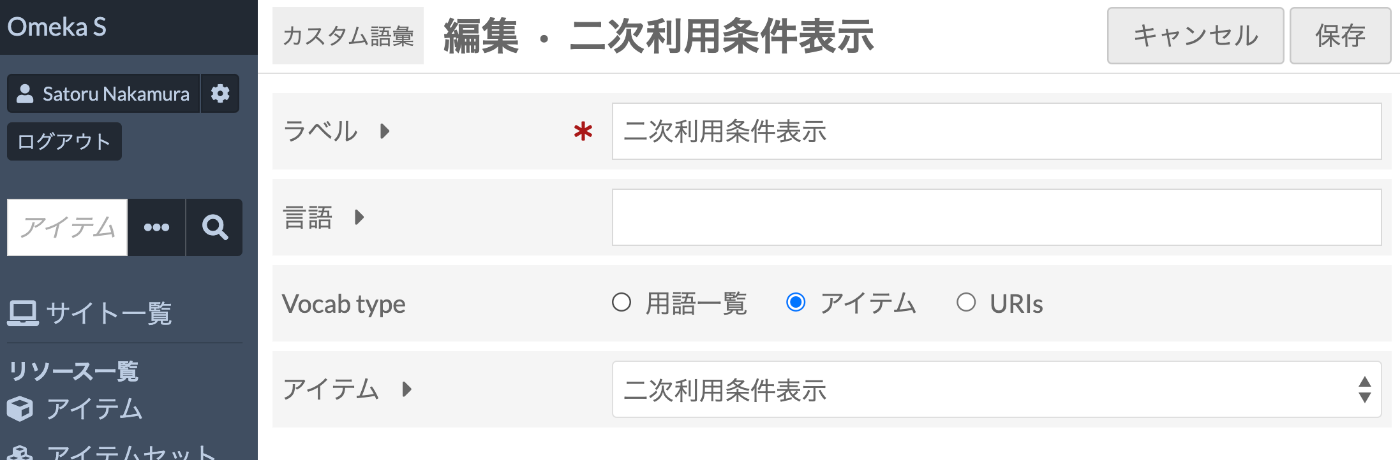
Create a custom vocabulary as follows. The key point is to select “Item” for the Vocab type, and select the item set “Reuse Condition Display” created in the previous step for the items.
Creating a Resource Template
Create a resource template and select the custom vocabulary you created for the data type.

Creating Any Item
When creating any item, select the resource template created earlier. As a result, values can be selected from the items in the configured item set as shown below.

Advantages
By adopting the method described here, values are selected from a specified set of items, which prevents inconsistencies in notation. Additionally, by setting those values as items, metadata management can be centralized. For example, if you want to update the content of a reuse condition display, you only need to update the metadata of the corresponding reuse condition display item, without needing to individually update multiple linked items.
This is similar to the use of taxonomies in Drupal.
Summary
I hope this serves as a helpful reference for using Omeka S.