Overview
This article explains the “File Sideload” module for batch uploading images to Omeka S.
https://omeka.org/s/modules/FileSideload/
The official manual is available at the following URL:
https://omeka.org/s/docs/user-manual/modules/filesideload/
Module Installation
It can be installed using the standard method.
https://omeka.org/s/docs/user-manual/modules/#installing-modules
Module Configuration
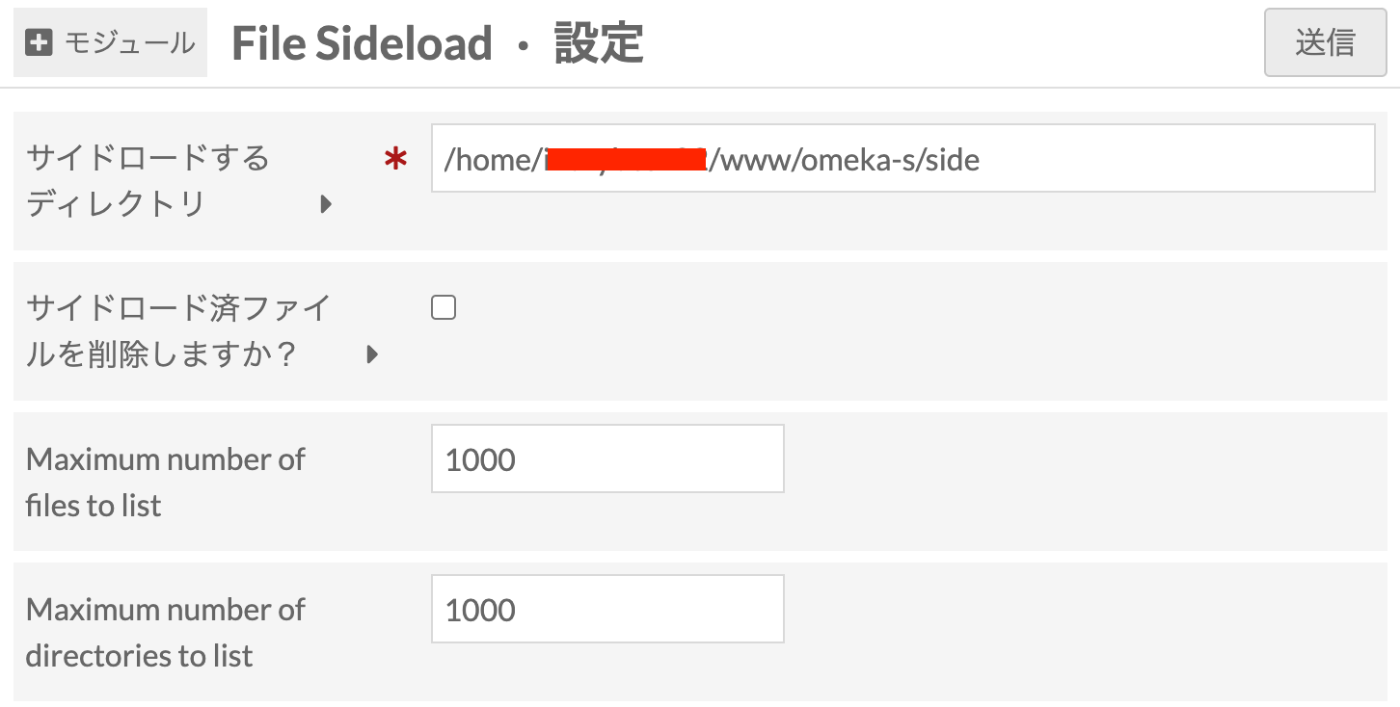
After installation, you will be navigated to the following configuration screen. Here, specify the path to the folder for uploading images for batch registration. Depending on permissions, you should be able to specify any arbitrary path.
Uploading Images
Upload images to the folder specified earlier. This is not done using Omeka’s functionality, but rather by directly uploading files to the server where Omeka is installed using tools such as WinSCP or FileZilla.
Registering Media
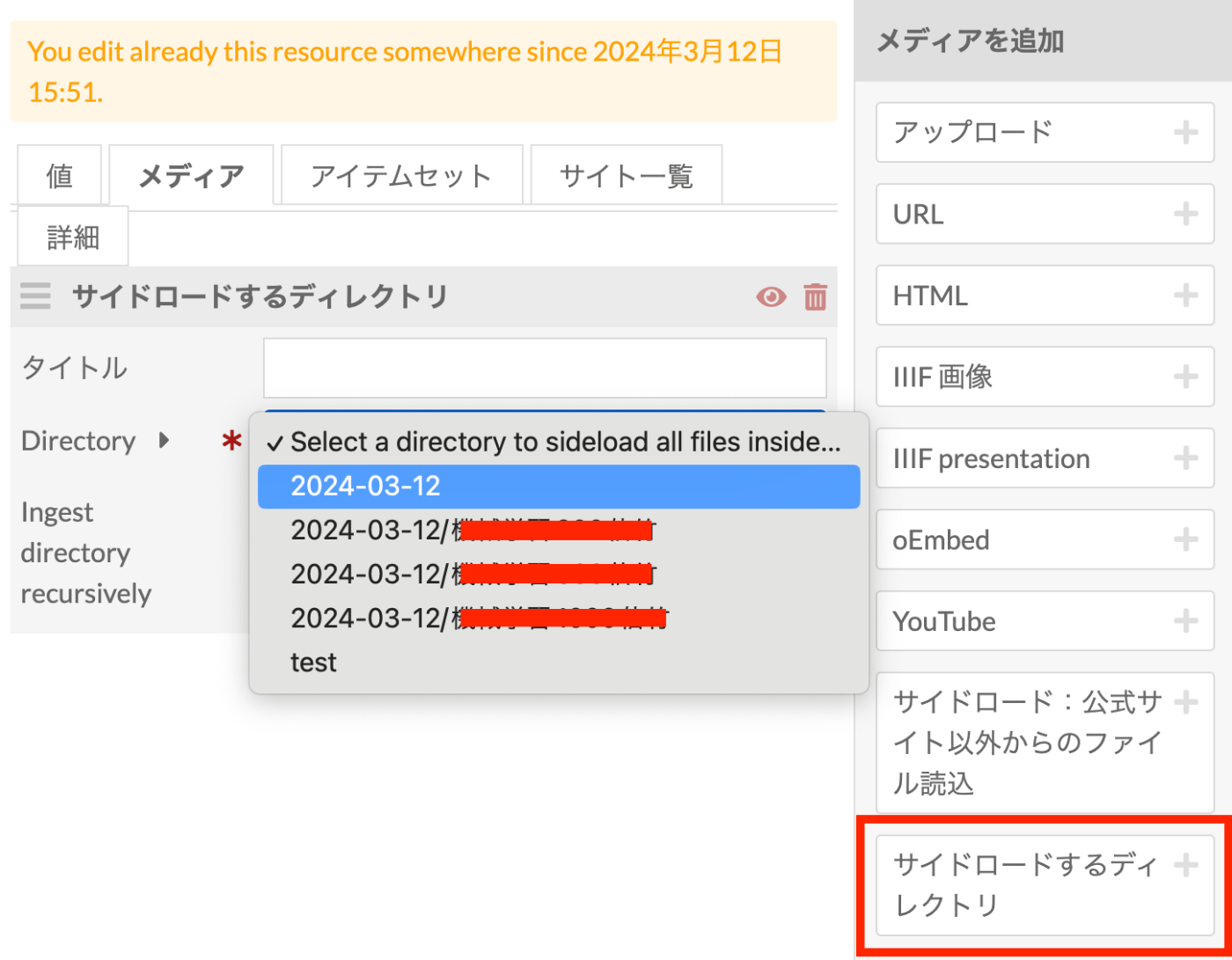
As shown below, select “Sideload directory” from the menu on the right and choose the directory.
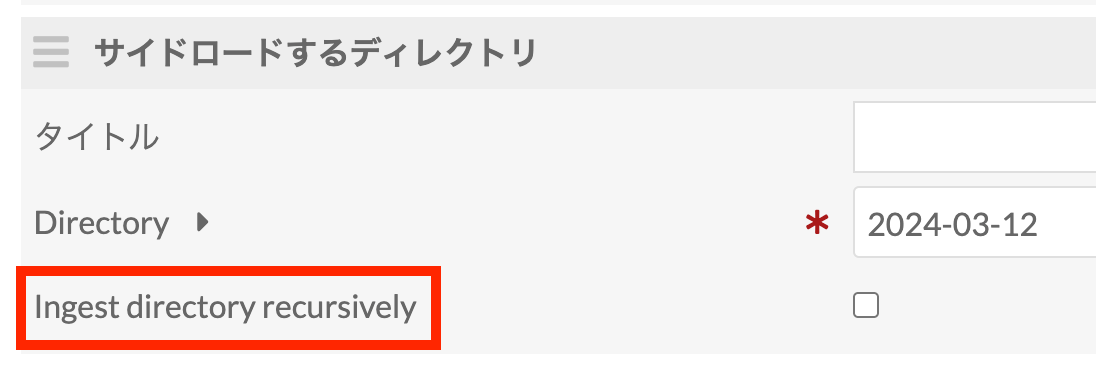
If you want to recursively register files within the specified directory, enable the “Ingest directory recursively” option.
Summary
For batch uploading images to Omeka S, there are methods using the “Bulk Import” module, methods using REST API with various programming languages, and others. I hope the method using the “File Sideload” module introduced in this article also serves as a useful reference.