Announcements
Notebook URL
https://colab.research.google.com/github/nakamura196/ndl_ocr/blob/main/ndl_ocr_v2.ipynb
2022-07-06
A demo video showing how to use it has been created.
Additionally, a ruby (furigana) text conversion feature has been added.
Overview
I created an NDLOCR app using Google Colab and introduced it in the following article.
This time, I created Version 2, an improved version of the above notebook. You can access the notebook from the following link.
https://colab.research.google.com/github/nakamura196/ndl_ocr/blob/main/ndl_ocr_v2.ipynb
Features
Support for multiple input formats has been added. The following options are available:
- Images
- Specifying a URL for a single image file
- Uploading a single image file
- Processing multiple pre-downloaded image files (Single input dir mode)
- Processing multiple pre-downloaded image files (Image file mode: providing individual image files as input)
- PDF
- Specifying a URL for a single PDF file
- Uploading a single PDF file
- Processing a single pre-downloaded PDF file
- Specifying a folder containing multiple pre-downloaded PDF files
- IIIF
- Specifying a URL for a IIIF manifest file (Presentation API v2 only at the time of writing)
PDF files and IIIF manifest file input are now supported. In Version 1, image files needed to be uploaded to Google Drive beforehand, but Version 2 provides the ability to specify image file URLs and register via an upload form.
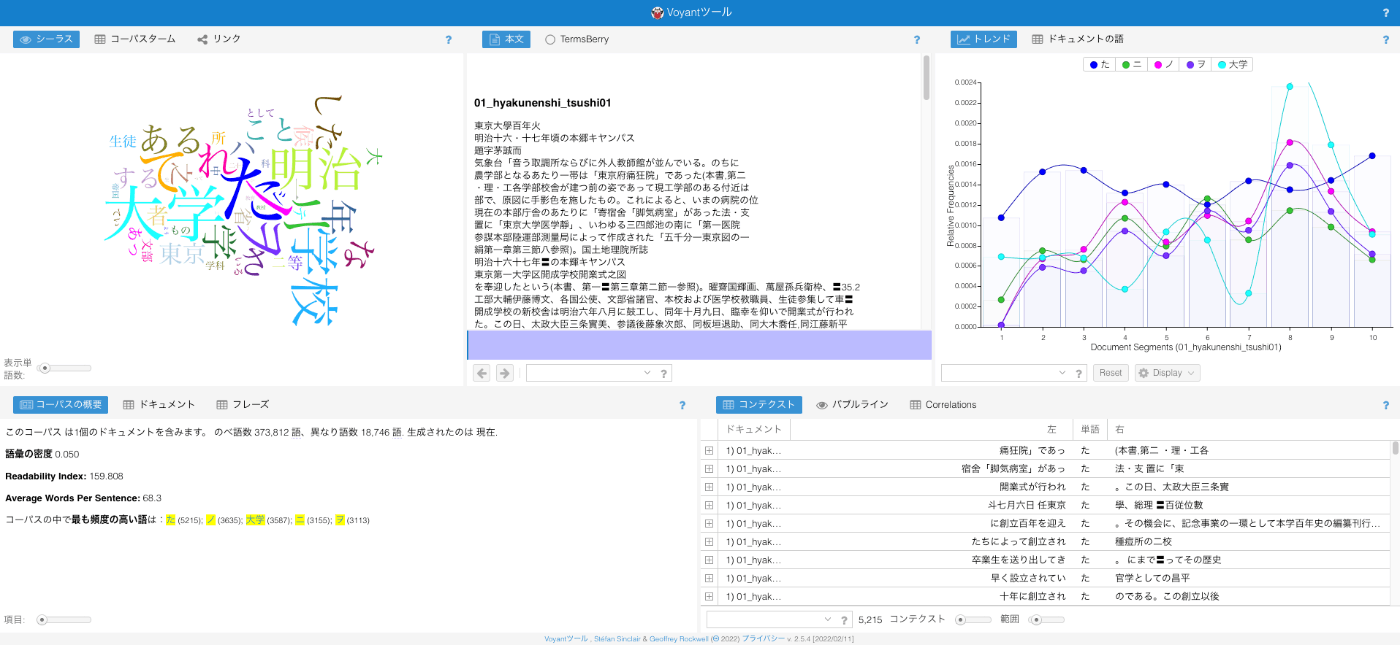
Additionally, for several of the above options, a feature is provided to download a text file with merged inference results after execution. The downloaded text file can be used with other applications such as Voyant Tools. (Note that for serious analysis, various adjustments such as correcting recognition results and tokenization methods are necessary.)
Usage
1. Initial Setup
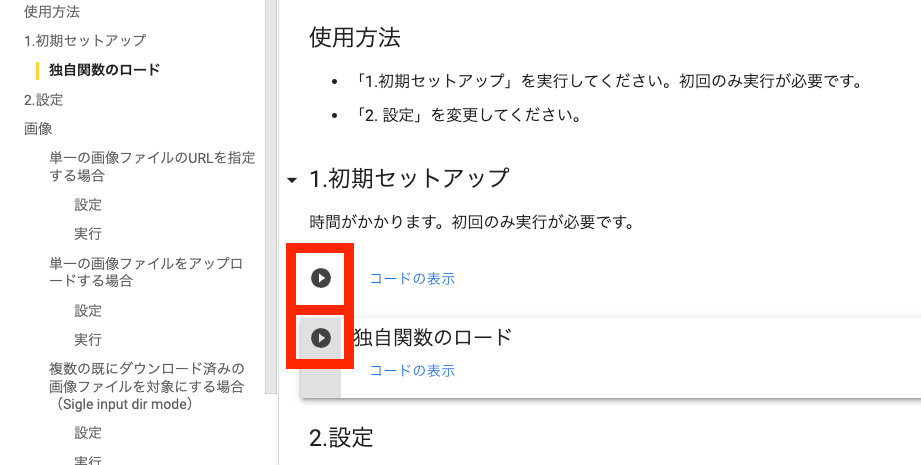
Press the two execution buttons shown below. You will be asked for Google Drive access permission - please grant it.
2. Configuration
Select the appropriate option from those described above based on your purpose. Click the link attached to each option to navigate to the configuration screen for that option.
After Execution
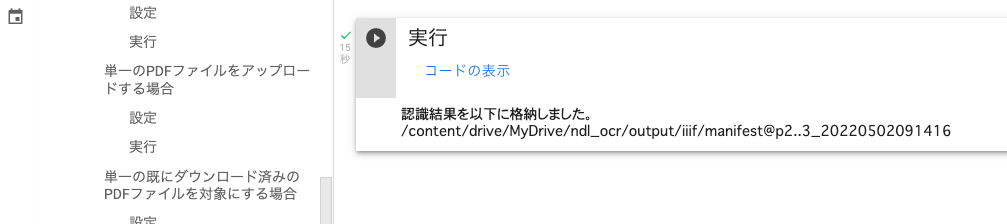
After execution, the output folder will be displayed as shown below. The process value selected in the configuration is appended to the folder name with an “@” symbol. If the output folder already exists, an ID based on the execution time is appended to the end of the folder name with an “_” character.
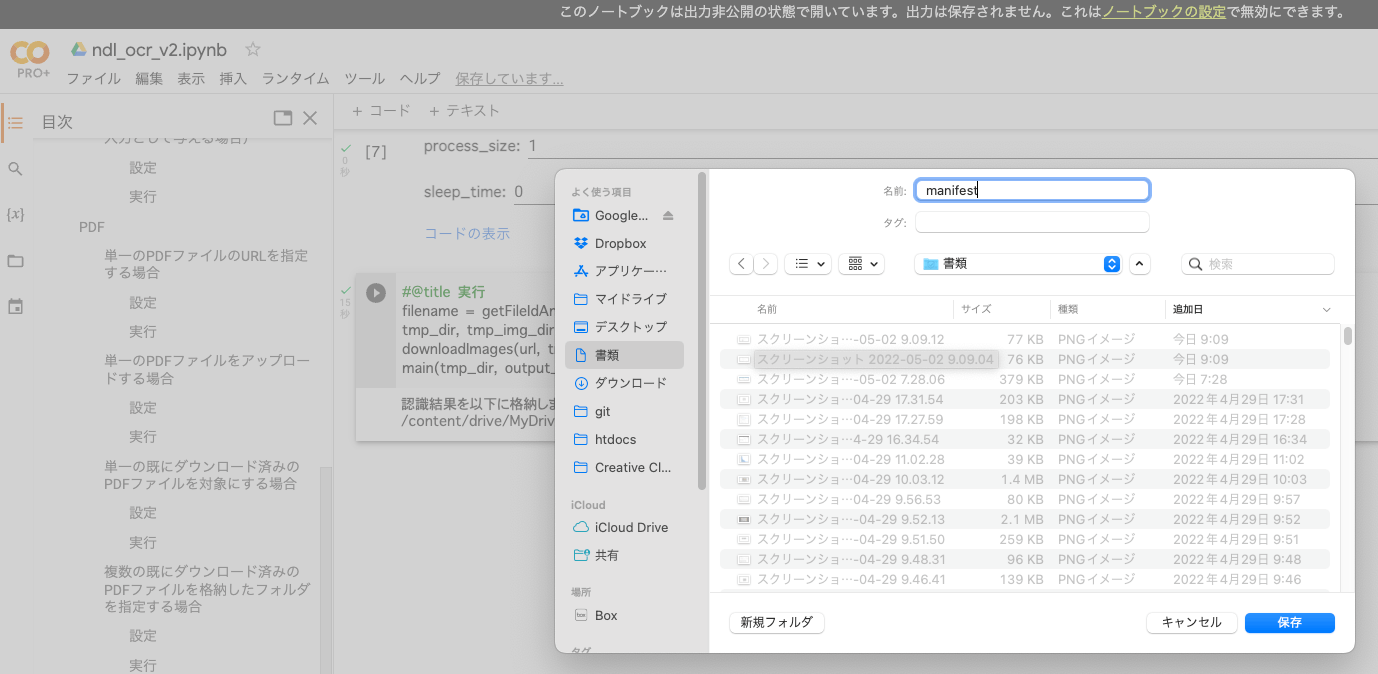
If you selected an option that processes a single file, a text file will be downloaded after execution as shown below.
Summary
I hope this is helpful for using the NDLOCR app.