Overview
I introduce Custom Vocab, one of the Omeka S modules.
https://omeka.org/s/modules/CustomVocab
Below is my translation of the description from the official site.
The Custom Vocab module allows you to create controlled vocabularies and add them to specific properties in resource templates. When using that template for items, properties are loaded as dropdown menus limited to the controlled vocabulary options, instead of text input boxes.
For example, you can create an institution-specific list of locations corresponding to various collections on campus, or a controlled list of people or places related to holdings. This can reduce typos and name variations, and provide metadata references for more fields.
Usage
Creating a Custom Vocabulary
After installing and activating the module, navigate to the Custom Vocab section under Modules in the left navigation.
Click the “Add a New Vocab” button in the upper right corner of the window.
The Add Custom Vocab page has four fields: Label, Language, Vocab Type, and Terms/Items/URI input.
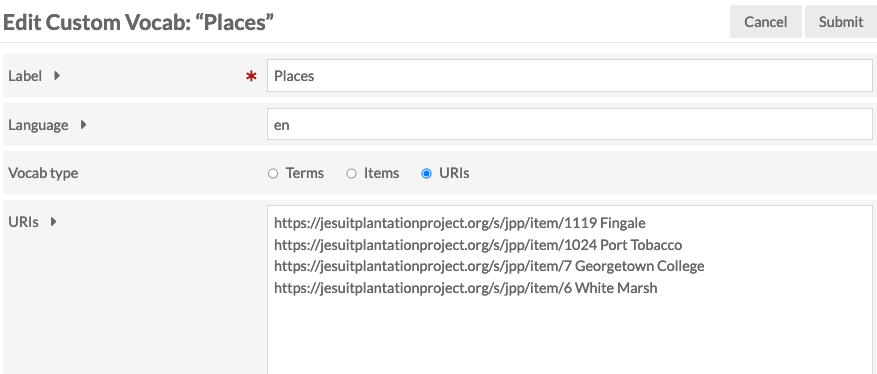
- Label: The name of the vocabulary used for searching when adding to resource templates.
- Language (optional): The language of the vocabulary using ISO 639-1 language codes.
You can set controlled vocabulary terms as a list of entered terms, a list of existing items, or a list of external URIs with or without labels.
- Terms: A list of plain text terms, one word or phrase per line. This sets the property as text.
- Items: A dropdown of item sets in your Omeka S installation. Selecting one of these creates a custom vocab populated with items from that item set. When used, the property is entered as an Omeka resource rather than text.
- URIs: A list of URIs with or without labels, one URI per line. To include a label, add a space and the label after the URI (e.g., “https://youromekainstall.org/item/1119 Canada”). When used, the property is entered as a link to an external resource.
Click “Submit” to save your changes.
Managing Custom Vocabularies
Once you have created at least one vocabulary, a table of existing vocabularies is displayed on the Custom Vocab module tab. This table shows the label, buttons for editing, deleting, and viewing information, and the vocabulary owner or creator.

When editing a custom vocabulary, you can change the label, language, or terms.
Using Custom Vocabularies
Custom vocabularies are applied through resource templates.
Navigate to Resource Templates and add a new template or edit an existing one. After editing the template:
- Add the property to which you want to apply the custom vocabulary.
- Edit the property.
- In the drawer that opens on the right, navigate to the Other Options section and find the Data Type dropdown.
- Scroll through the dropdown and select the custom vocabulary you want to use.
- Click “Set Changes” at the bottom of the drawer.
Be sure to save your changes.
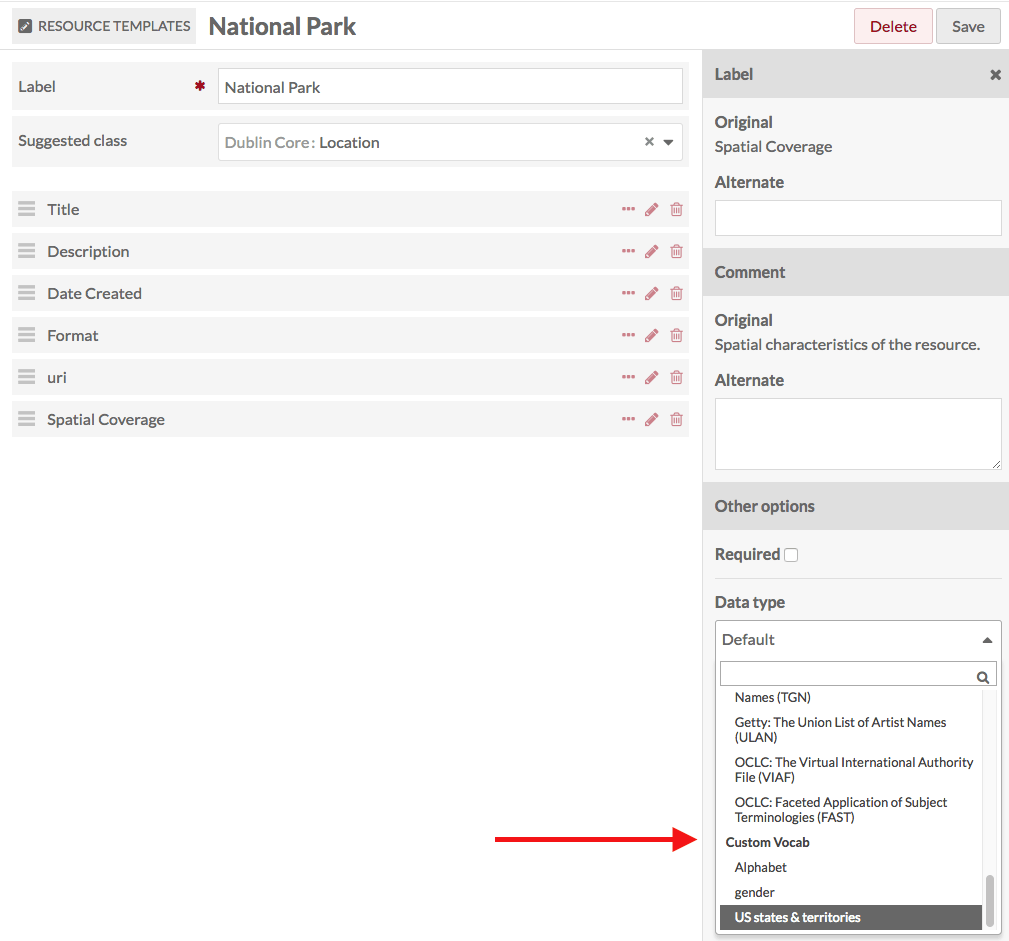
When you click on a resource template title to view its details, Custom Vocab is displayed in the Data Type table heading.

When this resource template is used for items or item sets, the specified property will always be loaded as a dropdown menu containing the custom vocabulary values.
In this image, the previously modified resource template is loaded for a new item. Note the “select below” message on Spatial Coverage and the arrow indicating that the property input is a dropdown menu.
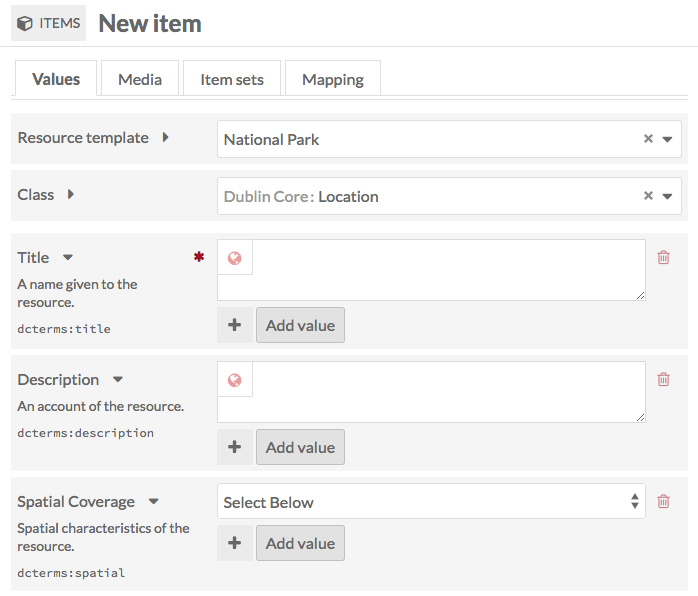
This image shows the dropdown open, displaying the values of the “US States” vocabulary.

Summary
This is a convenient module that enables the use of controlled vocabularies. I think it is useful for reducing variations in notation.