Overview
I had the opportunity to connect GakuNin RDM and figshare, so this is a note for reference.
Work on figshare
Create a folder to be linked with GakuNin RDM.
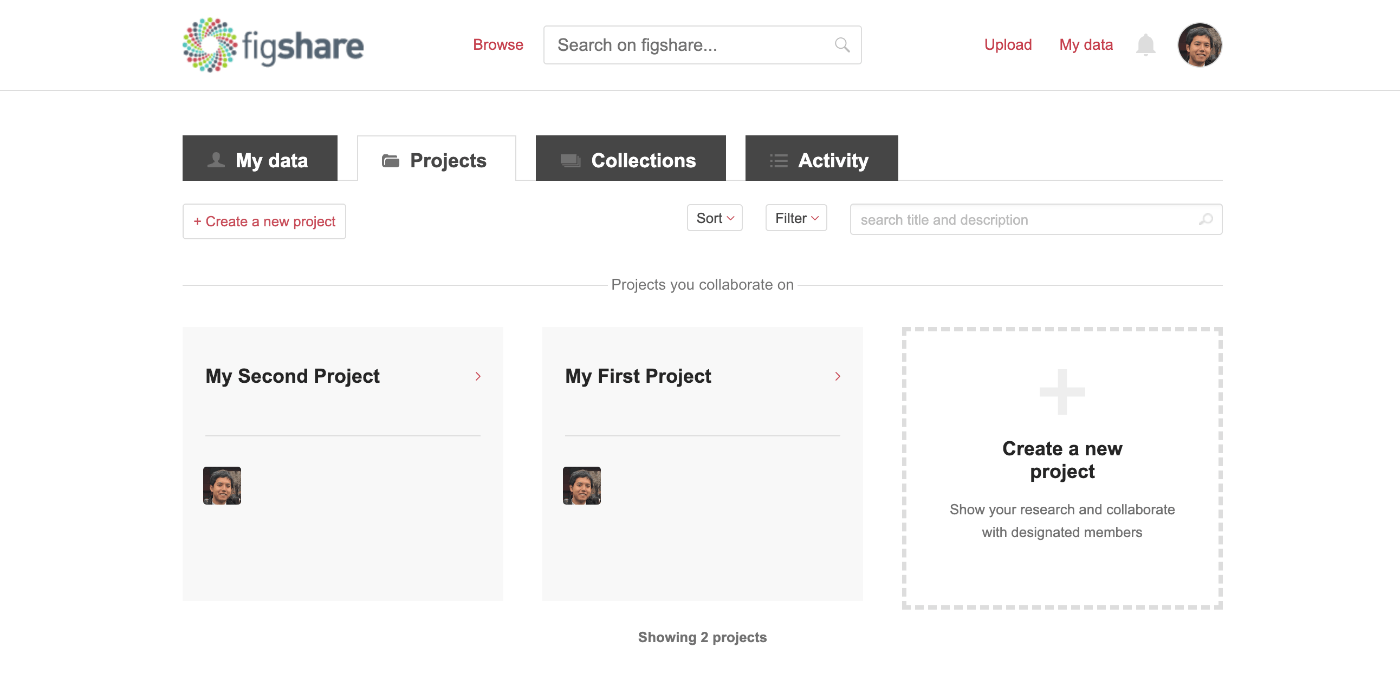
First, create a project. In the following example, a project called “My First Project” is created.

It appeared that linking with GakuNin RDM could be done on a per-project basis.
Configuration on GakuNin RDM
Select the project created on the GakuNin RDM side (in this case, “My First Project”).

Uploading and Viewing on GakuNin RDM
After configuring the connection settings, folder creation and file uploading worked the same as with other storage services.

Note that unlike other storage services, only one level of folders could be created. This is likely because the “folder” unit on the GakuNin RDM side corresponds to the “Item” unit on the figshare side.
Viewing on the figshare Side
Folders created on the GakuNin RDM side were registered as “Items” on the figshare side.
Files appeared to be treated as individual files within that “Item” dataset, as shown below.

Reference
For reference, here are notes on how to create items on the figshare side.
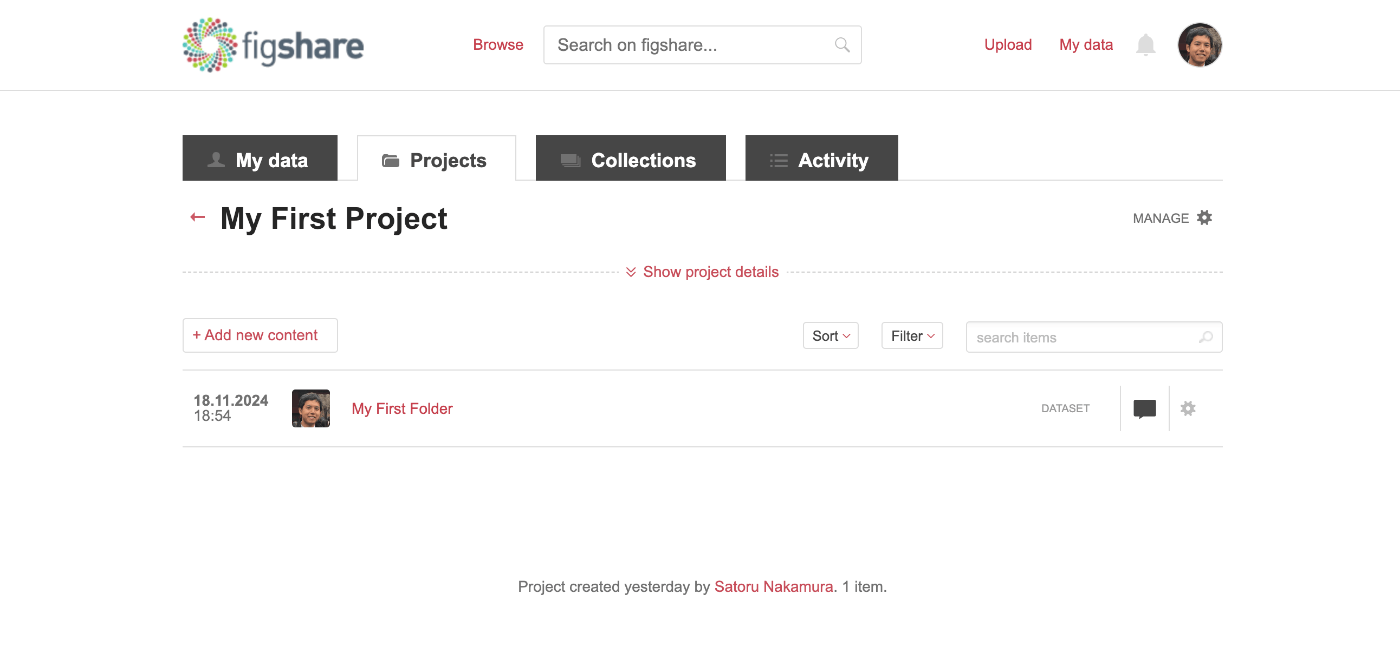
Create an “Item” within the created project. In the following example, an item called “My First Folder” is created.

As a result, the item “My First Folder” was created within the project “My First Project” as shown below.

Summary
I hope this is helpful for integrating GakuNin RDM and figshare.