Overview
I performed new registration, updating, and deletion of achievements on researchmap using CSV files. This article shares the method and the data used.
Sample data used this time
https://github.com/ldasjp8/researchmap
New Registration
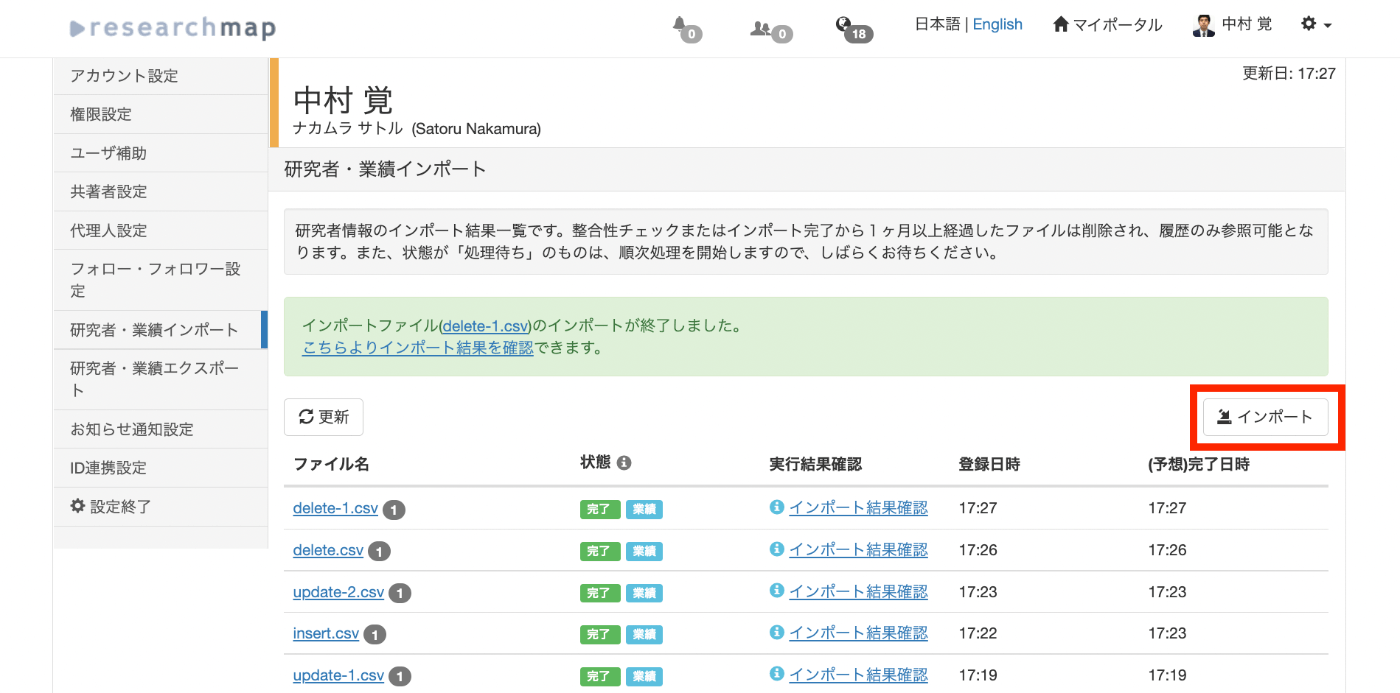
First, click the “Import” button.
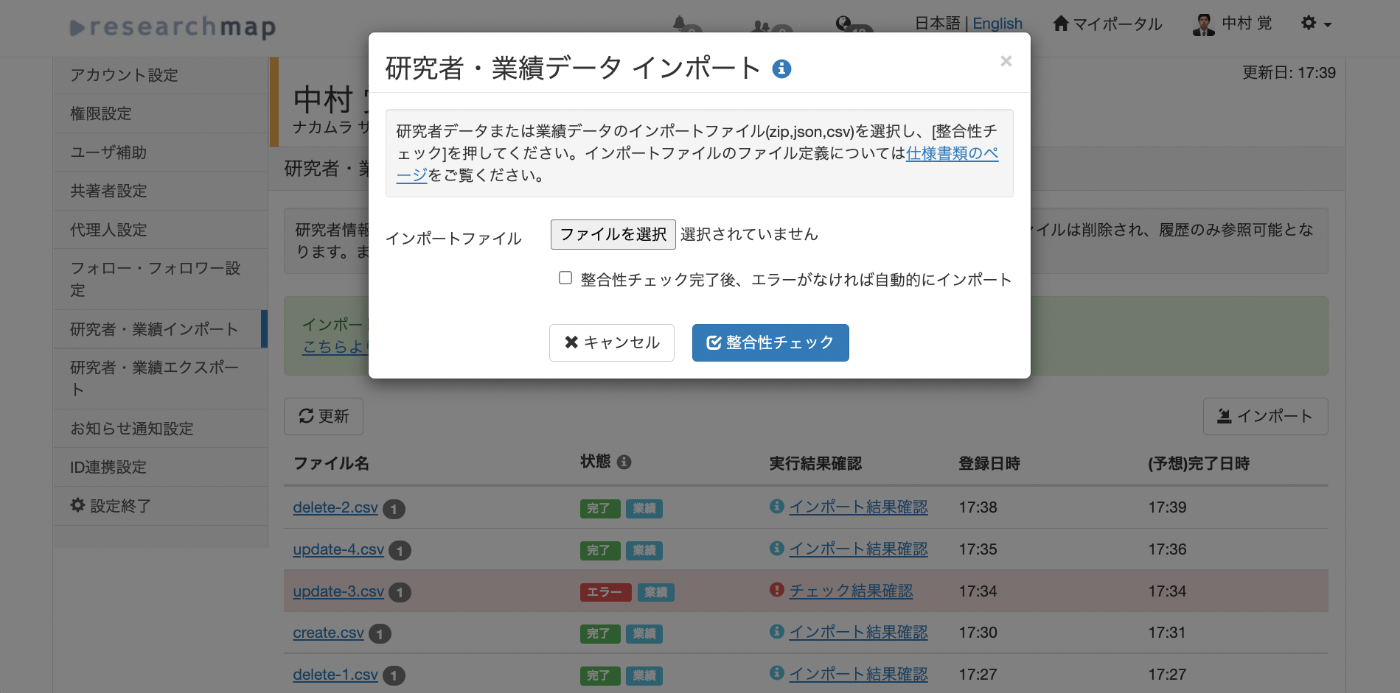
When the import dialog appears, select the CSV file for new registration and press the “Consistency Check” button.
An example CSV file for registration is stored below. This is an example of new registration to “published_papers.”
https://github.com/ldasjp8/researchmap/blob/main/create.csv
The official “CSV Item Definition Document” and sample CSV files can be obtained from the following link.
https://researchmap.jp/public/other-document/specification
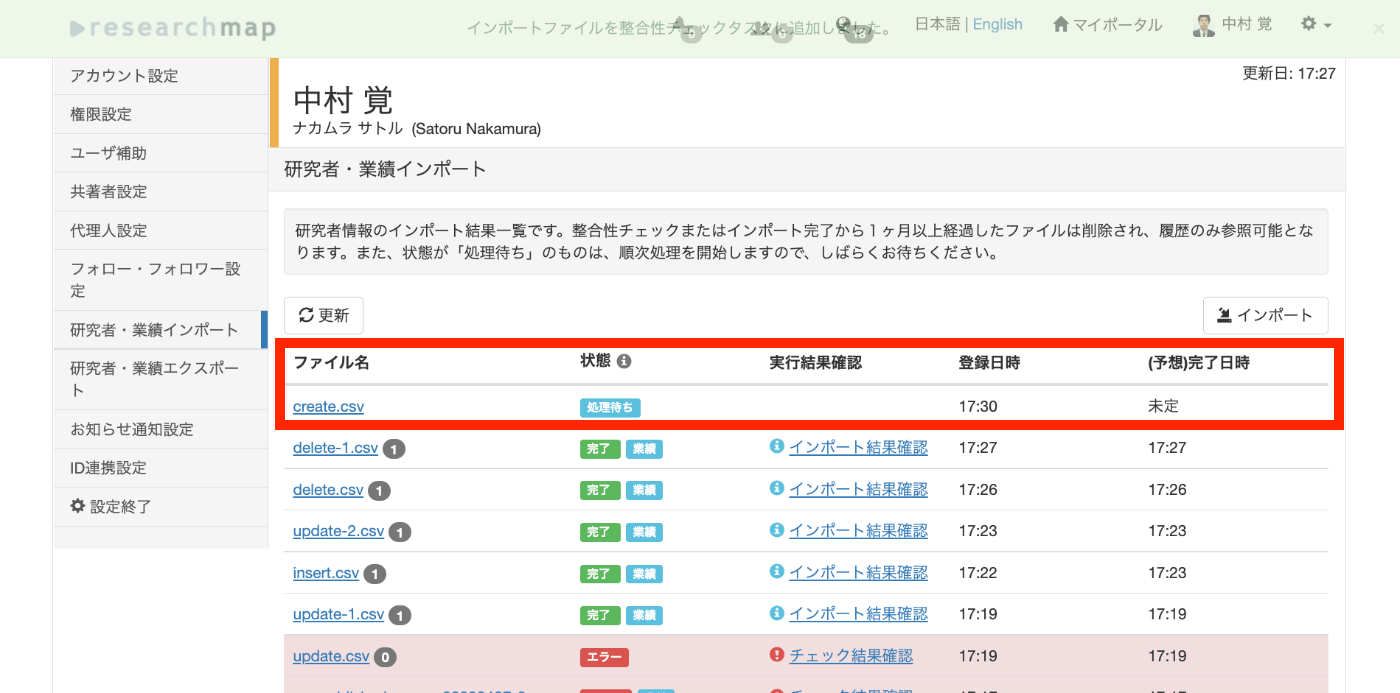
As a result, a “Pending” task is registered.
After waiting a moment and pressing the “Refresh” button, the consistency check completes as shown below. Click the “Check the results here” link.
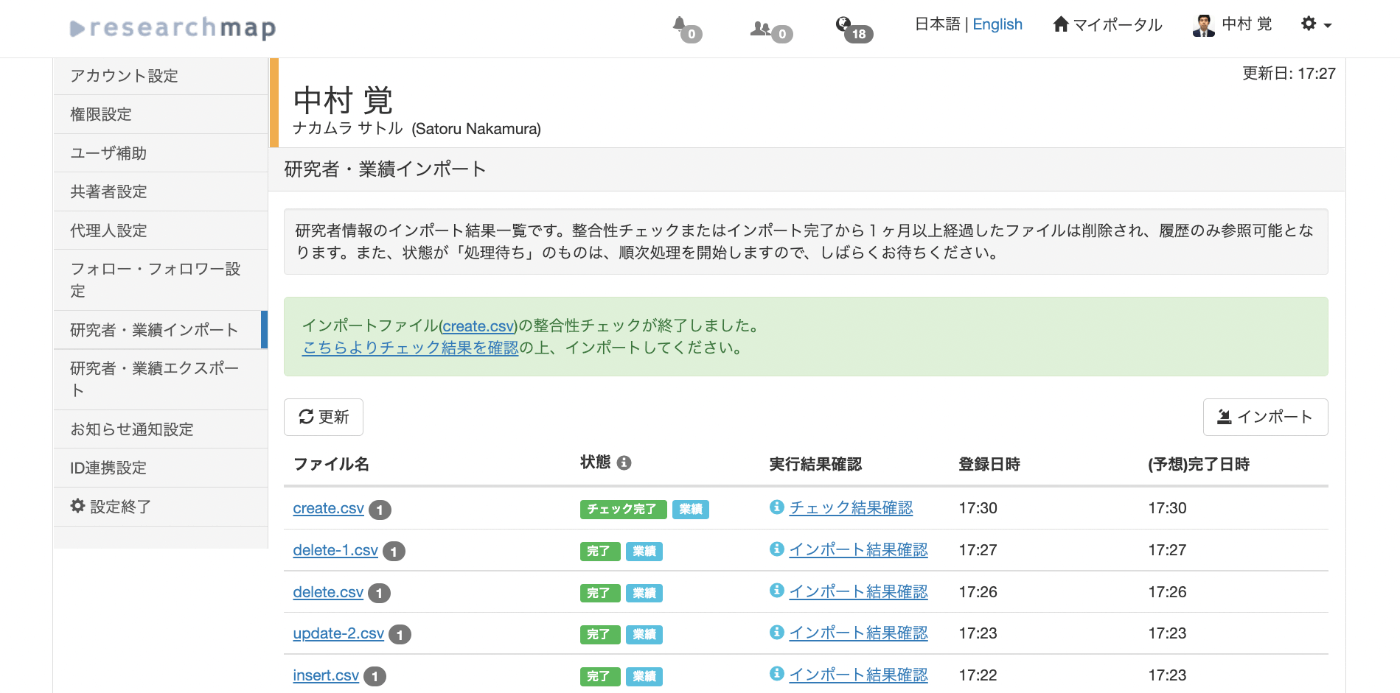
After transitioning to the following screen, press the “Import” button.
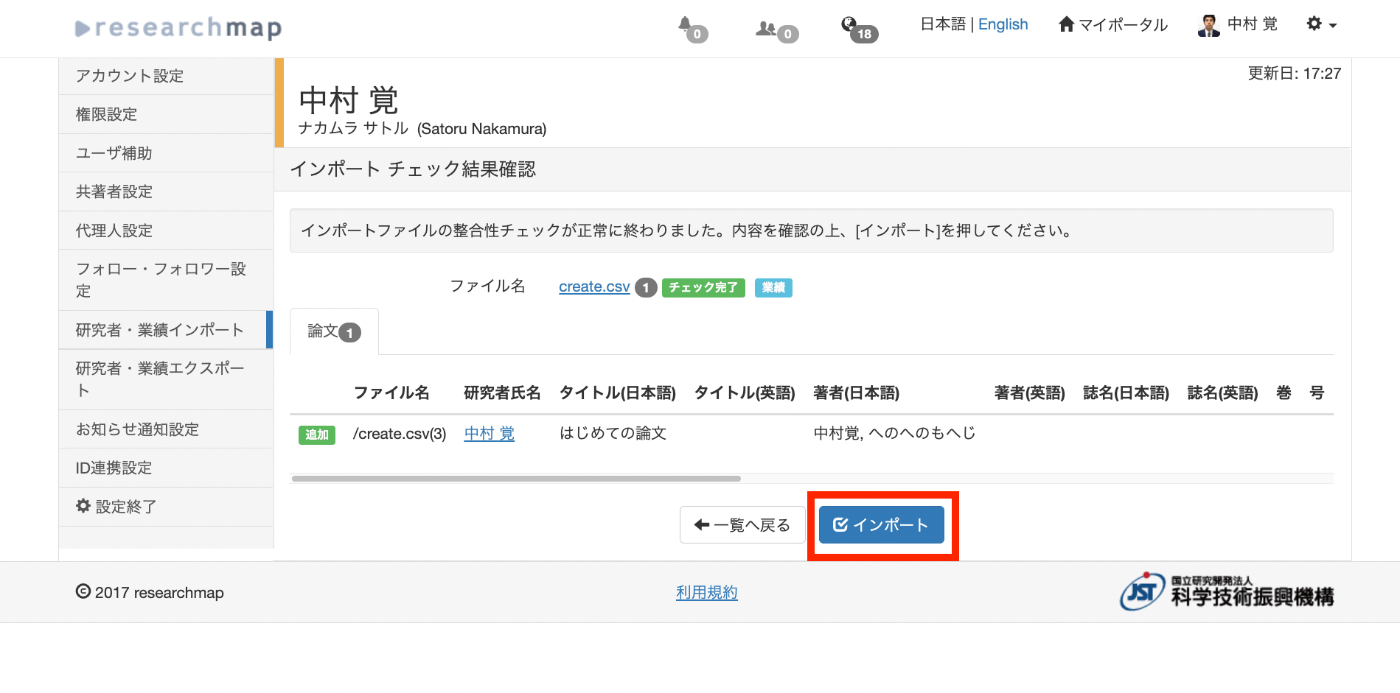
A “Pending” task is registered again.

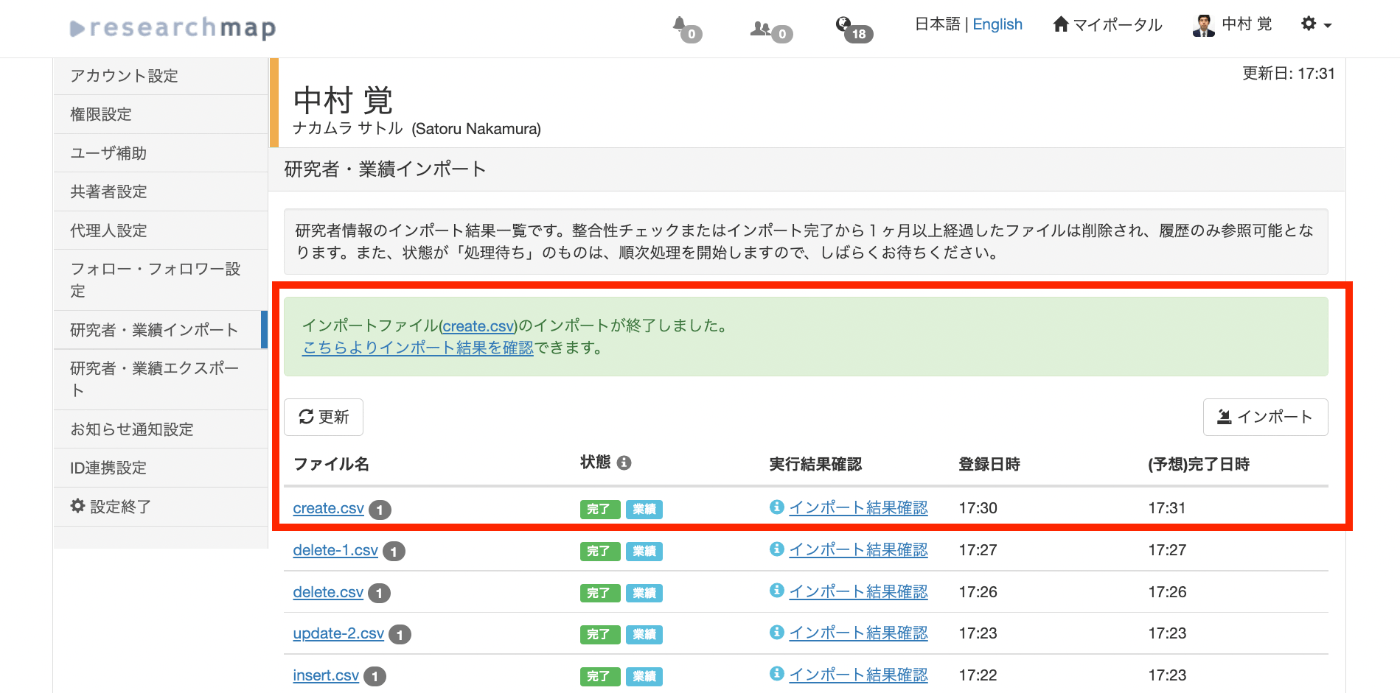
After waiting a moment and pressing the “Refresh” button, the import completes as shown below.
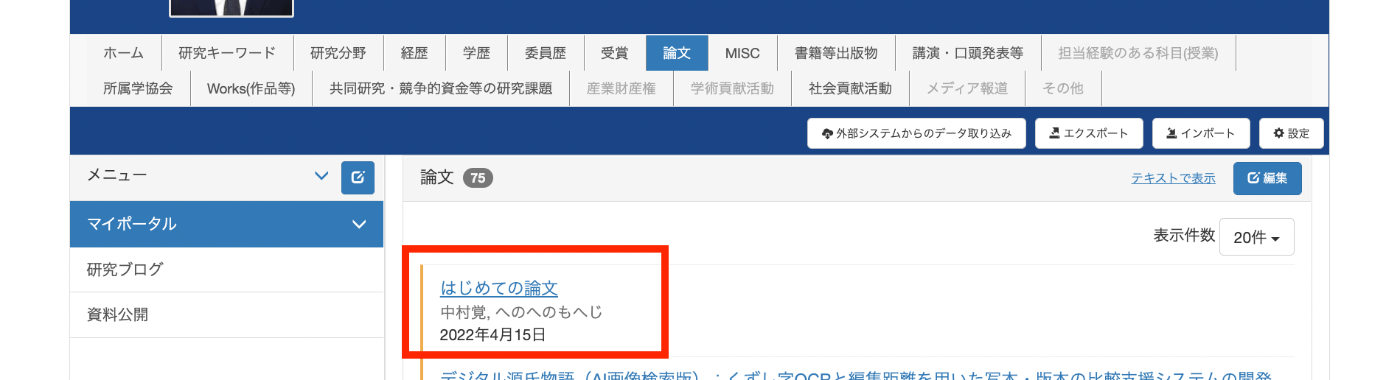
You can also confirm that the new entry has been registered on the “Papers” list page.
Note that the achievement ID is needed for the subsequent “Update” and “Delete” operations. The ID of the achievement registered this time was 36765885. This ID can be found from the URL of each individual registered achievement, among other places.
To batch-retrieve IDs of already registered achievements, use the “Export” function.
Update
As with new registration, use the “Import” function to register a CSV file for updating.
An example CSV file for updating is stored below.
https://github.com/ldasjp8/researchmap/blob/main/update.csv
The key points are setting the action type to “similar_merge,” the similar achievement merge priority to “input_data,” and entering the achievement ID obtained earlier in the ID field.
If these are not properly configured for the intended operation, consistency check errors may occur due to similar achievements.
The following CSV Item Definition Document page is helpful.
https://researchmap.jp/outline/v2api/v2CSV.pdf#page=7
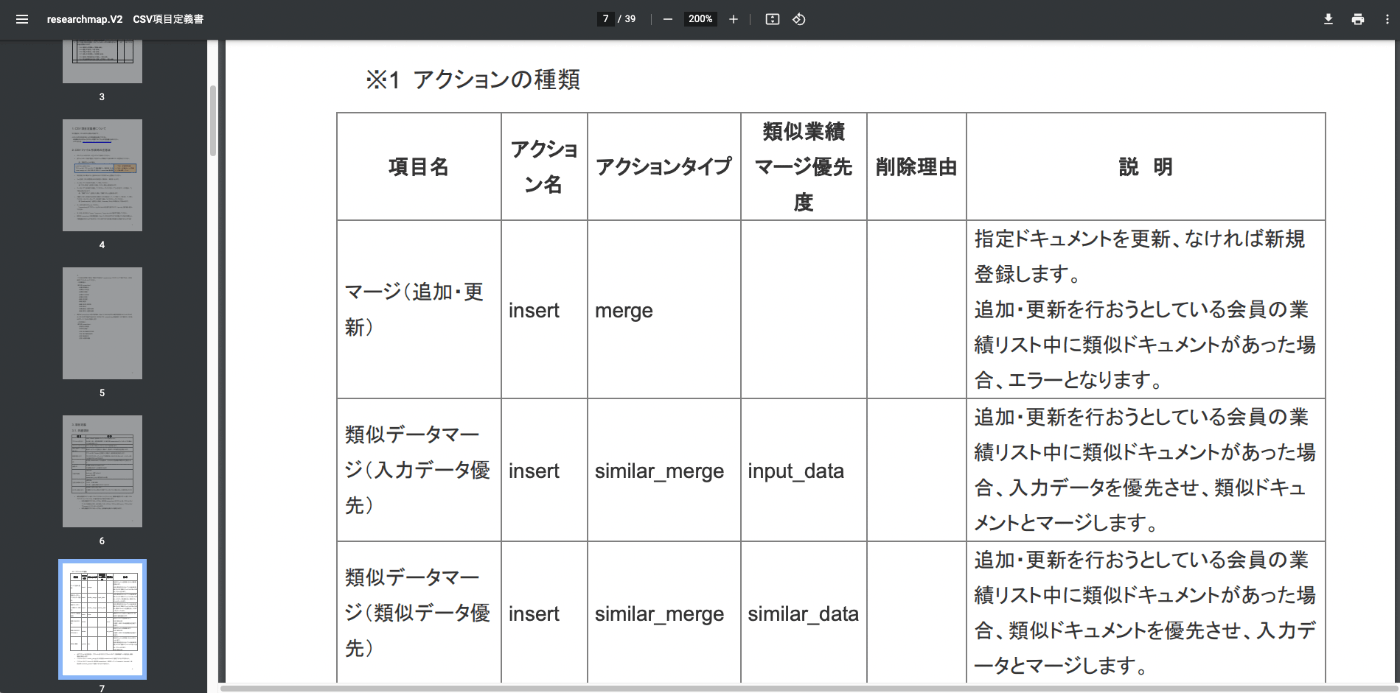
The task is registered as shown below.

After waiting a moment and pressing the “Refresh” button, the consistency check completes as shown below. Click the “Check the results here” link.
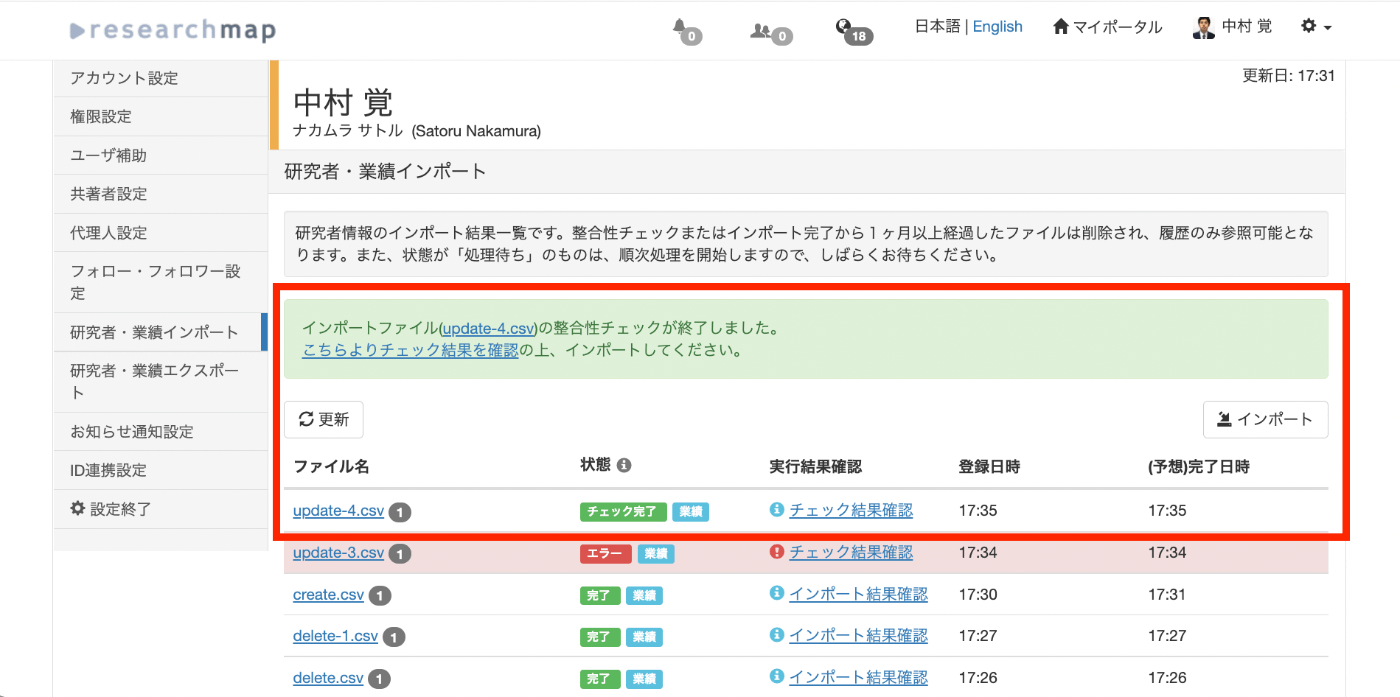
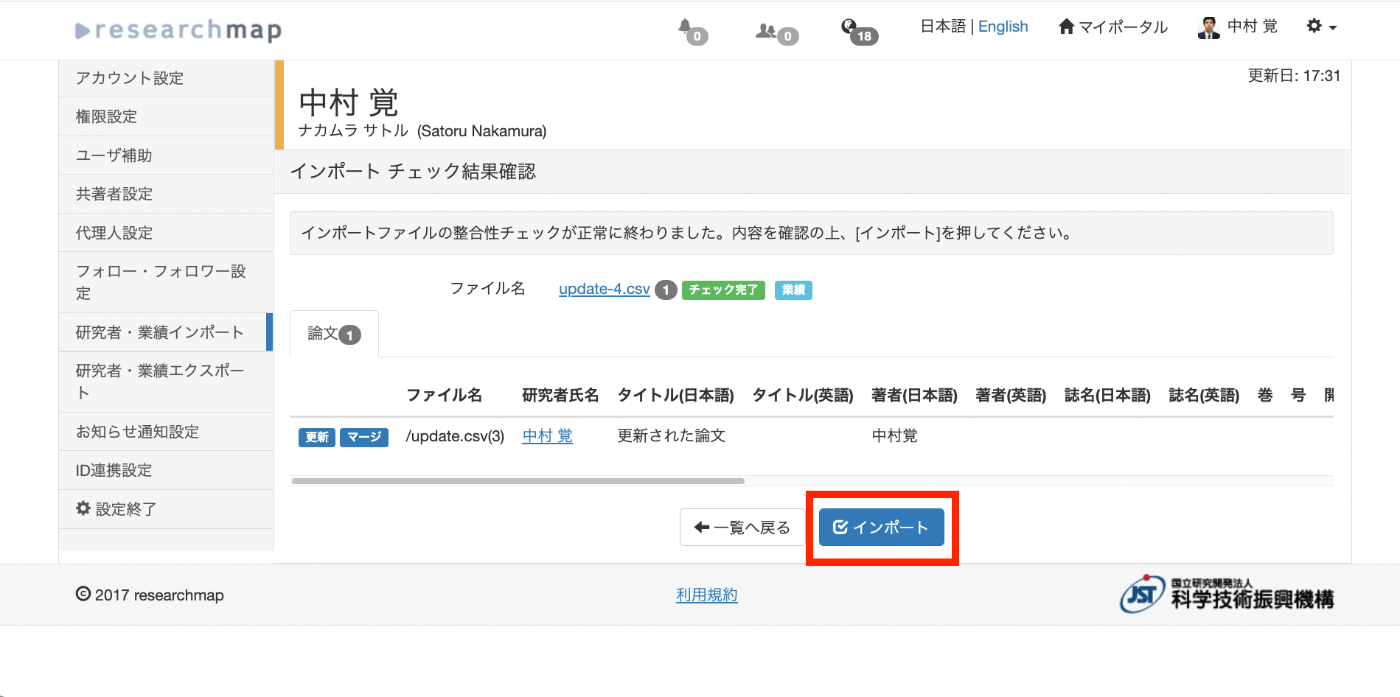
After transitioning to the following screen, press the “Import” button.
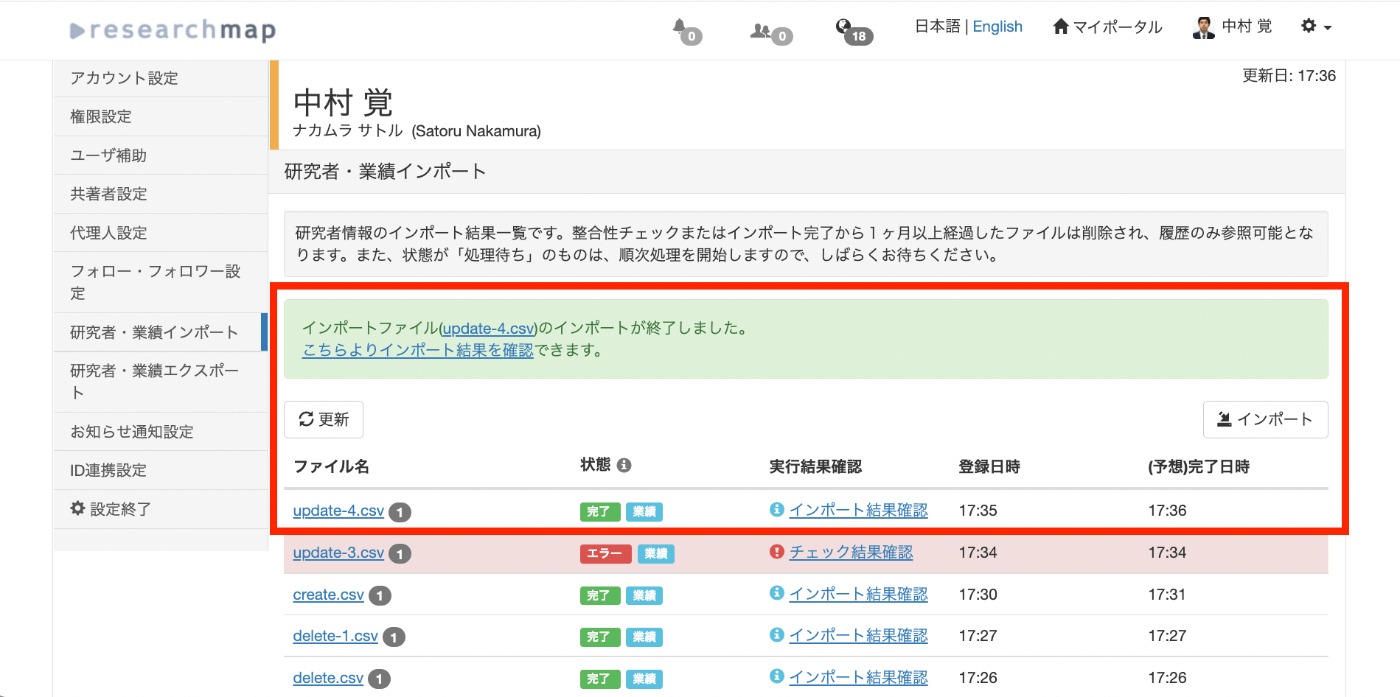
After waiting a moment and pressing the “Refresh” button, the import completes as shown below.
The information of the previously registered achievement is updated as shown below.

Delete
As before, use the “Import” function to register a CSV file for deletion. An example CSV file for deletion is stored below.
https://github.com/ldasjp8/researchmap/blob/main/delete.csv
After registering the CSV file, wait a moment and press the “Refresh” button. The consistency check completes as shown below. Click the “Check the results here” link.
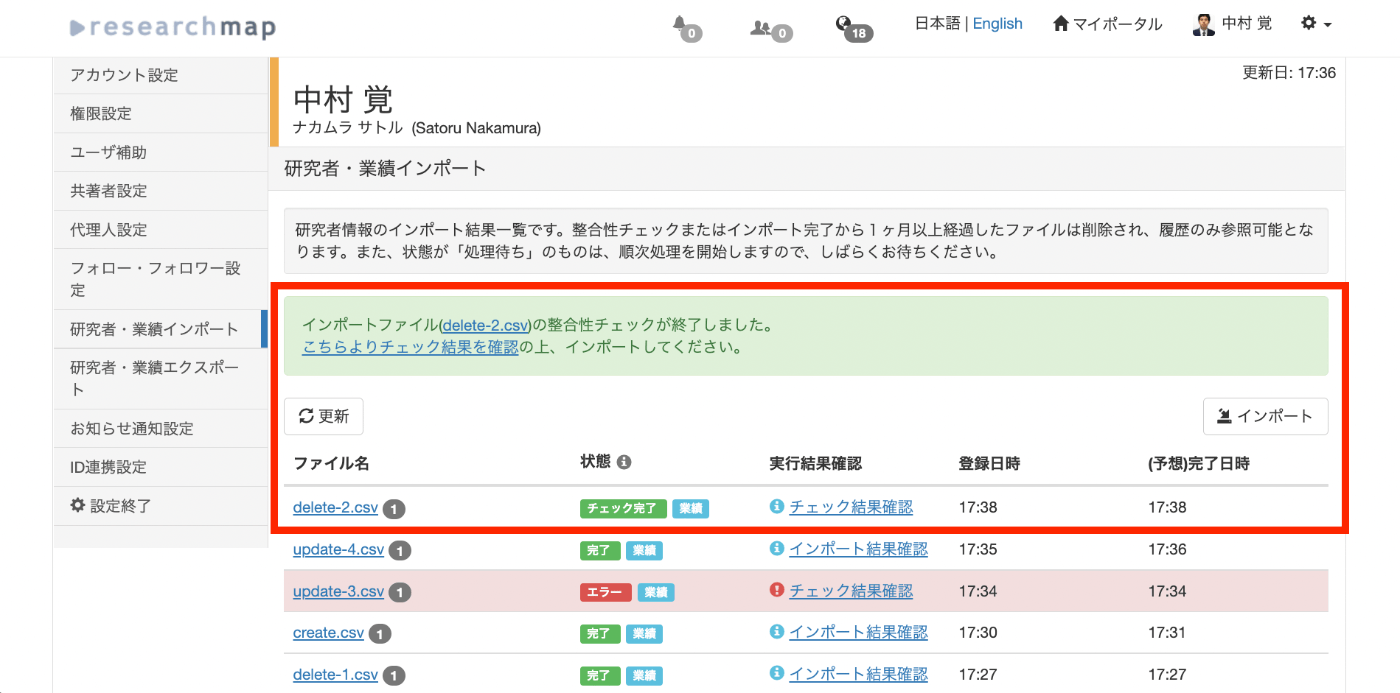
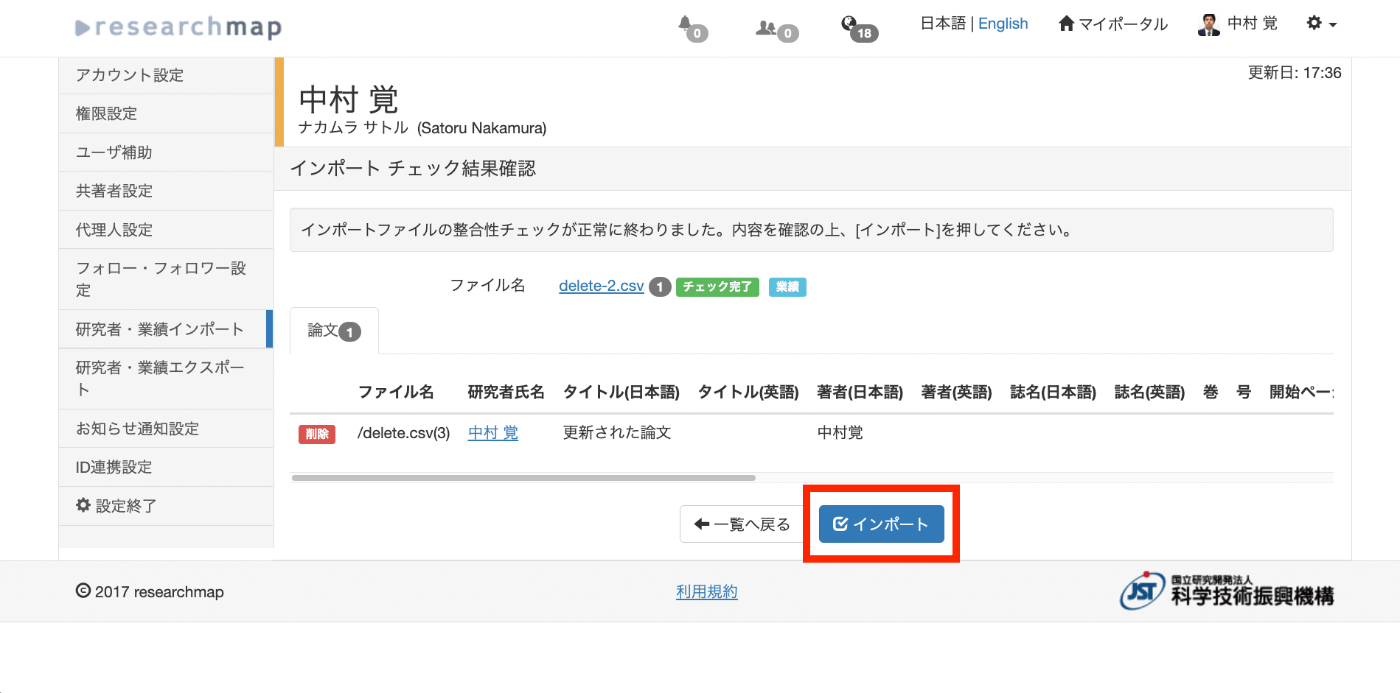
After transitioning to the following screen, press the “Import” button.
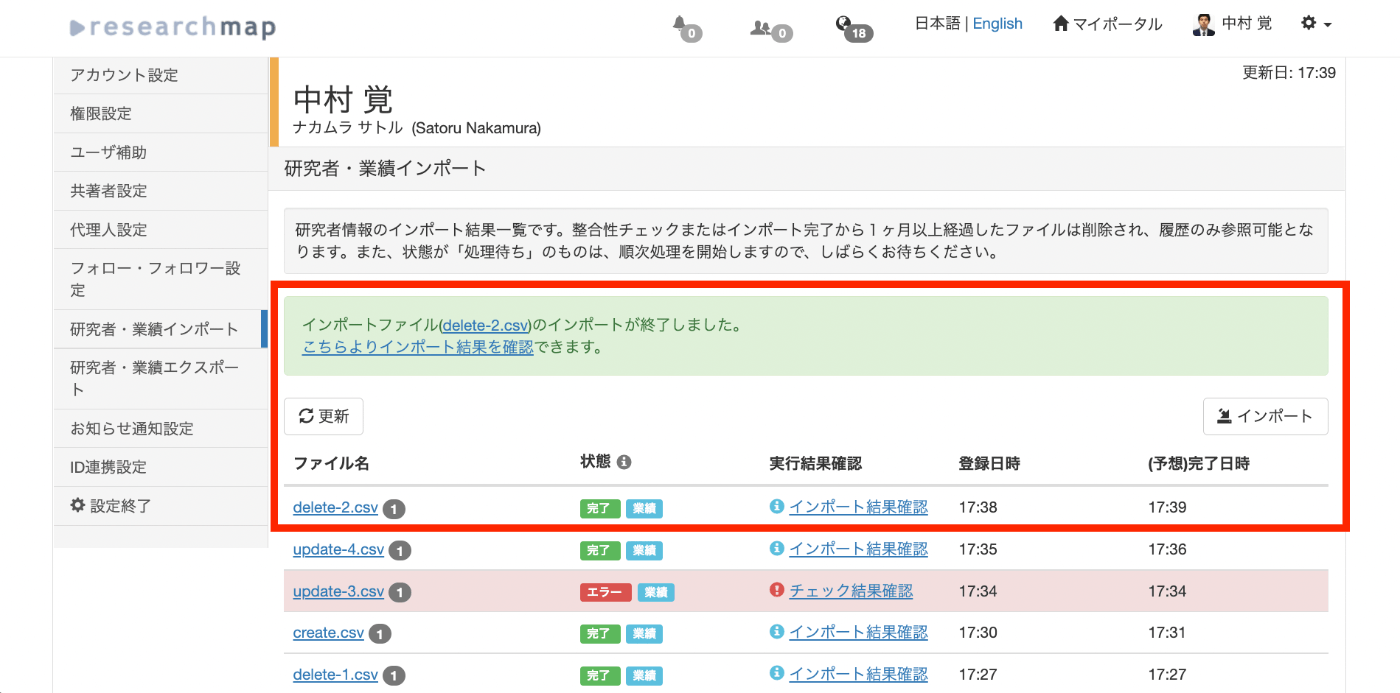
After waiting a moment and pressing the “Refresh” button, the import completes as shown below.
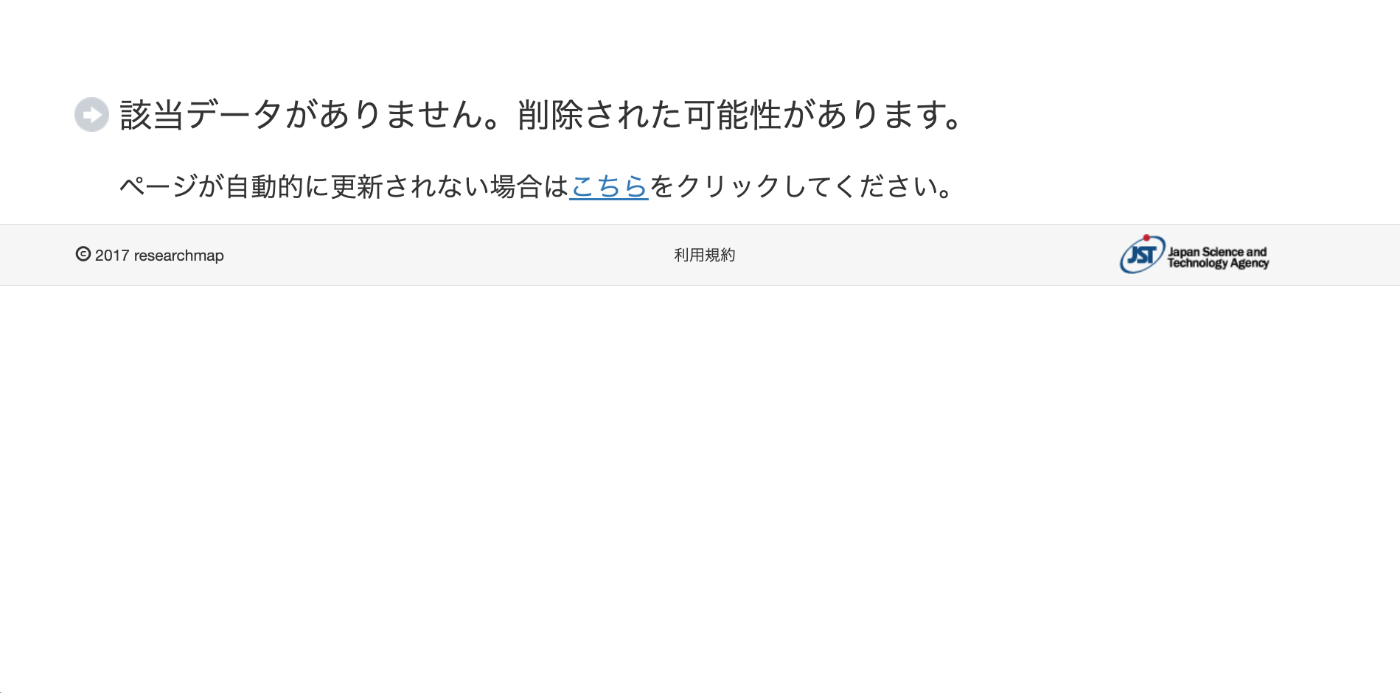
You can confirm that the achievement has been correctly deleted by visiting the achievement page.
Summary
I hope this is helpful for batch registration, updating, and deletion of achievements on researchmap.