Overview
I prototyped a digital collection using AppSheet, so this is a memo of the process.
Target Data
The same data as in the following article is used.
Specifically, “Bird’s-eye View of the University of Tokyo Main Campus and Faculty of Agriculture Buildings” (held by the University of Tokyo Agricultural and Life Sciences Library) is used as sample data.
https://iiif.dl.itc.u-tokyo.ac.jp/repo/s/agriculture/document/187cc82d-11e6-9912-9dd4-b4cca9b10970
Output
It can be accessed from the following URL.
https://www.appsheet.com/start/092a3ff4-1074-4e27-bbd1-f4820da77511
An image list feature,

a map mapping feature,

and simple aggregation features are provided.

How to Create
Initial App Setup
Create the app.


Select Google Sheets as the data source. Incidentally, when using “AppSheet Database,” deployment was not possible on the Free Plan.

As a result, it automatically created Views for map display and data listing by default.


Data
Navigate to the “Data” tab and configure settings.

For example, uncheck the “SHOW?” column for unused items. Also, assign “identifier” and “title” for “KEY?” and “LABEL?”.
Next, enter the display names for the app in “DISPLAY NAME.”

Furthermore, check the “SEARCH?” column only for items you want to use for searching.

Additionally, since this time the purpose is only to browse data, configure the “Read-Only” setting.

Views (Map)
The map View was used with default settings.

Views (Main)
Here, the View name was changed to “Browse,” the View type was set to “card,” and Position was set to “next.” Regarding Position, this causes “Browse” to appear to the left of “Map” in the menu.

Furthermore, configure which columns to assign to each element in the layout. For example, below, “_image_url” is specified as the column for displaying images.

As a result, the list screen is displayed as follows.
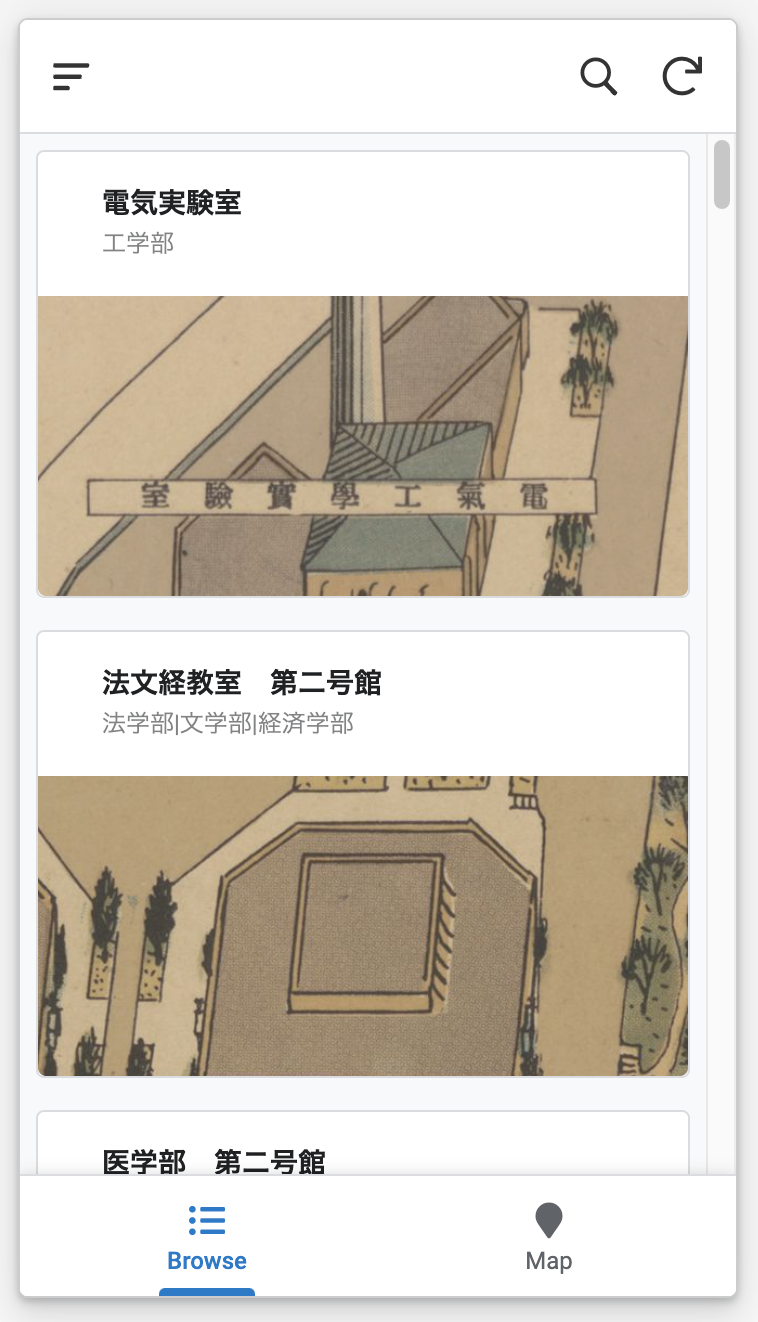
Views (Chart)
Add a new View as follows.

Then, set the “Chart columns” to the column containing categories. As a result, the display changes as shown in the right part of the screen.

Other
Additionally, change the app’s appearance.
From Settings > Theme & Brand, for example, change the header to display a logo.

Also, since the initial settings open the “Map” View first, change the “Views” settings so that “Browse” is displayed.

Preview
At this point, the prototype is nearly complete. You can verify it in Preview mode. A detail screen for each record is also displayed by default.

Values set as URLs are automatically given links. By providing links to IIIF viewers, image details can be viewed at the link destination.

Deployment
From here, proceed with deployment. However, with the steps above, Errors and Warnings are displayed as follows. Address each one.

Account Status
The following is displayed.
Invalid subscription plan: DemoApp-957795297: User signin not allowed with the FREE plan
Therefore, turn off “Require sign-in” from “Security” and check the associated questions.


Return to “Deployment Check,” press “Continue editing,” and then press the “Run deployment check” button. The errors are resolved as shown below.

Performance
There are 2 warnings in Performance.

Enabled “Server caching” from Settings > Performance.

For offline mode, I was unable to fully understand the behavior of “Store content for offline use” and did not change from the default settings.

Other
Additionally, by adding app descriptions and setting custom logos, the warnings could be eliminated.
API Usage
Furthermore, data manipulation via API also appeared to be possible. Enable it from “Integrations.”

The following is an example of performing a Read operation using Thunder Client.

The following article was helpful.
https://zenn.dev/yuta_enginner/articles/5b382d51b0019e
Summary
There may be incorrect aspects in the usage of AppSheet, and whether what was created qualifies as a digital collection is debatable, but we hope this serves as a useful reference.
The development of no-code and low-code tools, not limited to AppSheet, is exciting to follow.