Overview
This is a memo on how to configure Amazon S3 files and folders as processing targets in Archivematica, and save the resulting AIPs to S3.
Using S3 as storage is expected to facilitate integration with other systems and expand options for long-term AIP preservation.
The following article from Wellcome Collection was helpful.
https://docs.wellcomecollection.org/archivematica/administering-archivematica/bootstrapping
Amazon S3 Configuration
Create a bucket. This time, I created a bucket named archivematica.aws.ldas.jp in the us-east-1 region.
Then create a “transfer_source” folder for storing files to be processed, and an “aip_storage” folder for storing the resulting AIPs. These names and hierarchy are arbitrary, and you can configure which folders to use in the subsequent steps.

Archivematica Storage Service Configuration
If you installed Archivematica using Docker, you can access the Archivematica Storage Service at a URL like the following.
After logging in, access the following. Click the “Create new space” link.
/spaces/

On the “Create Space” screen, enter the following. Select S3 for “Access protocol” and enter the Access Key and other information.

I wasn’t entirely sure about the Staging path, so I entered the value from the following article.
https://docs.wellcomecollection.org/archivematica/administering-archivematica/bootstrapping#step_7
After creating the Space, press “Create Location here” to create a location. There are two links, but both are the same.

Create two locations here. One is a location with Purpose set to “Transfer Source” as shown below.

For Relative Path, use the “Browse” button to select from the folders created earlier.

In the above example, there is only one Pipeline, but if you have created multiple Pipelines, you would select the one to associate.
The other is a location with Purpose set to “AIP Storage” as shown below.

On each screen, there is a “Set as global default location for its purpose:” option. If you check this, the default settings described later become unnecessary.
Verification
With the settings up to this point, accessing /spaces/ shows that in addition to the default Space with Access Protocol “Local Filesystem,” a Space with Access Protocol “S3” has been added.
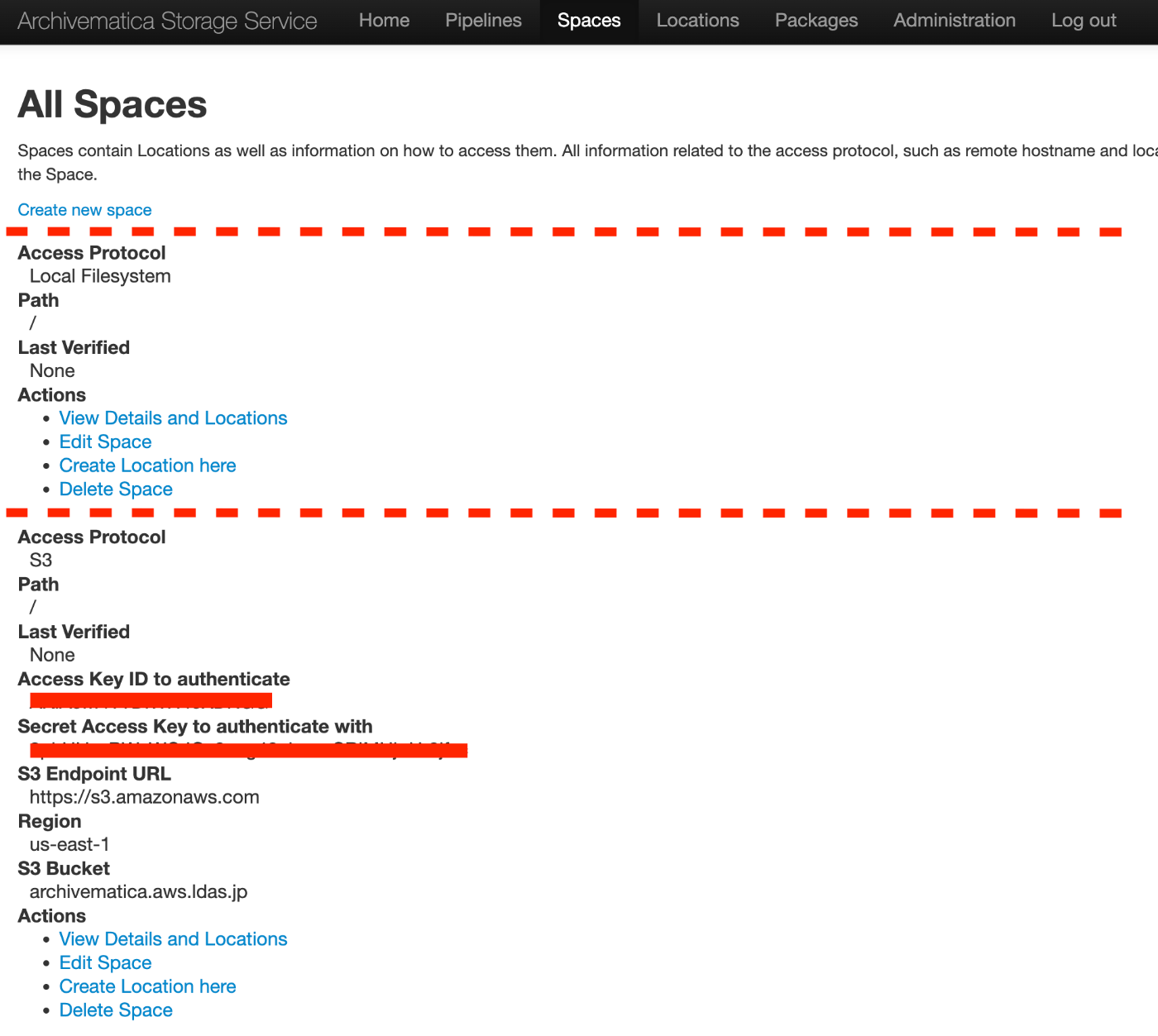
Furthermore, accessing /locations/ shows that the two locations have been added.

Archivematica Dashboard Configuration
If you installed Archivematica using Docker, you can access the Archivematica Dashboard at a URL like the following.
AIP Storage Destination Configuration
Access the following and edit the process automated, for example.
/administration/processing/

Then, for the “Store AIP” item, select the location created earlier (in this case, “s3 aip_storage”).

This will cause AIPs to be stored in the S3 location created earlier. However, if you checked “Set as global default location for its purpose:” earlier, this setting is not needed.
Starting a Transfer
Access /transfer/. Pressing the “Browse” button displays “Default transfer source” by default.

It is a select box, and clicking it lists the available “Transfer Sources,” so select the S3 one created earlier.

This allows you to use files and folders on S3 as processing targets.
Summary
By specifying S3 cold storage (Amazon S3 Glacier) as the AIP storage destination, options for long-term AIP preservation are expected to increase. Additionally, by going through S3, API usage and integration with other systems becomes easier.
We hope this is helpful when using Archivematica.