Overview
This article explains how to assign identifiers to resources (item sets, items, media) in Omeka S.
Specifically, it explains how to use the “Clean Url” module.
https://github.com/Daniel-KM/Omeka-S-module-CleanUrl
Installation
The following assumes that Omeka S is installed in a folder named omeka-s-sandbox.
The README recommends installing the related module “Generic.”
https://github.com/Daniel-KM/Omeka-S-module-CleanUrl#installation
Execute the following.
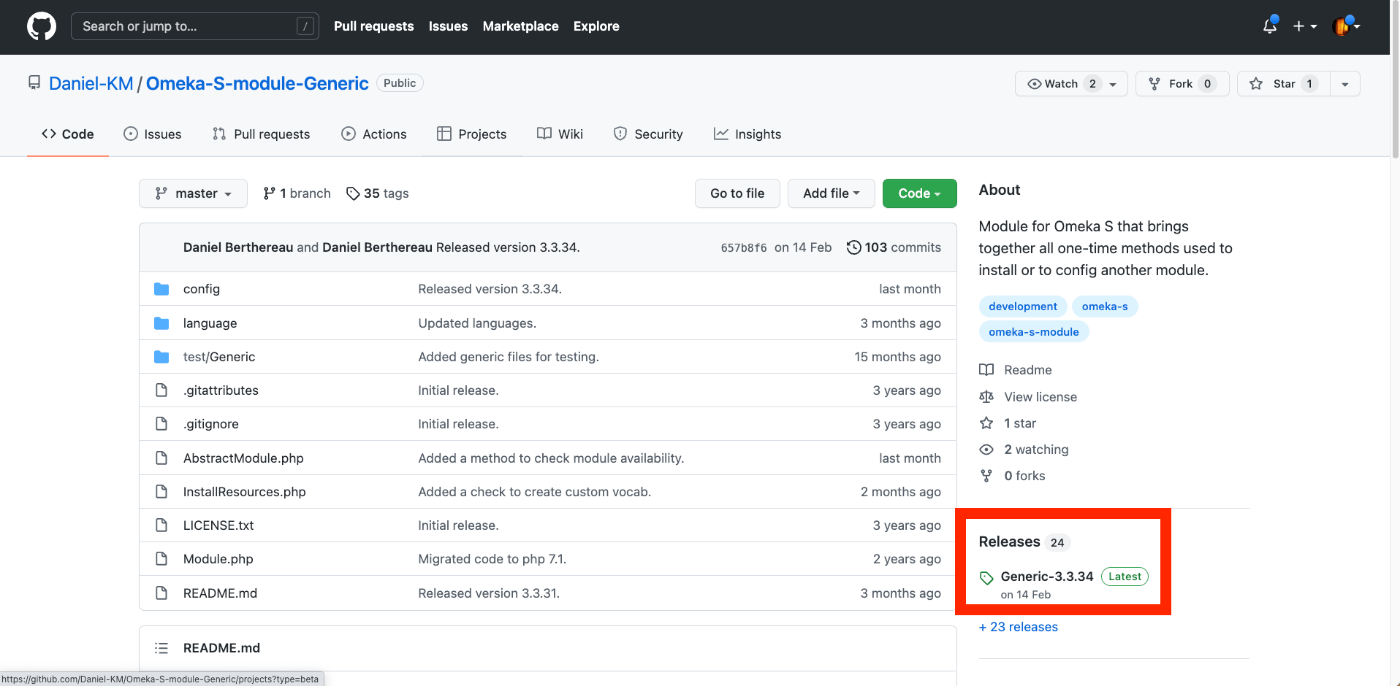
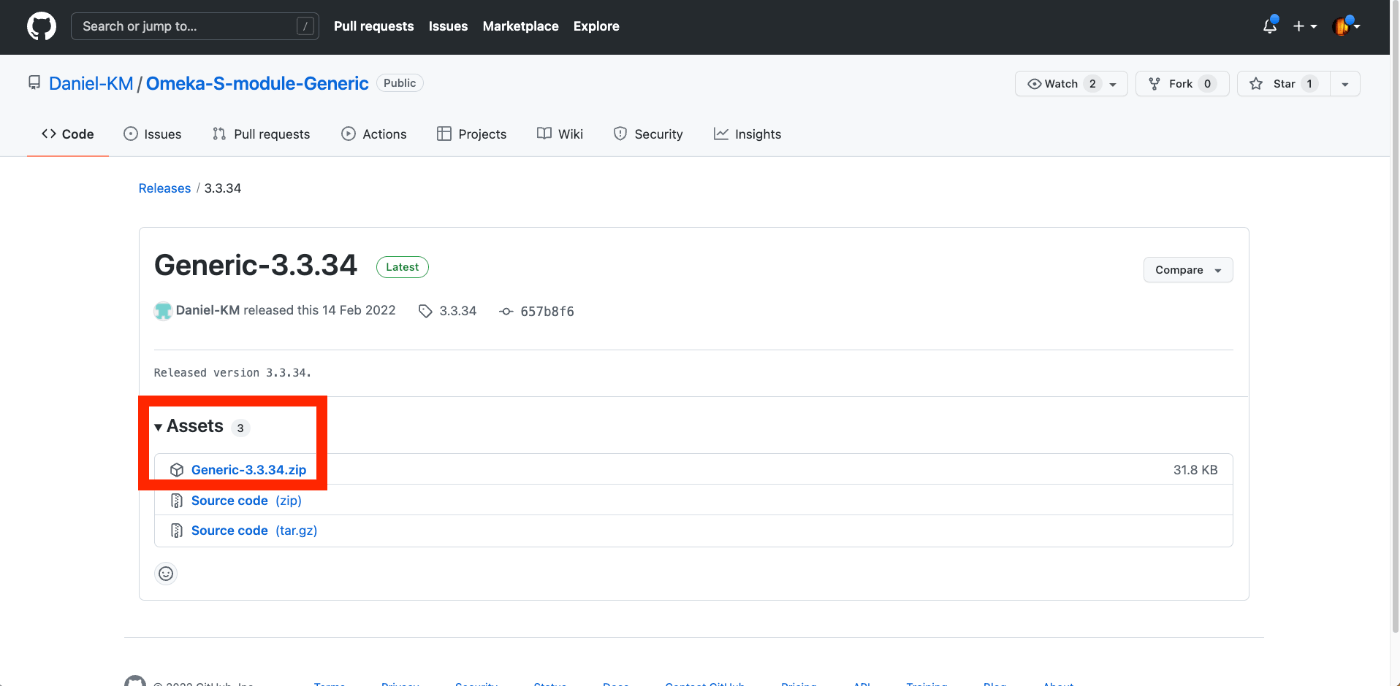
The above is an example of downloading Generic v3.3.34. For the latest version, access the following and obtain the URL from the location shown in the screenshots.
https://github.com/Daniel-KM/Omeka-S-module-Generic
Next, install the Clean Url module. Execute the following.
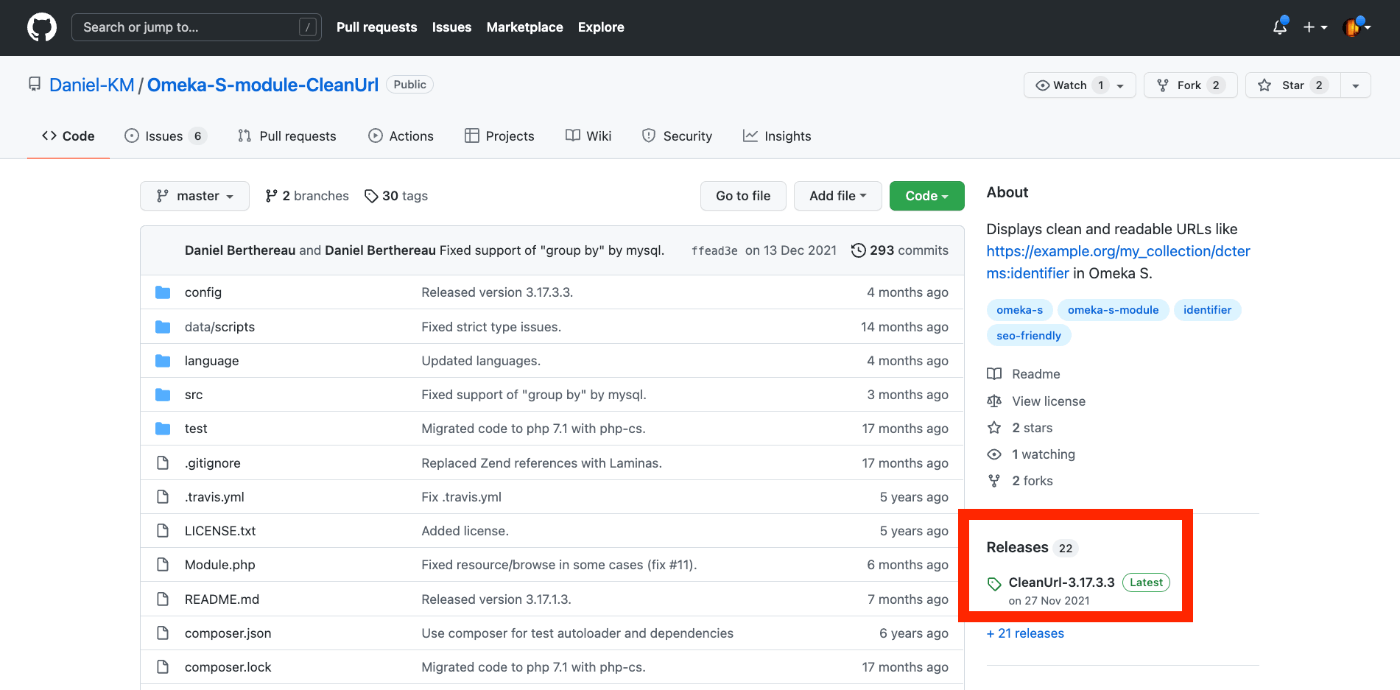
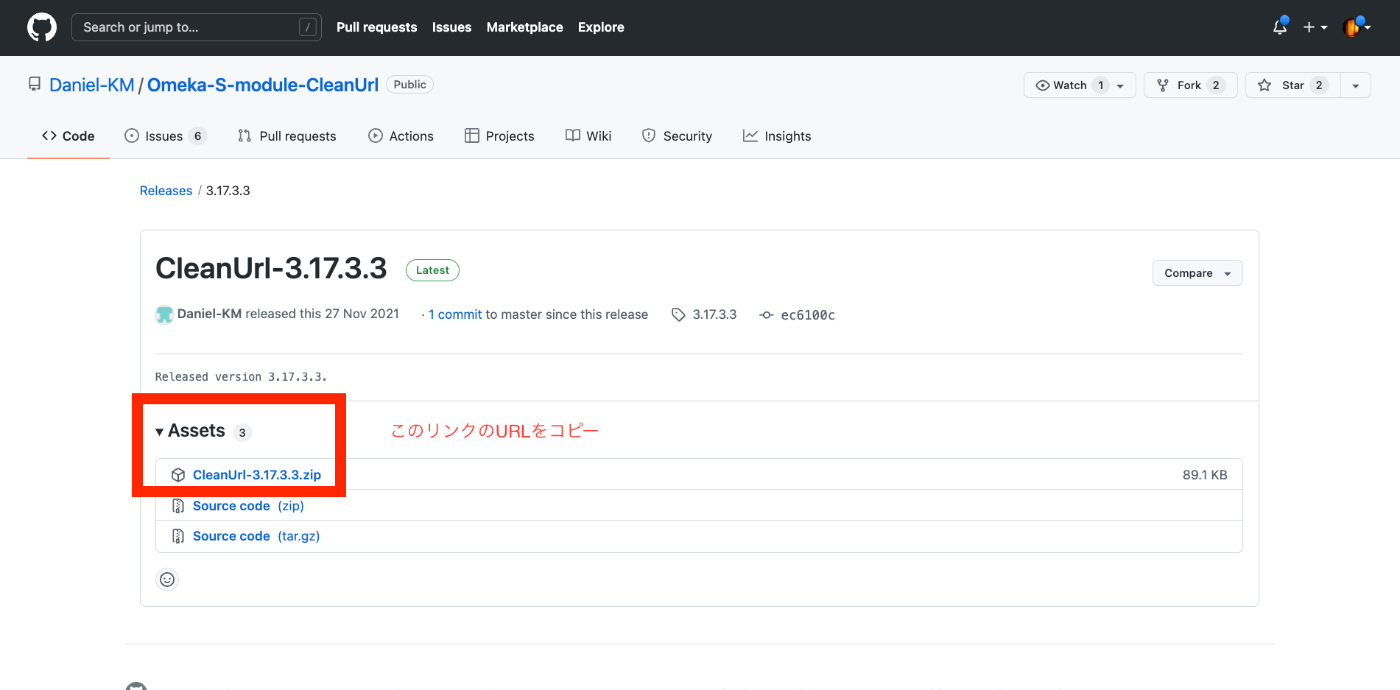
The above is an example of downloading CleanUrl v3.17.3.3. For the latest version, access the following and obtain the URL from the location shown in the screenshots.
https://github.com/Daniel-KM/Omeka-S-module-CleanUrl
Logging into the Admin Dashboard
Log into the admin dashboard from the following URL (this is an example; please change it according to your environment).
https://shared.ldas.jp/omeka-s-sandbox/login
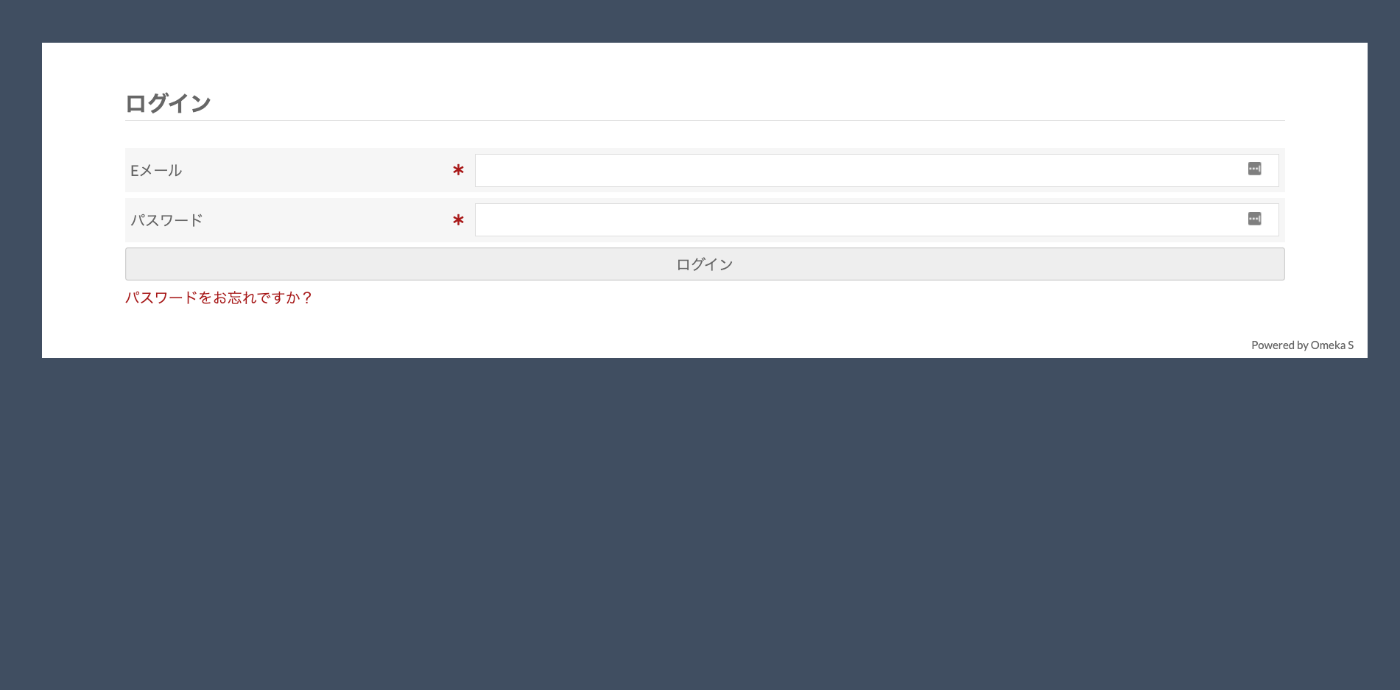
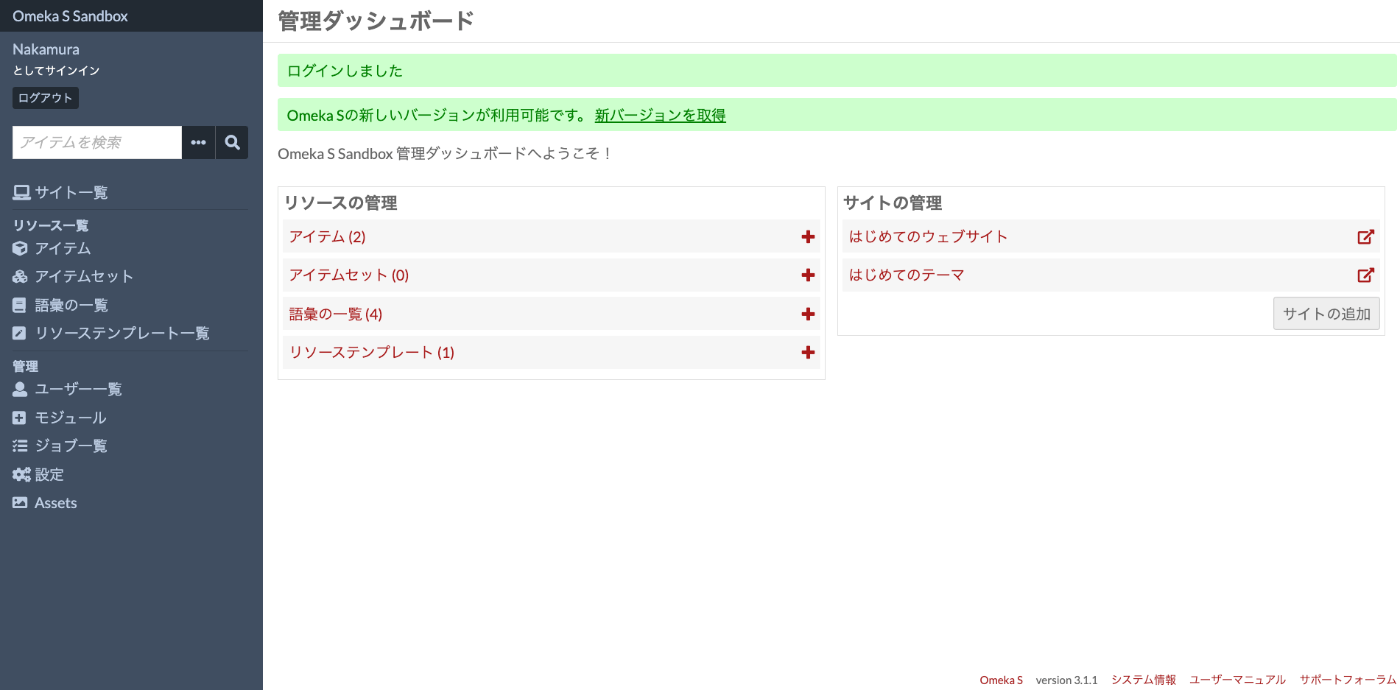
Below are the URL and screen after logging in.
https://shared.ldas.jp/omeka-s-sandbox/admin
Installing the Module
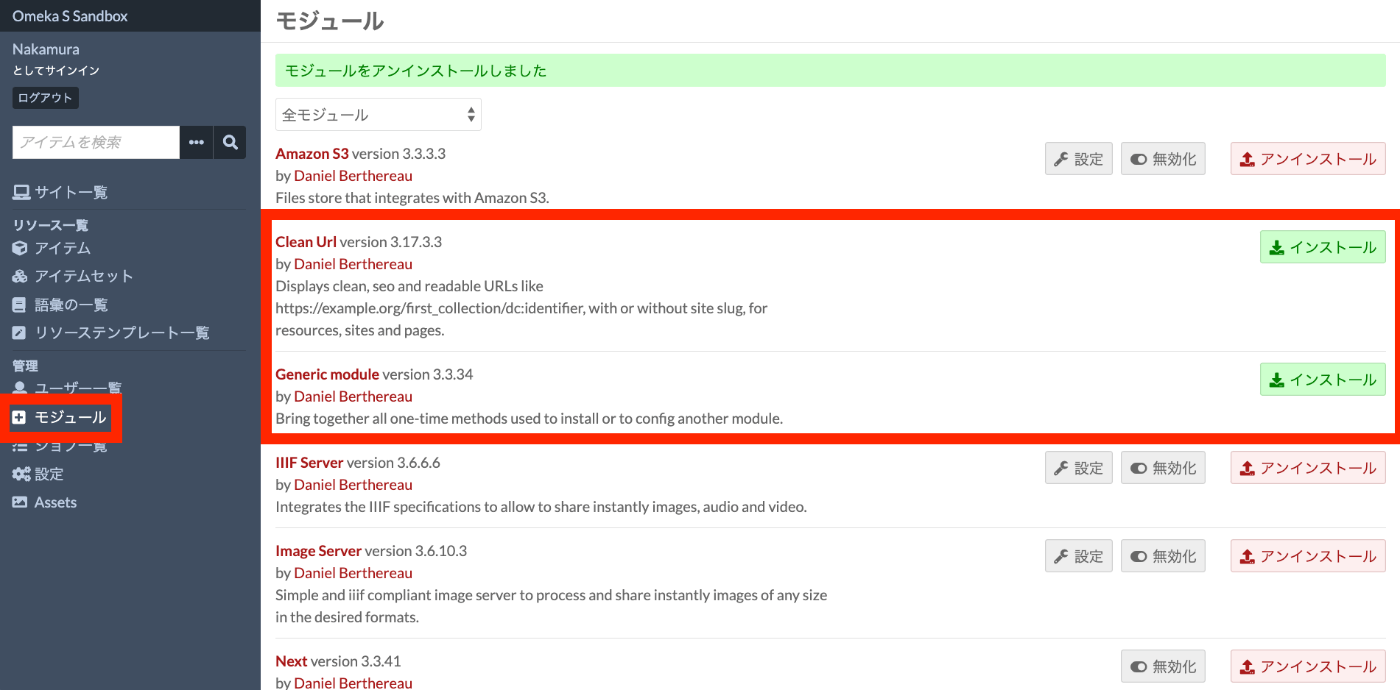
Click “Admin” > “Modules” on the left side of the screen and confirm that “Generic” and “Clean Url” appear in the module list. Click the “Install” button for each, starting with “Generic” then “Clean Url.”
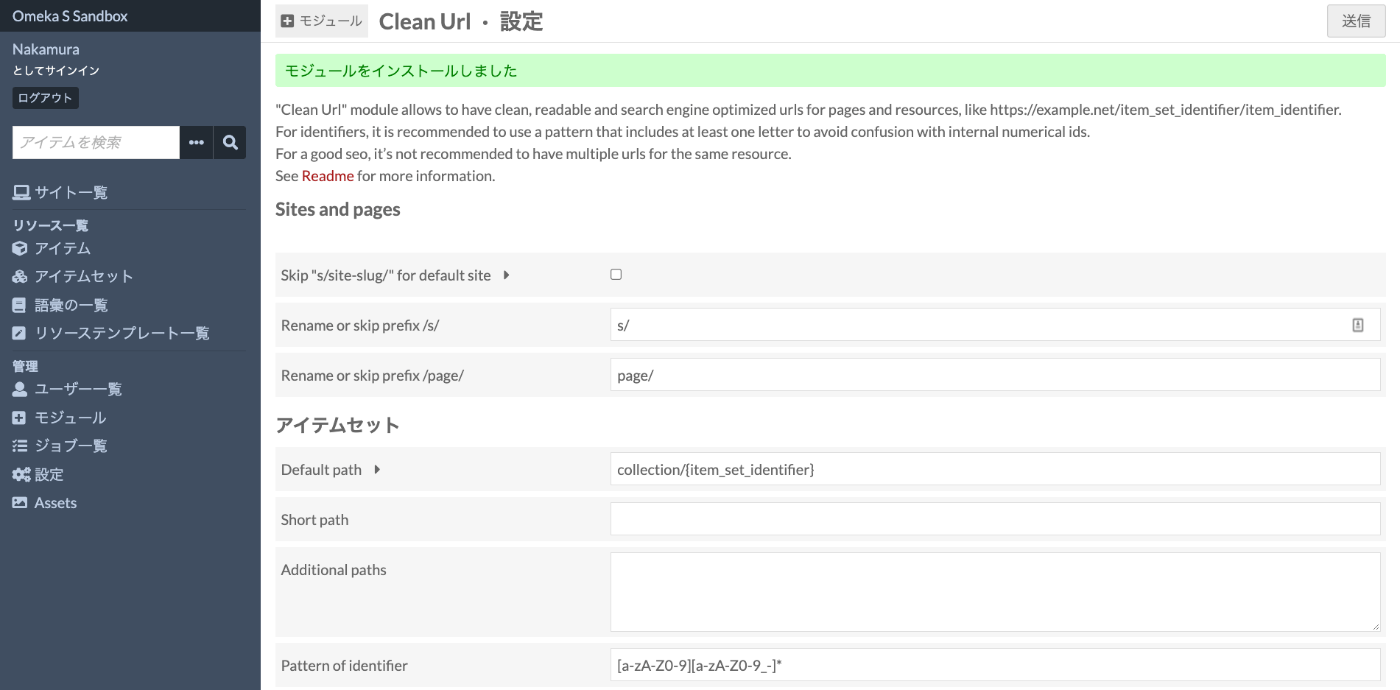
For “Clean Url,” after installation, you will be redirected to the following settings screen. This completes the installation process.
Assigning Identifiers to Items
To verify the behavior of Clean Url, we assign an identifier to an item. The following figure uses dcterms:identifier. Using this property is common, but other properties can also be used. Later, you will configure which property to use as the identifier in the Clean Url module settings screen.
Below, the identifier “test123” has been assigned.
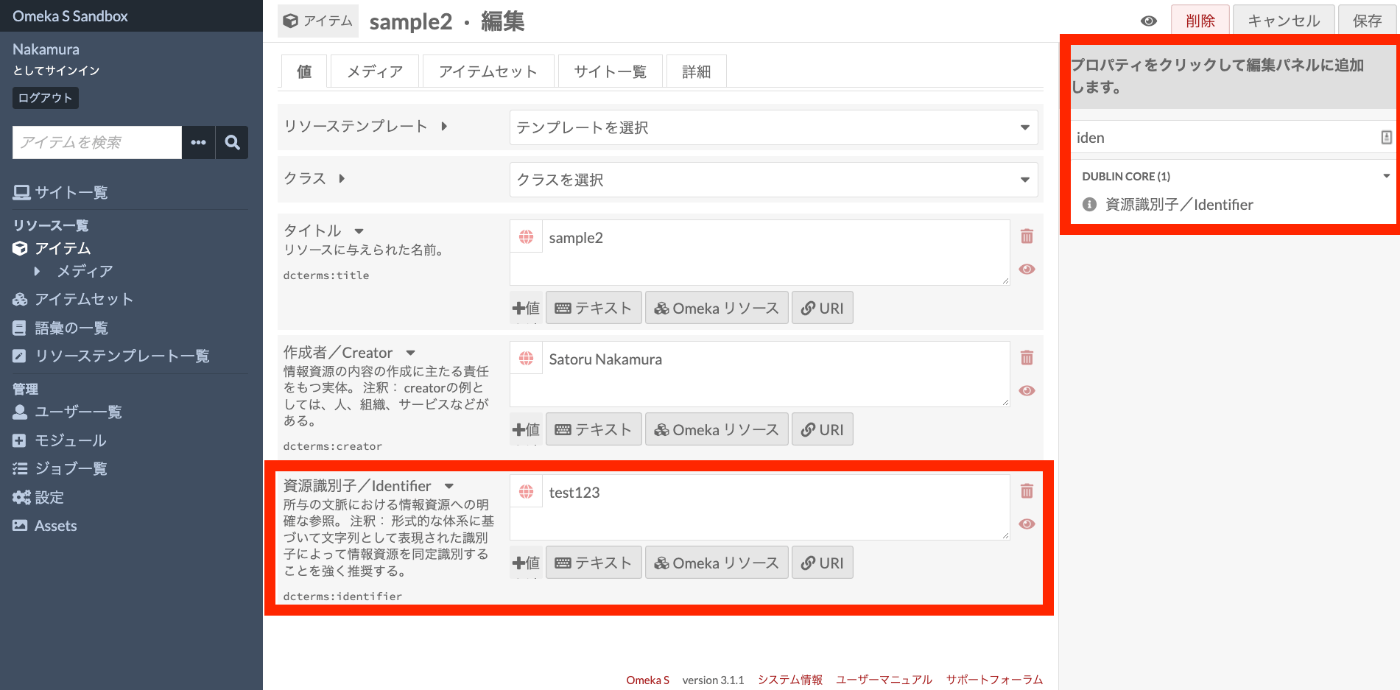
The above item can be accessed at the following URL. Note that Omeka S can build multiple sites internally. The following example shows the item displayed on a site called “test” within Omeka S. The internal ID “3” automatically assigned by Omeka S is included in the URL.
https://shared.ldas.jp/omeka-s-sandbox/s/test/item/3
Reference: Example URL Structure in Omeka S
The structure for accessing items in Omeka S is as follows.
Module Configuration
Click “Modules” on the left side of the screen, then click the “Configure” button for “Clean Url” in the list. The settings shown earlier will be displayed.
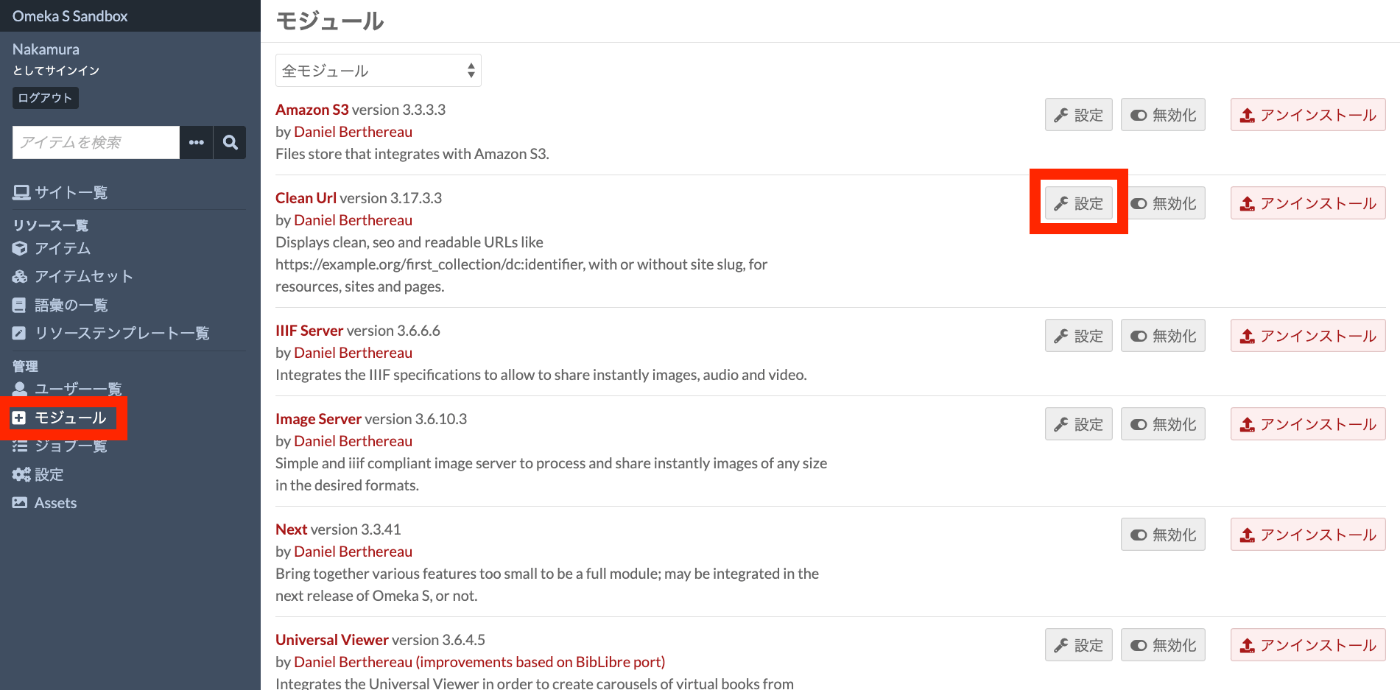
Below are some configuration examples.
Sites and Pages
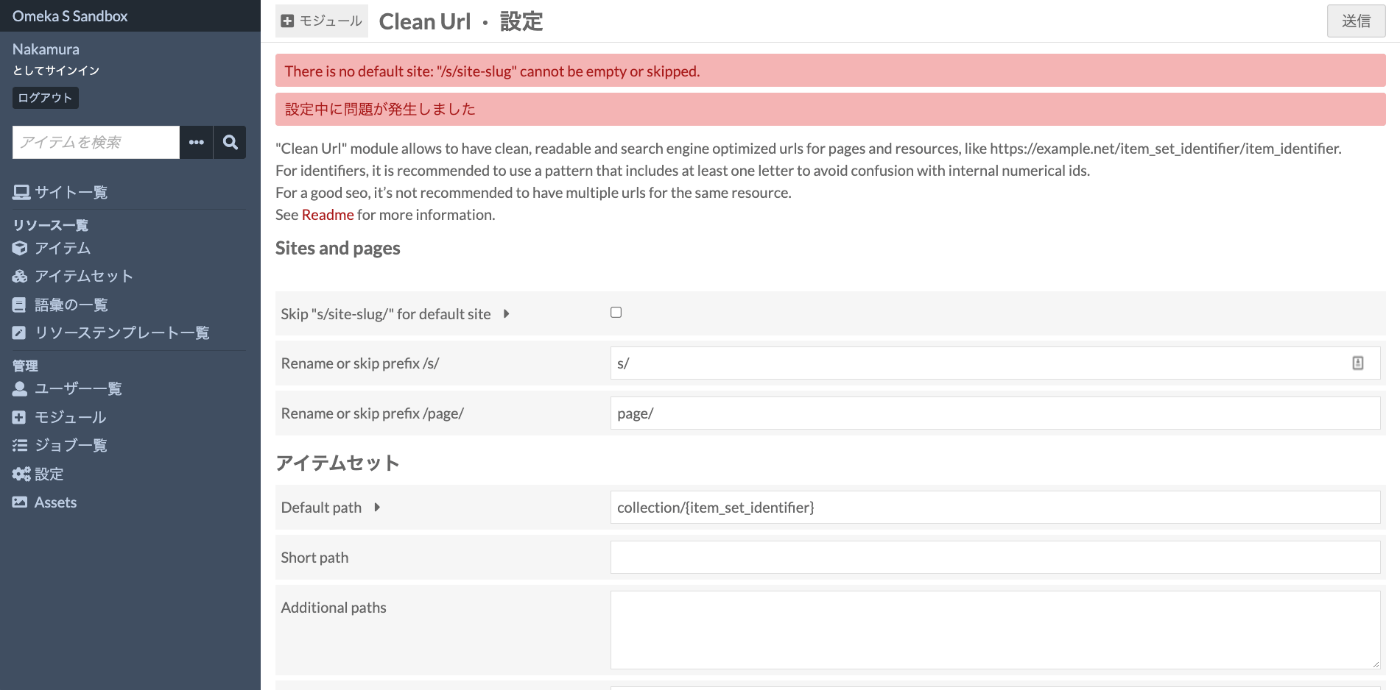
Skip “s/site-slug/” for Default Site
If you configure this item as shown in the figure below,

an error like the following should occur. This is because no default site has been set in Omeka S.
Therefore, as shown below, access “Admin” > “Settings” on the left side and select one of the created sites as the “Default site.”
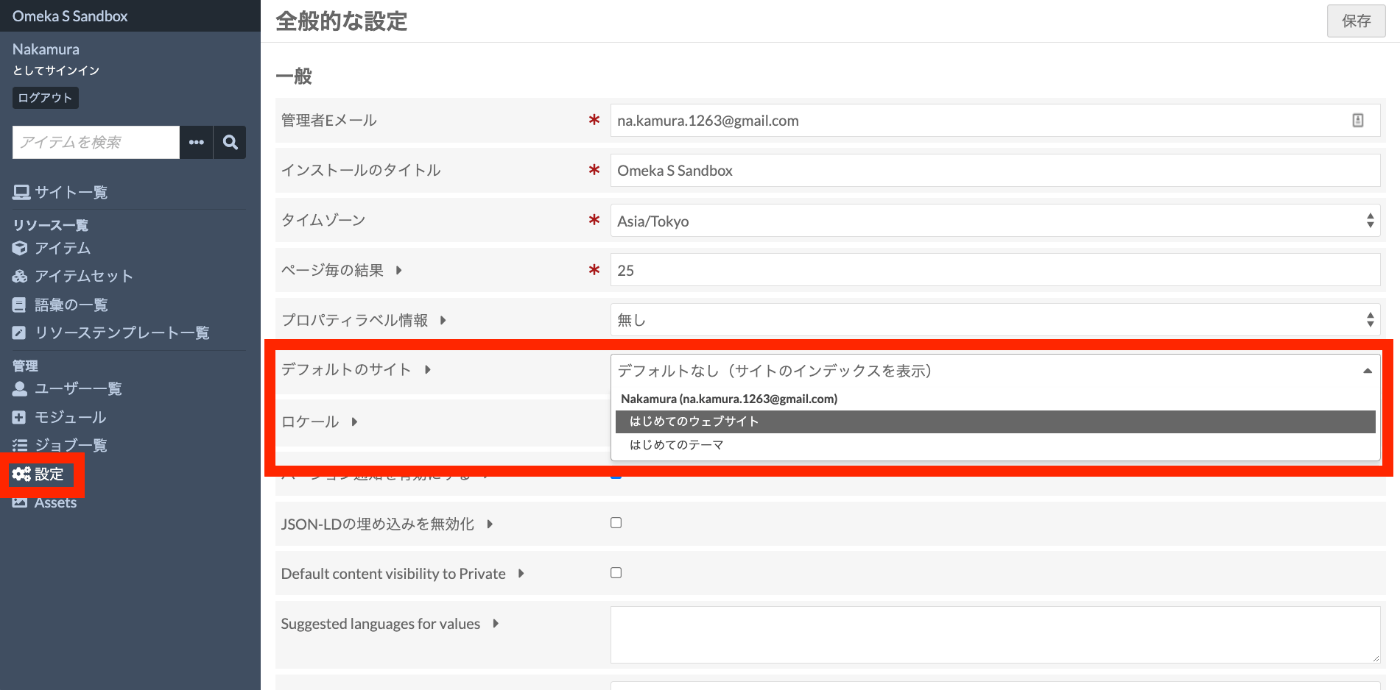
Then, return to the Clean Url settings screen, check Skip "s/site-slug/" for default site, and click the “Submit” button.
Then, navigate to the following screen from the “Sites” list on the left and access each site. In the following example, the site “My First Website” is the default site, and the site “My First Theme” is the non-default site.
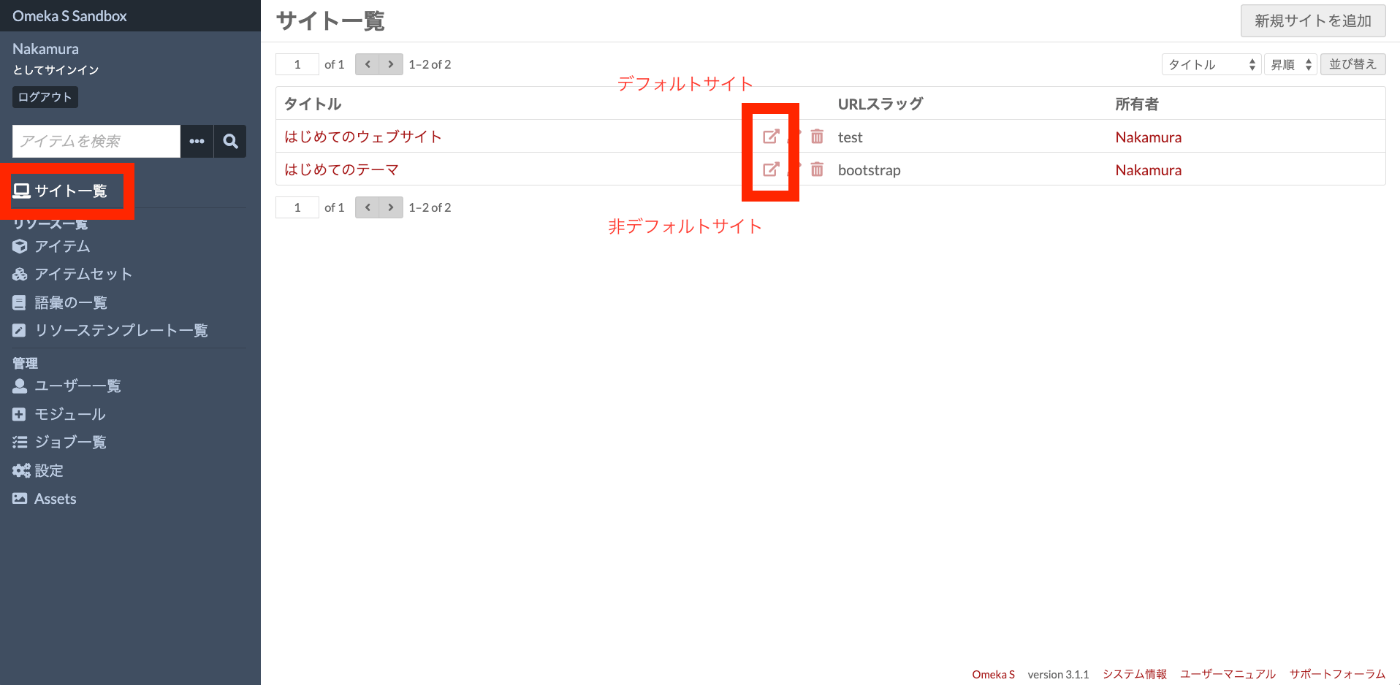
As a result, the former can be accessed at the following simple URL without the “/s/test” string.
https://shared.ldas.jp/omeka-s-sandbox/
The latter retains the standard Omeka S URL structure of “/s/<site name>.”
https://shared.ldas.jp/omeka-s-sandbox/s/bootstrap/
As shown above, if you have a defined default site and want to skip the Omeka S-specific URL structure of “/s/<site name>,” it is recommended to enable this setting Skip "s/site-slug/" for default site.
Items
Default Path
This item allows you to specify the path structure. By default, document/{item_identifier} is entered.
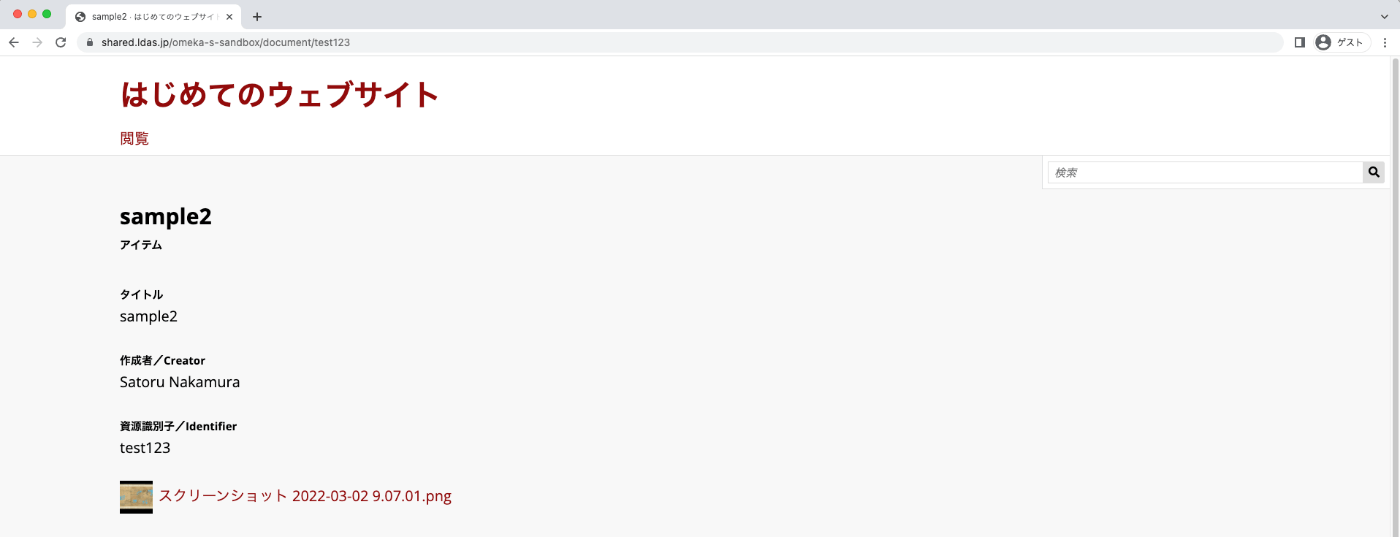
Indeed, by installing the Clean Url module through the process above, you can access the item detail screen at the following URL.
https://shared.ldas.jp/omeka-s-sandbox/document/test123
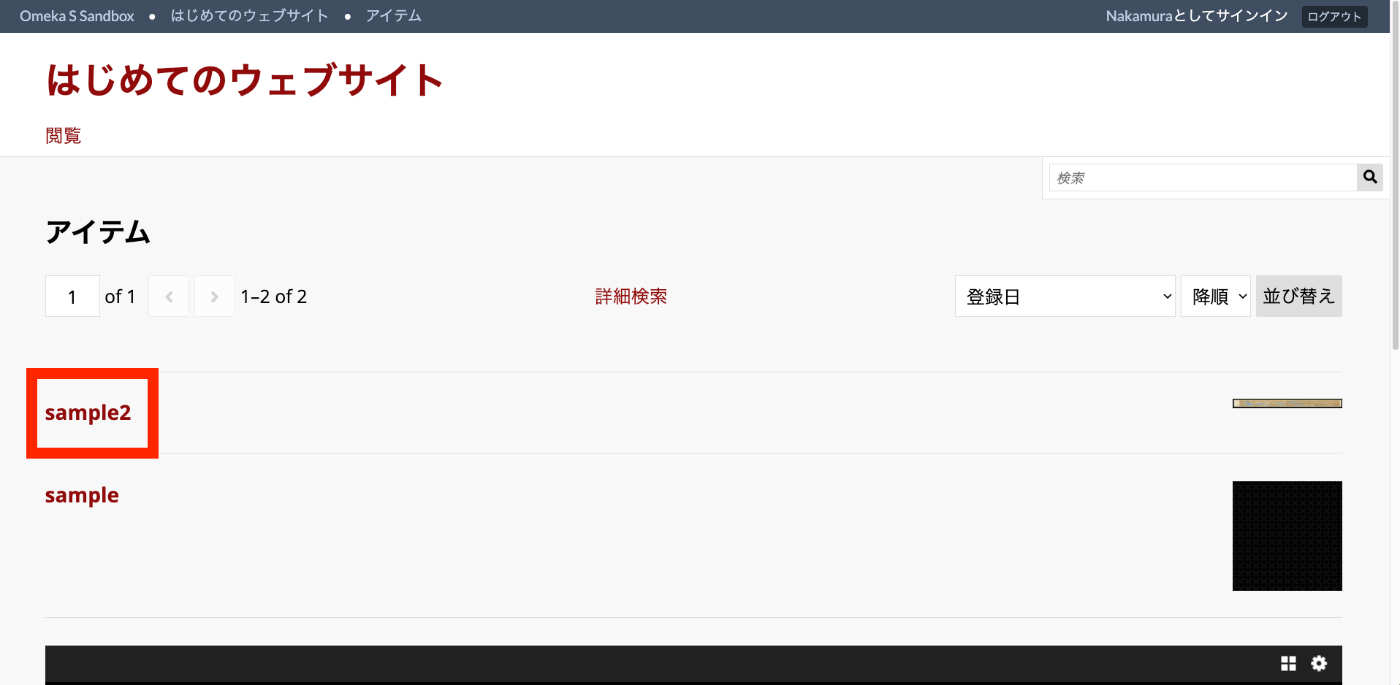
For example, let’s change this item to record/{item_identifier}.

As a result, the following URL will return Page not found.
https://shared.ldas.jp/omeka-s-sandbox/document/test123
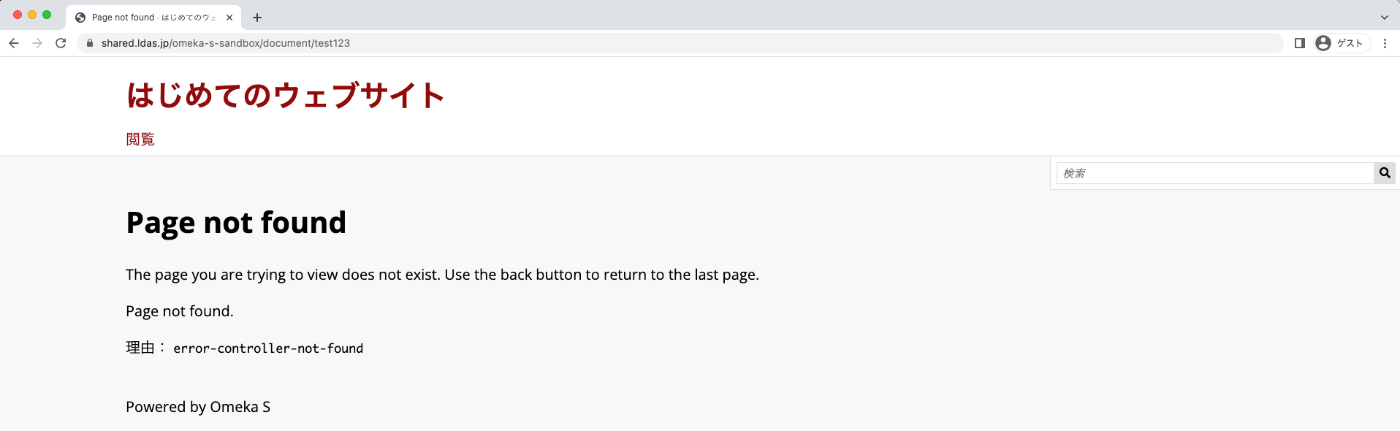
On the other hand, the following URL becomes active.
https://shared.ldas.jp/omeka-s-sandbox/record/test123
As shown above, configure this item when you want to change the URL structure.
Property for Identifier
This item allows you to configure which property value to use as the identifier. Generally, the default value dcterms:identifier is used, but if your project uses a different property, change the value of this item.
Summary
There are many more settings available besides those introduced in this article. I plan to add explanations for these as appropriate. I hope this article is helpful for identifier management in Omeka S.