IIIF画像の表示に Mirador ビューアを使用する方法について説明します。

参考実装

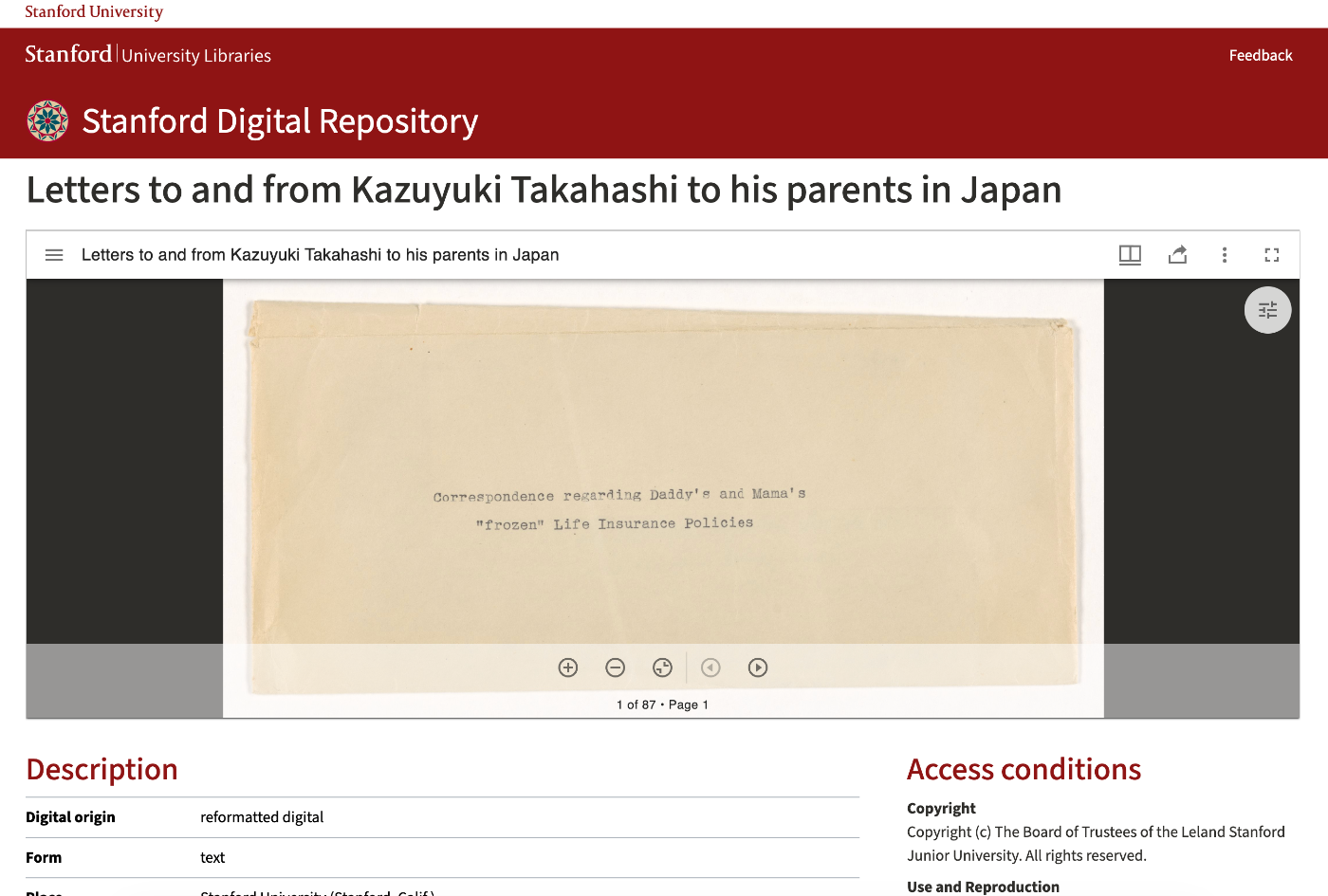
埋め込み方式は、Stanford University Libraries の Stanford Digital Repository を参考にしています。書誌情報の上部にビューアを埋め込み、メタデータと画像を同一ページで閲覧できるようにしています。
ファイル構成

apps/ps.wureebcnbl/v/iicM.cnoil/dmromepacixodar.nolaherdtnVomtirlse//wietre.mt/sx###Mirador

URLパラメータ

/mirador/index.html は以下のURLパラメータを受け付けます:

パラメータ説明
manifestIIIFマニフェストURL(必須)。セミコロン区切りで複数指定可能https://example.com/iiif/manifest.json
embed埋め込みモード(trueで閉じるボタンと左側メニューを非表示)true
themeテーマ(dark または lightdark
lang言語コード(デフォルト: jaja, en
canvas初期表示するキャンバスID-
annotationStateアノテーション表示モード(trueでサイドバー開く)true

使用例

/mirador/index.html?manifest=https://example.com/iiif/manifest.json&embed=true&theme=dark&lang=ja

Mirador設定詳細

index.html の構成

<<!h/Dt<<hOmh/b/tCle<<<<ho<<<bmTammtleddssolYldeeiiayiccsd>Pa>tttnd>vrrcyEnaalk>iir>geippih=cn>rdttpt"haMe=>tmjamil"s>larer=mr>"s=a"ic>e"dsr=tvota"=irydh"e<lotuw/erttpts"pfoihs-rtes:8tlet/""ety/>"lucenoh=pnr"ktepgefo.n=sct"io=htm"tiwtmipnids:rt:ah/ad=/bodfsreoo@vnllituacstte.ee-g;swotiotdgdtlpihe:s,atp0/ii;mnsii.brtcoaiotdamtol/or-cm.ss:mcsia?0nlf;.eaj=mls1ie",lf>yt<s=:/hRsro0cib;rnoiktrp-oitt:g>o3h-0tf0:i,t40=0"n0>o,<"5/0d0i"v>

URLパラメータの解析

vvf}aaorrrvviviaafafvprrraav((rrakkkvksareeeaemyyyly=iSS=e=e=!{=aa=}lr"rp;o0c"ca"c;h;hr"aa)ti=!mi=[vo<piana-]r.pr1.ssaa)s[ermlkaa[kiermiecyc.]ye]hl.(.es=p=sneaugaprdbtraaeshcrmct;ha[or(midii[]en=i.Ug/]iR().nI1;sd(){lev.ixascOlpef)l((;i0"t,=(""k,&e"y0)S);ea+rc1h));;

ウィンドウ設定

vi}afrvvf}aaowvrrrvv}i}wiaaa;finrmarrmtondsarvahbdo[nramonuvjow"iarabima.wsmfynjfbrcsaeiiensa.=ns=f=sa[npit=eti"vu[fsms{Ilcas]ea0tdNash;s=n;:anI(ti=vvdo"vfimiab]aedags=j)rs<ena")stcit]v;{[saofi)a".rdeormsresn{sapaUtP[nlyR,o"ii.IscftlCiae(eotns"nmivt;gpoa""tons])hn:";;;e]n";itf+(a+ar)r-rr{aiyg[hit]"),;

ウィンドウ動作設定

v}i}i}affraawwwwwlliiiiiwllvnnnvnniooadddaddnwwroooroodCFswwwswwolu[SSS[SSwol"eee"eeSslattt:etteesntttmttt:cniiiUbiitronnnIennitetgggdggnreasss"ssgunt...]..se:ihsdaa,oiie=ll=tngdf=llrShea=oo{utlBuwweaial"CM,tgrttlaehOSrox"tpiusi]Aedeem)lne"ilB)=z{A=aenr{fntPa=oraltunsfaeeeat;l;liso=en;s'a=nntortuaet;ions';

ワークスペースコントロールパネル

左側のメニュー(マニフェスト追加、ワークスペース管理など)の表示制御:

varworkspaceControlPanelEnabled=vars["embed"]!=="true";
  • 通常モード: true(表示)
  • 埋め込みモード: false(非表示)

テーマ設定

Miradorは lightdark の2つのテーマを提供しています:

vM}ai)rrs;aeidlsoeDrca.trvekidMeTowhdeeerm(e={:viasrDsa[r"ktMhoedmee"?]"=d=a=rk""da:rk""l;ight",

カスタムテーマを追加する場合は themes オプションを使用します:

M}i)rst};aeh,dlec}oemu,rcesp}.tsta,ve:oltp}idmeyr,eT{:tpimwhtemaee{e:airm:rn(e'y:{:{d:a''r{#ck8u'0s,1t0o4mE'',,

言語設定

vM}ai)rrl;aaldnaognrug.auvgaiege:ewel=ra(nv{gaurasg[e",lang"]"ja";:

Miradorがサポートする言語:ar, de, en, fr, ja, lt, nl, pt-BR, vi, zh-CN, zh-TW など

完全な初期化コード

/mirador/index.html?manifest=https://example.com/iiif/manifest.json&embed=true&theme=dark&lang=ja

0


React コンポーネント(MiradorViewer.tsx)

ダークモード検出

/mirador/index.html?manifest=https://example.com/iiif/manifest.json&embed=true&theme=dark&lang=ja

1

言語設定の取得

/mirador/index.html?manifest=https://example.com/iiif/manifest.json&embed=true&theme=dark&lang=ja

2

URL生成

/mirador/index.html?manifest=https://example.com/iiif/manifest.json&embed=true&theme=dark&lang=ja

3

iframe埋め込み

全画面表示を許可するために allow="fullscreen"allowFullScreen 属性を設定します:

/mirador/index.html?manifest=https://example.com/iiif/manifest.json&embed=true&theme=dark&lang=ja

4


環境変数

変数名説明デフォルト
NEXT_PUBLIC_MIRADOR_PATHMiradorのベースパス/mirador/

開発環境と本番環境

/mirador/index.html?manifest=https://example.com/iiif/manifest.json&embed=true&theme=dark&lang=ja

5


関連リンク